Get One Month of Starlink FreeSPECIAL OFFER: GET A FREE MONTH OF STARLINK >
9

Troubleshooting & Fixes

Useful fixes for Starlink dropouts, obstructions, slow speeds, Wi-Fi faults and hardware problems.

More from Troubleshooting & Fixes

View playlist

Why Starlink Fails (and how to fix it): Rain, Obstructions & Solar Storms

Speedify tests Starlink dropouts caused by rain, signal loss, dish blockage, and other conditions, with practical troubleshooting context. Starlink Tips viewing notes: Separate evidence of a dish interruption from a local Wi-Fi problem. Note the exact time a meeting fails and compare it with app events rather than attributing every interruption to the weather. A wired-versus-wireless comparison can identify an indoor coverage issue even when outdoor conditions are poor. Do not relocate equipment during dangerous weather or attempt unsafe roof access. Use the related troubleshooting answers to decide what to record and which support route to use. This creator's examples provide context; your own event history is the stronger starting point for diagnosing your installation. Related guides and practical Q&A are linked in the questions section below. For the referral offer, use the “Claim Your Free Month” button beneath the player. Order through my referral link and activate your service. Your second month of Starlink service will be free.
Why Starlink Fails (and how to fix it): Rain, Obstructions & Solar Storms

Speedify tests Starlink dropouts caused by rain, signal loss, dish blockage, and other conditions, with practical troubleshooting context. Starlink Tips viewing notes: Separate evidence of a dish interruption from a local Wi-Fi problem. Note the exact time a meeting fails and compare it with app events rather than attributing every interruption to the weather. A wired-versus-wireless comparison can identify an indoor coverage issue even when outdoor conditions are poor. Do not relocate equipment during dangerous weather or attempt unsafe roof access. Use the related troubleshooting answers to decide what to record and which support route to use. This creator's examples provide context; your own event history is the stronger starting point for diagnosing your installation. Related guides and practical Q&A are linked in the questions section below. For the referral offer, use the “Claim Your Free Month” button beneath the player. Order through my referral link and activate your service. Your second month of Starlink service will be free.
Questions & answers

Questions about this video

Straight answers to the questions readers ask most often.

Will Starlink work if trees or buildings block the sky?

Trees and buildings can interrupt Starlink when they block the path between the dish and a satellite. An installation can connect successfully and still suffer interruptions, so an occasional good speed test is not proof that the location is suitable.

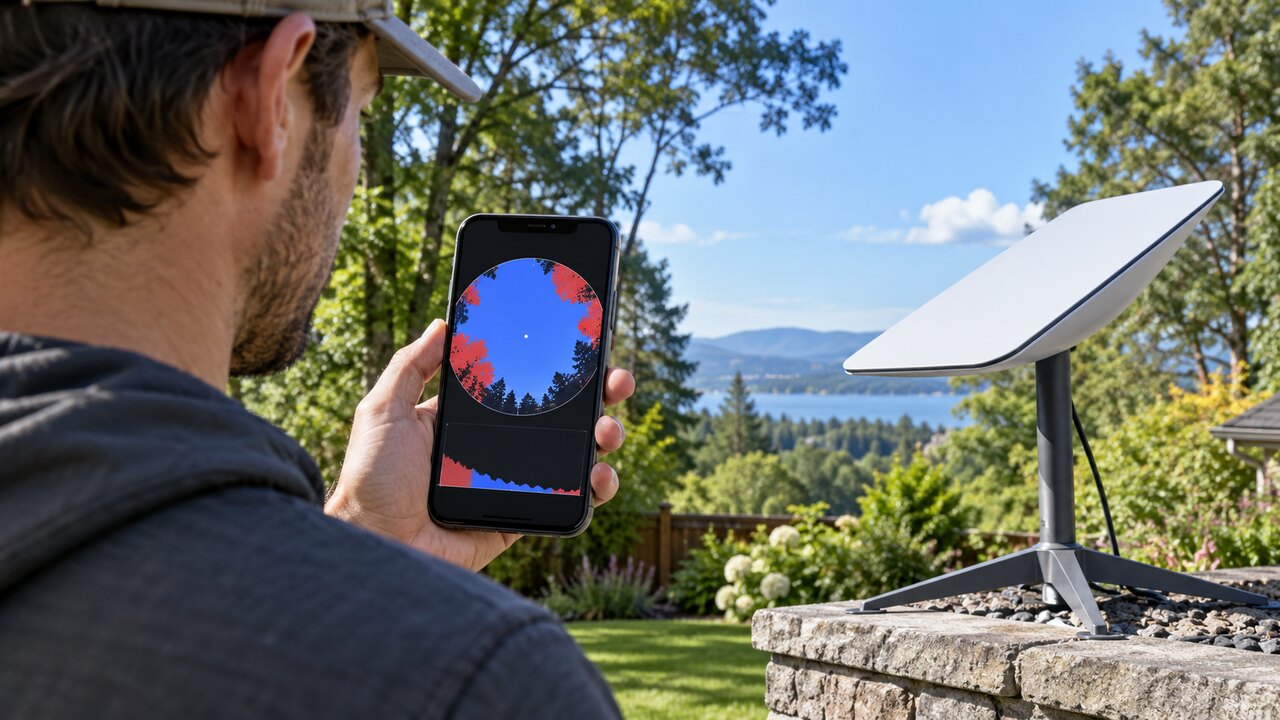
Use the Starlink app's obstruction tool to assess the proposed position before committing to a mount. Our practical checklist is:

  1. Compare several safely accessible positions around the property.
  2. Assess the intended dish position and height as closely as safe access allows. A check from the middle of the garden does not establish that a position beside the house will work.
  3. Consider how the view may change: leaves, growing branches, parked vehicles and future building work.
  4. Plan the cable route and maintenance access alongside the sky view.
  5. After installation, compare any interruption times with the app's obstruction information and your actual calls or other live applications.

A stronger indoor router or mesh system addresses local Wi-Fi coverage; it cannot remove a physical obstacle in the dish's view. If a clearer location requires work at height, ask a suitable installer to assess it.

Read our ground-mount location guide. For a related demonstration, see the video in our library: Why Starlink Fails: Rain, Obstructions & Solar Storms. A creator's demonstration is not a guarantee of results at your property.

Technical reference: Starlink Standard installation guide.

Reviewed: 23 September 2026.

Get One Month of Starlink Free

Claim Your Free Month

Order through my referral link and activate your service. Your second month of Starlink service will be free.
Open and share this answer
How can I tell whether Starlink has an outage or my own equipment is faulty?

Compare official alerts with what is happening on your own network. A social-media report from another region may be useful context, but it does not establish that your fault has the same cause.

Check:

  1. The Starlink app for a current outage or service notice.
  2. Whether multiple devices are affected.
  3. Whether the local Wi-Fi network is still available.
  4. Power and accessible connections.
  5. The timing of any recent local change.
  6. Whether the problem persists after the official notice clears.

A local power or cable fault can occur at the same time as a wider outage, so keep the symptoms separate. Avoid repeatedly resetting equipment while an identified network incident is being resolved.

If connectivity is essential, switch to your tested fallback rather than waiting without an alternative. After restoration, confirm normal use and keep the outage times for your records. Contact support if your connection remains down or behaves differently from the resolved incident.

Read our related guide: How to Follow Starlink Outage and Service Updates.

Related official guidance: Starlink Help Center.

Reviewed: 23 September 2026. Plan and hardware details should be checked for your country and equipment.

Get One Month of Starlink Free

Claim Your Free Month

Order through my referral link and activate your service. Your second month of Starlink service will be free.

Open and share this answer
Does heavy rain or snow interrupt Starlink?

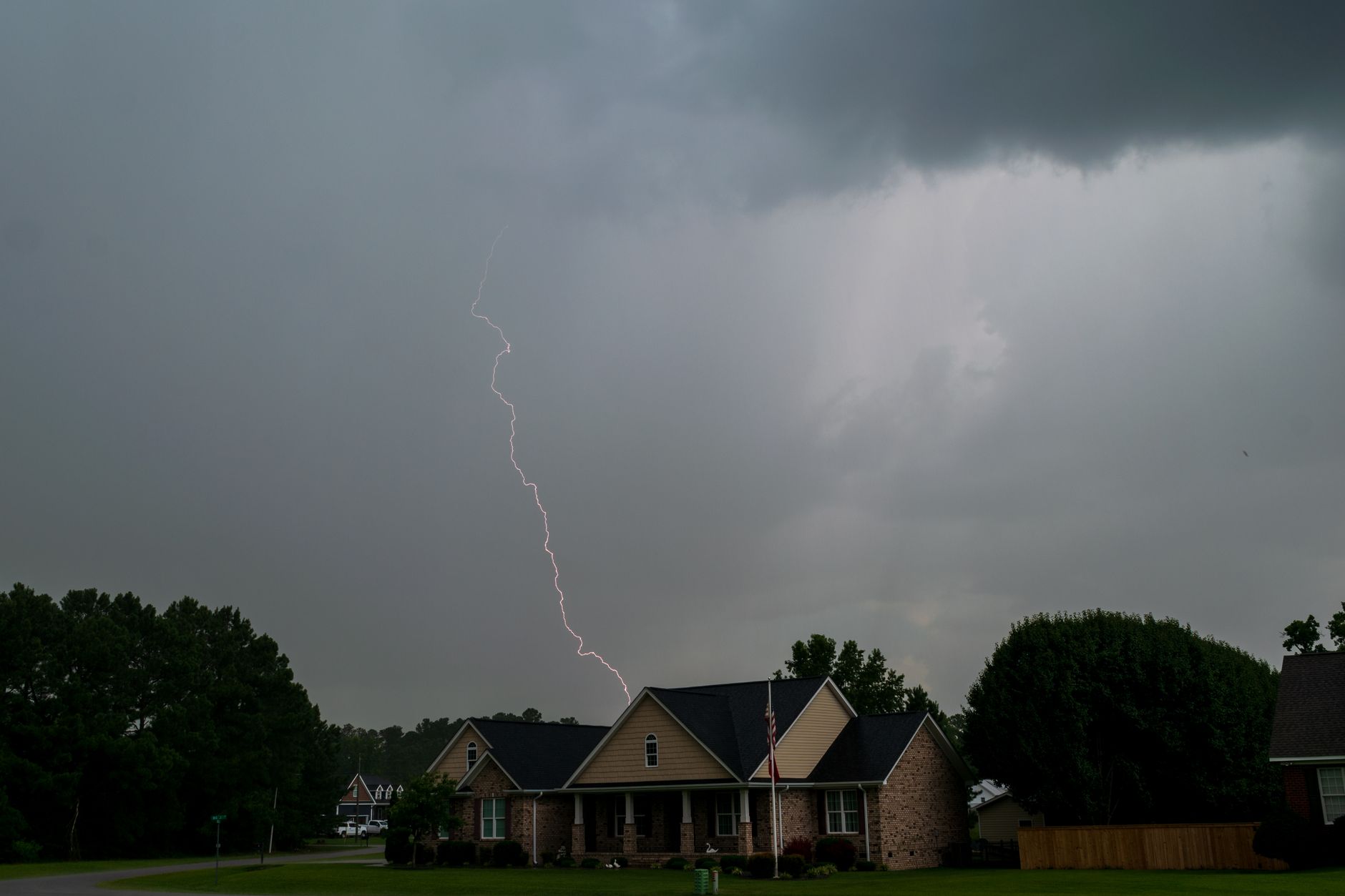
Severe weather can interrupt Starlink. Its support guidance says moderate to heavy rain, snow or hail can cause momentary dropouts; weather affecting a ground station can also matter even when conditions at your property look clear.

A secure installation, an unobstructed sky view and correctly seated cables help avoid preventable problems, but they cannot remove every weather-related interruption. Plan a second connection if a brief outage would disrupt important work.

During a storm, use the app to check status from a safe place. Avoid repeated resets: resetting cannot clear a weather blockage and may introduce a separate setup problem. Do not go onto a roof, touch damaged electrical equipment or attempt outdoor repairs in hazardous conditions.

After conditions improve, inspect accessible equipment for movement, impact damage and new obstructions. Check cables only using the instructions for your hardware; wet or damaged connections need appropriate attention before reuse.

If the service remains unreliable in clear weather, record the app alerts and times of the interruptions and investigate the installation or contact support.

Read our related guide: How to Protect Starlink From Power Surges and Lightning.

Related official guidance: Starlink weather guidance.

Reviewed: 23 September 2026. Plan and hardware details should be checked for your country and equipment.

Get One Month of Starlink Free

Claim Your Free Month

Order through my referral link and activate your service. Your second month of Starlink service will be free.

Open and share this answer
Browse all questions