Get One Month of Starlink FreeSPECIAL OFFER: GET A FREE MONTH OF STARLINK >
12

Getting Started & Installation

Getting started with Starlink: practical walkthroughs for first-time setup, activation, dish placement and installation.

More from Getting Started & Installation

View playlist

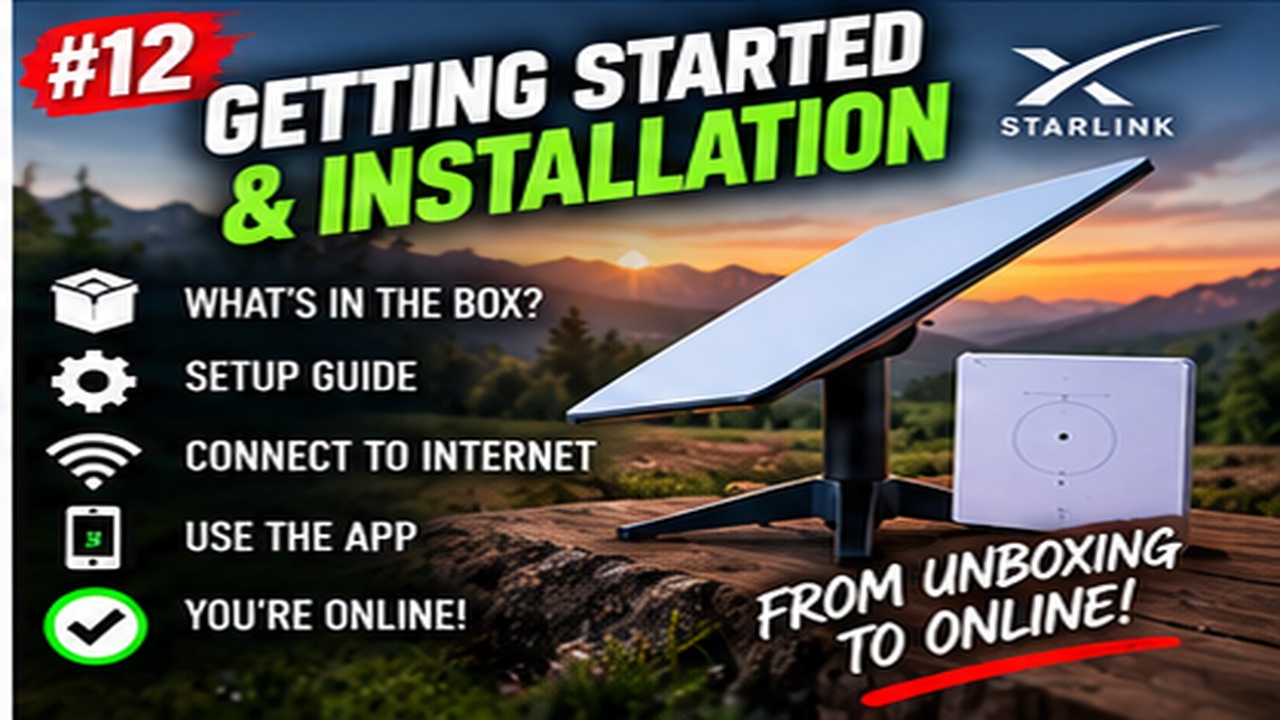
How to Set Up Starlink Satellite Internet: Step-by-Step Installation Guide

Markos provides a step-by-step guide to setting up Starlink satellite internet. Starlink Tips practical notes: Before following a setup demonstration, identify your kit model and compare the cable and port layout with its current official guide. Prepare account access and a safe dish position before committing to a permanent cable route. After the kit comes online, test the devices you actually use rather than stopping at a phone speed test. The related answers distinguish activation, Wi-Fi setup and local-device migration, which are separate parts of getting the household working. For further reading, open the related Q&As below; each links to a fuller guide. Get One Month of Starlink Free: use the “Claim Your Free Month” referral button beneath the player. Order through my referral link and activate your service. Your second month of Starlink service will be free.

How to Set Up Starlink Satellite Internet: Step-by-Step Installation Guide

Markos provides a step-by-step guide to setting up Starlink satellite internet. Starlink Tips practical notes: Before following a setup demonstration, identify your kit model and compare the cable and port layout with its current official guide. Prepare account access and a safe dish position before committing to a permanent cable route. After the kit comes online, test the devices you actually use rather than stopping at a phone speed test. The related answers distinguish activation, Wi-Fi setup and local-device migration, which are separate parts of getting the household working. For further reading, open the related Q&As below; each links to a fuller guide. Get One Month of Starlink Free: use the “Claim Your Free Month” referral button beneath the player. Order through my referral link and activate your service. Your second month of Starlink service will be free.

Questions & answers

Questions about this video

Straight answers to the questions readers ask most often.

Can I install Starlink myself, or do I need an installer?

A straightforward setup may be suitable for self-installation when you can safely position the kit, connect its supplied components and follow the guide for that model. Permanent work at height, difficult cable entries or uncertain mounting surfaces are different tasks.

Before deciding, separate the job into three parts:

  • Setting up and testing the equipment.
  • Securing a suitable permanent mount.
  • Routing and weatherproofing the cable into the building.

You may be comfortable with the first part but need help with the others. Do not treat a successful temporary test as proof that an improvised permanent mount is adequate.

Ask a suitable installer when access is difficult, the structure is unfamiliar or you cannot identify a safe cable route. Describe the building and hardware before accepting a quote.

Our recommendation is to test a safely accessible position first, then agree a permanent solution that balances sky view, secure fixings and future maintenance. Follow the exact model's instructions rather than copying another generation's installation video.

Read our related guide: How to Prepare Your Home for a Starlink Installation Day.

Related official guidance: Starlink Standard setup guide.

Reviewed: 23 September 2026. Plan and hardware details should be checked for your country and equipment.

Get One Month of Starlink Free

Claim Your Free Month

Order through my referral link and activate your service. Your second month of Starlink service will be free.

Open and share this answer
Which direction should my Starlink dish face?

Follow the alignment process for your own Starlink model instead of assuming that every dish should point in the same compass direction.

The Standard 4 X setup guide uses app-assisted manual alignment: after connection, an app alert indicates when rotation is needed and opens the alignment tool. Other generations have different mechanisms, so identify your hardware first.

A useful setup sequence is:

  1. Choose a position with a suitable sky view.
  2. Assemble the approved stand or mount as instructed.
  3. Connect the correct cables and power equipment.
  4. Follow the app's alignment prompt where offered.
  5. Recheck the installation after securing the final mount.

Alignment and obstruction checks solve different problems. Correct orientation will not remove a nearby roof or tree from the required view.

Do not force a motorised dish by hand or change its angle repeatedly to chase one speed-test result. If the only position you can reach requires unsafe access, ask an installer to carry out the adjustment.

Read our related guide: What to Tell a Starlink Installer Before They Arrive.

Related official guidance: Starlink Standard setup guide.

Reviewed: 23 September 2026. Plan and hardware details should be checked for your country and equipment.

Get One Month of Starlink Free

Claim Your Free Month

Order through my referral link and activate your service. Your second month of Starlink service will be free.

Open and share this answer
What should I check when setting up Starlink for the first time?

Use the installation guide for the kit you received, then test the complete connection before tidying away packaging or committing to permanent fixings.

Our first-start checklist is:

  • Confirm the correct kit, cables, power supply and any ordered mount are present.
  • Check for visible transit damage.
  • Choose a safe temporary position with a suitable sky view.
  • Connect each component according to the model-specific diagram.
  • Follow the Starlink app's setup and alignment prompts.
  • Set a distinctive Wi-Fi name and a strong password.
  • Test more than one device and the rooms where the service will be used.

Keep the account sign-in and Wi-Fi password conceptually separate: one manages the subscription, while the other connects devices to the home network.

If setup stalls, note the exact app message and check the guide before repeating resets. An account activation issue, an obstructed location and a poorly seated connector require different responses. Retain the order details and packaging until you are satisfied with the installation.

Read our related guide: How to Prepare Your Home for a Starlink Installation Day.

Related official guidance: Starlink Standard setup guide.

Reviewed: 23 September 2026. Plan and hardware details should be checked for your country and equipment.

Get One Month of Starlink Free

Claim Your Free Month

Order through my referral link and activate your service. Your second month of Starlink service will be free.

Open and share this answer
How should I prepare my property before a Starlink installer arrives?

Prepare the information and access the installer needs, while leaving technical and safety decisions to the person carrying out the work.

Before the appointment:

  1. Confirm the kit model and parts you have received.
  2. Share photographs of the building, likely dish positions and obstacles.
  3. Identify the rooms where Wi-Fi matters most.
  4. Discuss the preferred router position and power socket.
  5. Clear safe access to the agreed work areas.
  6. Tell the installer about known fragile surfaces, concealed services or access restrictions.
  7. Keep account access available on your own device for setup.

Do not pre-drill holes or move a heavy mast based on a guess about the final route. That can restrict the installer's safer options.

Arrange a time when someone can test normal devices before the installer leaves. If there are tenants, shared spaces or neighbouring access issues, resolve the necessary permissions beforehand.

Our recommendation is to agree the proposed location and cable route on arrival before permanent fixings begin.

Read our related guide: How to Prepare Your Home for a Starlink Installation Day.

Related official guidance: Starlink Standard setup guide.

Reviewed: 23 September 2026. Plan and hardware details should be checked for your country and equipment.

Get One Month of Starlink Free

Claim Your Free Month

Order through my referral link and activate your service. Your second month of Starlink service will be free.

Open and share this answer
Should I order Starlink directly or buy from a retailer?

Both buying routes can get you started with Starlink. The best choice is the one that offers the right kit, clear purchase terms and service availability at your address. Compare the complete cost and any eligible offers before deciding.

With a retail kit, buying the hardware and activating a Starlink subscription are separate steps. Starlink directs retail purchasers to its activation process, where the kit identifier, service location and available plan are checked.

What to check before ordering

Before purchase, confirm that the retailer is authorised, identify the exact hardware and check which service is available at your intended address. A sealed box on a shop shelf does not reserve Residential capacity. Compare accessories, delivery, returns handling and the full activated price.

Do not assume a direct-order promotion or referral offer also applies to a retail transaction. Check the terms of the specific offer before deciding where to order.

Keep the receipt and packaging while you complete activation and test the kit. If activation fails, record the exact error and contact the retailer or Starlink through their official support channels as appropriate.

Next useful answers

Related guides

Related video

How to Set Up Starlink Satellite Internet: Step-by-Step Installation Guide

This related demonstration may show older hardware or plan details; use the official guidance below for current requirements.

See the setup process

Starlink Home Setup: Order, Connect & Configure provides a practical walkthrough. Follow the current instructions for the exact kit you buy.

Sources

Reviewed: 26 September 2026. Practical checklists are our editorial recommendations; plan availability and hardware requirements vary by country and model.

Get One Month of Starlink Free

Claim Your Free Month

Eligible orders through my referral link can receive a service credit for the second month after activation. Check the offer and eligibility shown by Starlink before ordering.

Starlink Tips is independent and may receive a referral reward. See the offer shown by Starlink when ordering.

Open and share this answer
Can Starlink provide internet without a phone line or mobile signal?

Yes. Starlink can provide internet without a landline or local mobile coverage because its dish connects to satellites. That makes it worth considering for a home or remote location where conventional connections are limited. It still needs power, a suitable sky view and an active service.

What to check before ordering

Your phone normally joins the Starlink Wi-Fi network to use that connection. Losing mobile coverage does not itself mean the dish will stop working. However, account sign-in, app downloads and verification can be awkward if you arrive with nothing prepared.

Before going somewhere remote, download the official app and the guide for your model, check access to your email and account, and complete activation where practical. Retail activation arrangements can differ from an already active kit, so check the relevant instructions before departure. Keep essential instructions available offline. A working satellite link also does not automatically enable your mobile provider's Wi-Fi Calling service.

Next useful answers

Related guides

Related video

How to Set Up Starlink Satellite Internet: Step-by-Step Installation Guide

This related demonstration may show older hardware or plan details; use the official guidance below for current requirements.

Plan your first connection

Watch Starlink Home Setup: Order, Connect & Configure alongside the official setup guide for your kit.

Sources

Reviewed: 26 September 2026. Practical checklists are our editorial recommendations; plan availability and hardware requirements vary by country and model.

Get One Month of Starlink Free

Claim Your Free Month

Eligible orders through my referral link can receive a service credit for the second month after activation. Check the offer and eligibility shown by Starlink before ordering.

Starlink Tips is independent and may receive a referral reward. See the offer shown by Starlink when ordering.

Open and share this answer
Can I keep my old Wi-Fi name and password when switching to Starlink?

You can choose a network name and password during supported Starlink router setup. Reusing the old details may let some devices reconnect automatically, provided their security and band requirements are compatible.

Our migration checklist is to record the exact spelling, capitalisation and password, then test essential devices individually. Cameras, printers and smart-home equipment may still need attention because local addresses or other network settings can change.

Switch off the old router's Wi-Fi during the final test unless you intentionally designed the two systems to work together. Otherwise, a phone might remain connected to the old broadband and make the Starlink migration appear more complete than it is.

If the old password was weak or widely shared, use the move as an opportunity to replace it. Convenience should not carry an insecure password into the new setup. Keep account-login details separate from Wi-Fi credentials.

Next useful answers

Related guides

Related video

How to Set Up Starlink Satellite Internet: Step-by-Step Installation Guide

This related demonstration may show older hardware or plan details; use the official guidance below for current requirements.

Sources

Reviewed: 26 September 2026. Practical checklists are our editorial recommendations; plan availability and hardware requirements vary by country and model.

Get One Month of Starlink Free

Claim Your Free Month

Order through my referral link and activate your service. Your second month of Starlink service will be free.

Starlink Tips is independent and may receive a referral reward. See the offer shown by Starlink when ordering.

Open and share this answer
Why is my Starlink still searching for satellites after a restart?

Searching means the kit has not yet established the connection it needs. A short startup period can be normal; a persistent problem needs the exact app message and context rather than repeated power cycling.

Our first checks are whether the dish is in its intended outdoor position, whether anything has moved into its view, and whether the app shows a separate activation, alignment or equipment alert. Follow the setup instructions for your model and give an update or startup process time to finish.

If the issue began after moving house or changing plans, check the registered service and account status as well as the physical setup. Do not force a motorised dish by hand.

Record how long the state persists and what changed before it began. If it does not recover after the documented checks, contact official support with that information.

Next useful answers

Related guides

Related video

How to Set Up Starlink Satellite Internet: Step-by-Step Installation Guide

This related demonstration may show older hardware or plan details; use the official guidance below for current requirements.

Sources

Reviewed: 26 September 2026. Practical checklists are our editorial recommendations; plan availability and hardware requirements vary by country and model.

Get One Month of Starlink Free

Claim Your Free Month

Order through my referral link and activate your service. Your second month of Starlink service will be free.

Starlink Tips is independent and may receive a referral reward. See the offer shown by Starlink when ordering.

Open and share this answer
Browse all questions