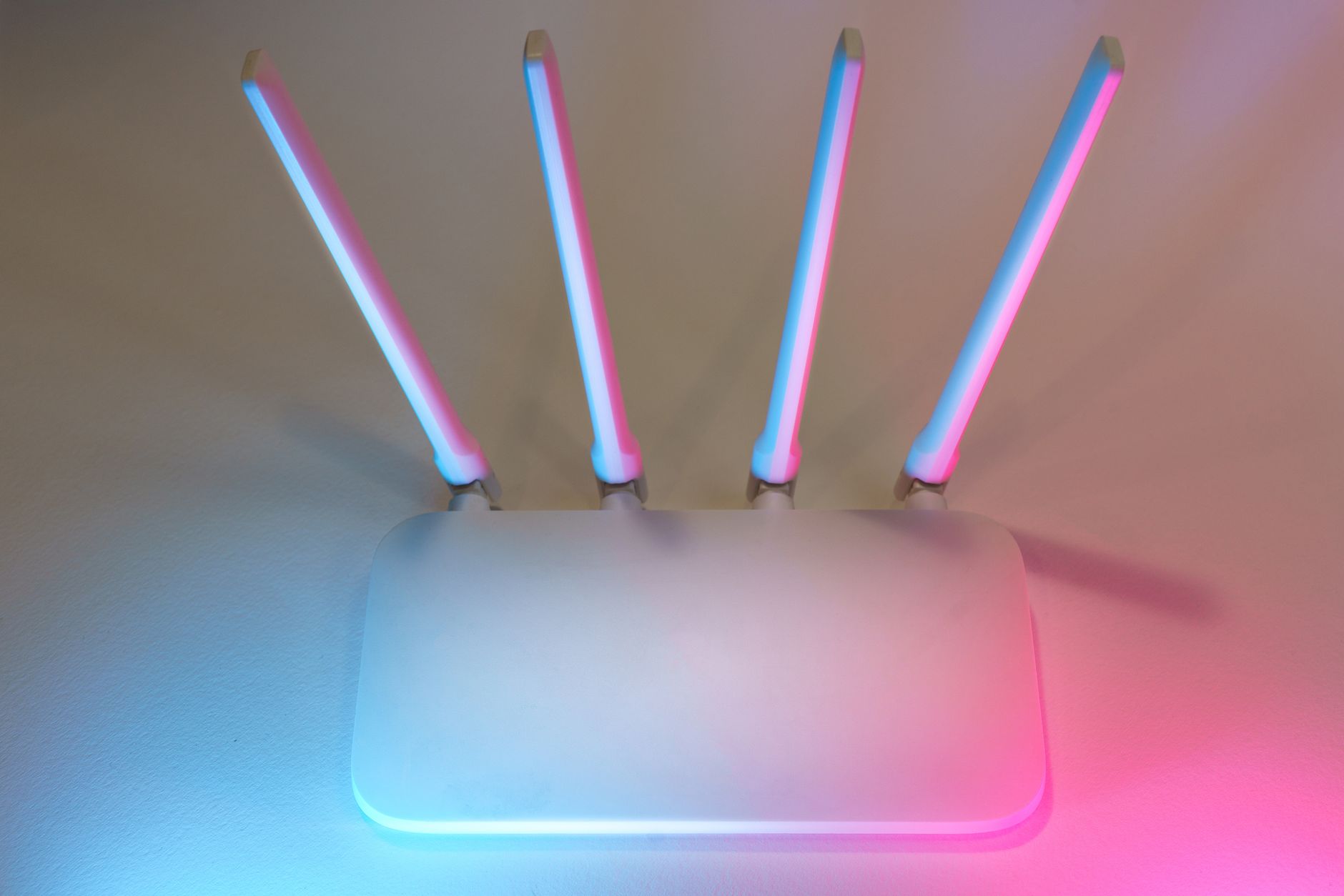
How to Use Your Own Router with Starlink Bypass Mode
Equipment & Accessories
You can use a third-party router with Starlink, but the Ethernet connection depends on your kit. Identify your dish, router and power supply before buying an adapter or changing settings.
Bypass mode disables the Starlink router's built-in Wi-Fi and routing so another router can manage your local network. It is useful when you want that router's network controls or mesh system. It does not improve the dish's sky view or remove every source of internet latency.
Check whether you need bypass mode
First decide what problem you are solving. If you only need more wired ports, an appropriate Ethernet switch may be enough. If you need better coverage, router placement or a compatible mesh setup may solve it. Replacing the router is a larger change and should have a clear purpose.
A third-party router's features depend on its model, configuration and sometimes subscriptions. Check the specific parental controls, guest-network isolation, VPN or traffic-management features before buying.
Match the Ethernet connection to your hardware
Starlink's third-party router instructions distinguish the hardware families. Standard Actuated equipment with the Gen 2 router uses the Starlink Ethernet Adapter; equipment with a suitable built-in Ethernet connection follows a different route. Do not buy the Gen 2 adapter simply because another guide calls it essential.
Check the exact connection point, supported cable and power arrangement in the current instructions for your model. Keep the Starlink power components required for that kit in place. An Ethernet connection to a new router does not automatically mean you can remove the original power hardware.
Prepare before changing the network
Our suggested preparation is to:
- Test the existing connection and record any fault you hope to solve.
- Download the new router's setup and recovery instructions.
- Record your existing Wi-Fi name and the devices that need reconnecting.
- Confirm which socket on the new router is the WAN or internet port.
- Keep an alternative way to read instructions if Wi-Fi disappears.
- Schedule the change when a short interruption will not affect a meeting.
Use a suitable, known-working Ethernet cable. You do not need to replace every working cable simply because a higher category is advertised.
Connect and configure the new router
Follow Starlink's current instructions for your hardware and the router manufacturer's WAN setup guidance. Connect the Starlink Ethernet output to the new router's WAN port, then follow the documented bypass procedure where applicable.
When bypass is enabled, connect your devices to the new router's Wi-Fi or LAN ports. The previous Starlink Wi-Fi disappearing is expected. Set a strong administration password and check the router's update settings.
Avoid applying unfamiliar advanced settings all at once. Establish basic internet access first, then configure guest access, traffic controls or a VPN individually and test after each change.
Understand what bypass does not fix
Bypass can remove the extra layer of routing created when your own router sits behind the Starlink router. It does not, by itself, change Starlink's upstream addressing or make inbound port forwarding available.
For remote access, read our CGNAT and port-forwarding guide. For a weak signal in distant rooms, use the Wi-Fi coverage guide. A new router cannot remove trees obstructing the dish.
Test and keep a recovery route
Test a wired device and a wireless device, then your normal calls, streaming and work applications. Check printers and other local devices as well as internet access.
If the Starlink app cannot reach the dish through your router, consult the official third-party instructions and your router documentation before changing routes or firewall settings. Preserve the router's security controls.
To reverse bypass, use the reset instructions for the exact Starlink router. Do not follow a power-cycling sequence intended for another model. A factory reset removes configuration, so keep the information needed to restore your network.
Reviewed: 26 September 2026. References: Starlink third-party router guidance and bypass-mode explanation.
Get One Month of Starlink Free
Order through my referral link and activate your service. Your second month of Starlink service will be free.
Starlink Tips is independent and may receive a referral reward. Check the offer shown for your order.