Get One Month of Starlink FreeSPECIAL OFFER: GET A FREE MONTH OF STARLINK >
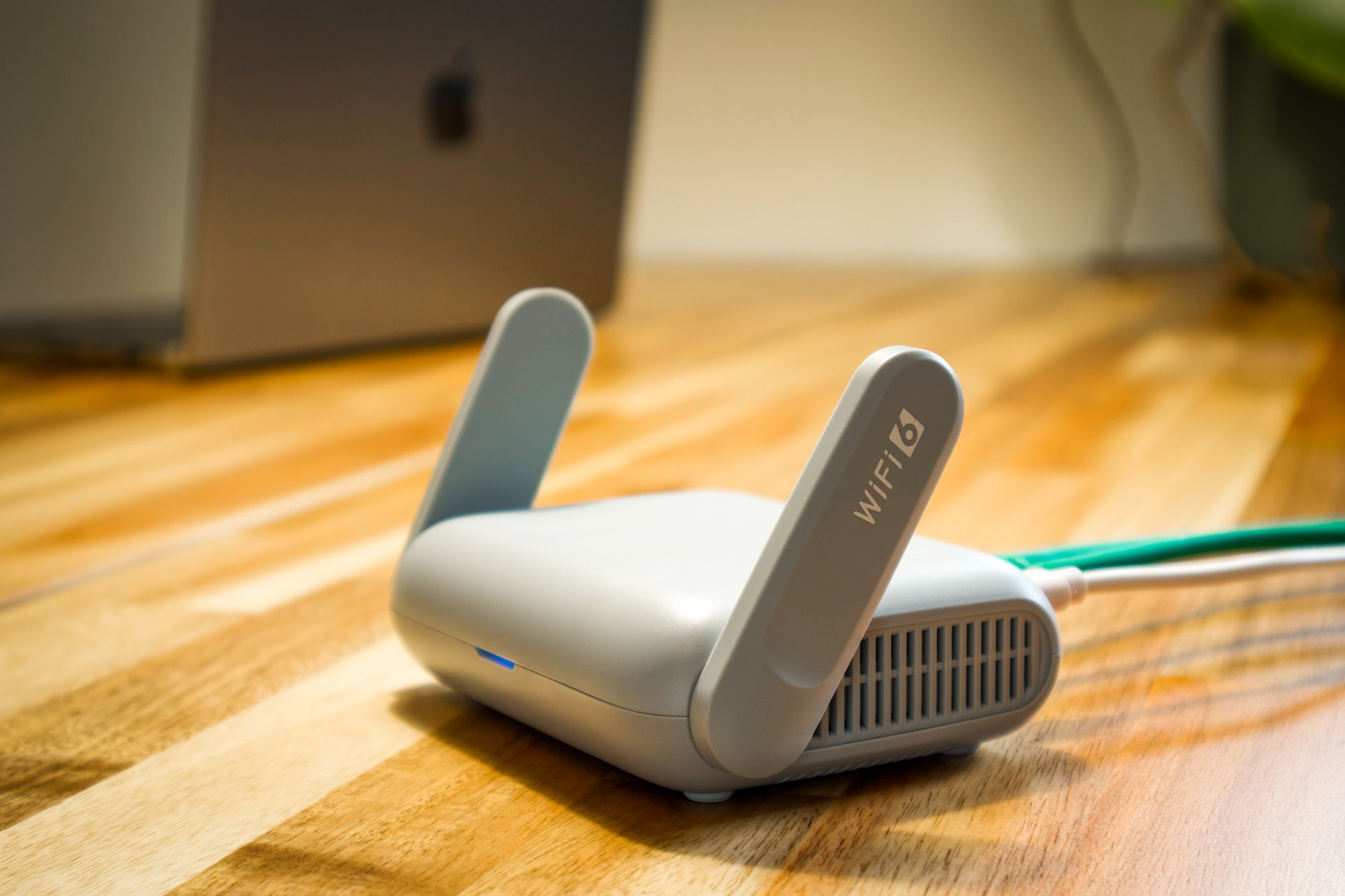
Wireless router and cable representing Starlink hardware and accessories

Starlink Hardware & Accessories

Reviews and guides covering Starlink routers, mounts, adapters, cables and useful accessories.

More from Starlink Hardware & Accessories

View playlist

How to Setup Starlink Router

Follow this practical Starlink guide to How to Setup Starlink Router, covering the key installation or setup steps for a secure and reliable connection. Starlink Tips related reading Related answer: Can I keep my old Wi-Fi name and password when switching to Starlink? — Keep Old Wifi Name Password Starlink Related guide: How to Improve Starlink Wi-Fi: Mesh Systems and Routers — How To Boost Your Starlink Wi Fi Coverage A Complete Guide To Mesh Systems And Routers Get One Month of Starlink Free Claim Your Free Month: Starlink Order through my referral link and activate your service. Your second month of Starlink service will be free. Starlink Tips may receive a referral reward. Check the offer shown by Starlink for your order.

How to Setup Starlink Router

Follow this practical Starlink guide to How to Setup Starlink Router, covering the key installation or setup steps for a secure and reliable connection. Starlink Tips related reading Related answer: Can I keep my old Wi-Fi name and password when switching to Starlink? — Keep Old Wifi Name Password Starlink Related guide: How to Improve Starlink Wi-Fi: Mesh Systems and Routers — How To Boost Your Starlink Wi Fi Coverage A Complete Guide To Mesh Systems And Routers Get One Month of Starlink Free Claim Your Free Month: Starlink Order through my referral link and activate your service. Your second month of Starlink service will be free. Starlink Tips may receive a referral reward. Check the offer shown by Starlink for your order.

Questions & answers

Questions about this video

Straight answers to the questions readers ask most often.

How do I connect a 2.4 GHz smart device to Starlink Wi-Fi?

Check the device maker's Wi-Fi requirements and follow its pairing instructions first. A smart plug or camera that only supports 2.4 GHz does not necessarily require the entire household network to be redesigned.

Our practical sequence is:

  1. Confirm normal internet access on your phone.
  2. Put the smart device near the router for initial setup.
  3. Use the correct device app and allow only the permissions it needs.
  4. Attempt normal pairing on the main network.
  5. If the app cannot handle a combined network name, check whether your router offers separate 2.4 GHz and 5 GHz names and follow its instructions.

Keep a record before renaming networks because other devices may need reconnecting. If you use a third-party router, its controls—not the Starlink router settings—may govern the Wi-Fi.

Guest isolation can prevent a phone and smart device from discovering each other. Do not permanently remove network security to force pairing. Once connected, move the device to its final position and test it there.

Read our related guide: How to Connect 2.4 GHz Smart Home Devices to Starlink Wi-Fi.

Related official guidance: Starlink Help Center.

Reviewed: 23 September 2026. Plan and hardware details should be checked for your country and equipment.

Get One Month of Starlink Free

Claim Your Free Month

Order through my referral link and activate your service. Your second month of Starlink service will be free.
Open and share this answer
How can I make my Starlink Wi-Fi more secure?

Start with separate, strong passwords for Wi-Fi and your Starlink account, then review who and what can connect. The dish's internet connection does not replace security on your router and devices.

Our home-network checklist is:

  • Set a long, unique Wi-Fi password.
  • Keep account credentials private and enable additional sign-in protection where offered.
  • Keep routers, phones and computers updated.
  • Identify connected devices before removing unfamiliar entries.
  • Use guest or isolated networks where your equipment supports them.
  • Protect the router's administration account if you use your own hardware.

A device may appear under a manufacturer name or a private network address, so an unfamiliar label is not proof of an intruder. Check household devices methodically.

If you change the Wi-Fi password, plan to reconnect cameras, printers and other essential equipment. Avoid posting full account screenshots in public.

Security is an ongoing routine, not a one-time setting. Review shared access after visitors leave and investigate unexpected configuration changes through the official account or router interface.

Read our related guide: How to Secure Your Starlink Wi-Fi: A Practical Home Network Checklist.

Related official guidance: Starlink Help Center.

Reviewed: 23 September 2026. Plan and hardware details should be checked for your country and equipment.

Get One Month of Starlink Free

Claim Your Free Month

Order through my referral link and activate your service. Your second month of Starlink service will be free.

Open and share this answer
Can I keep my old Wi-Fi name and password when switching to Starlink?

You can choose a network name and password during supported Starlink router setup. Reusing the old details may let some devices reconnect automatically, provided their security and band requirements are compatible.

Our migration checklist is to record the exact spelling, capitalisation and password, then test essential devices individually. Cameras, printers and smart-home equipment may still need attention because local addresses or other network settings can change.

Switch off the old router's Wi-Fi during the final test unless you intentionally designed the two systems to work together. Otherwise, a phone might remain connected to the old broadband and make the Starlink migration appear more complete than it is.

If the old password was weak or widely shared, use the move as an opportunity to replace it. Convenience should not carry an insecure password into the new setup. Keep account-login details separate from Wi-Fi credentials.

Next useful answers

Related guides

Related video

How to Set Up Starlink Satellite Internet: Step-by-Step Installation Guide

This related demonstration may show older hardware or plan details; use the official guidance below for current requirements.

Sources

Reviewed: 26 September 2026. Practical checklists are our editorial recommendations; plan availability and hardware requirements vary by country and model.

Get One Month of Starlink Free

Claim Your Free Month

Order through my referral link and activate your service. Your second month of Starlink service will be free.

Starlink Tips is independent and may receive a referral reward. See the offer shown by Starlink when ordering.

Open and share this answer
Browse all questions