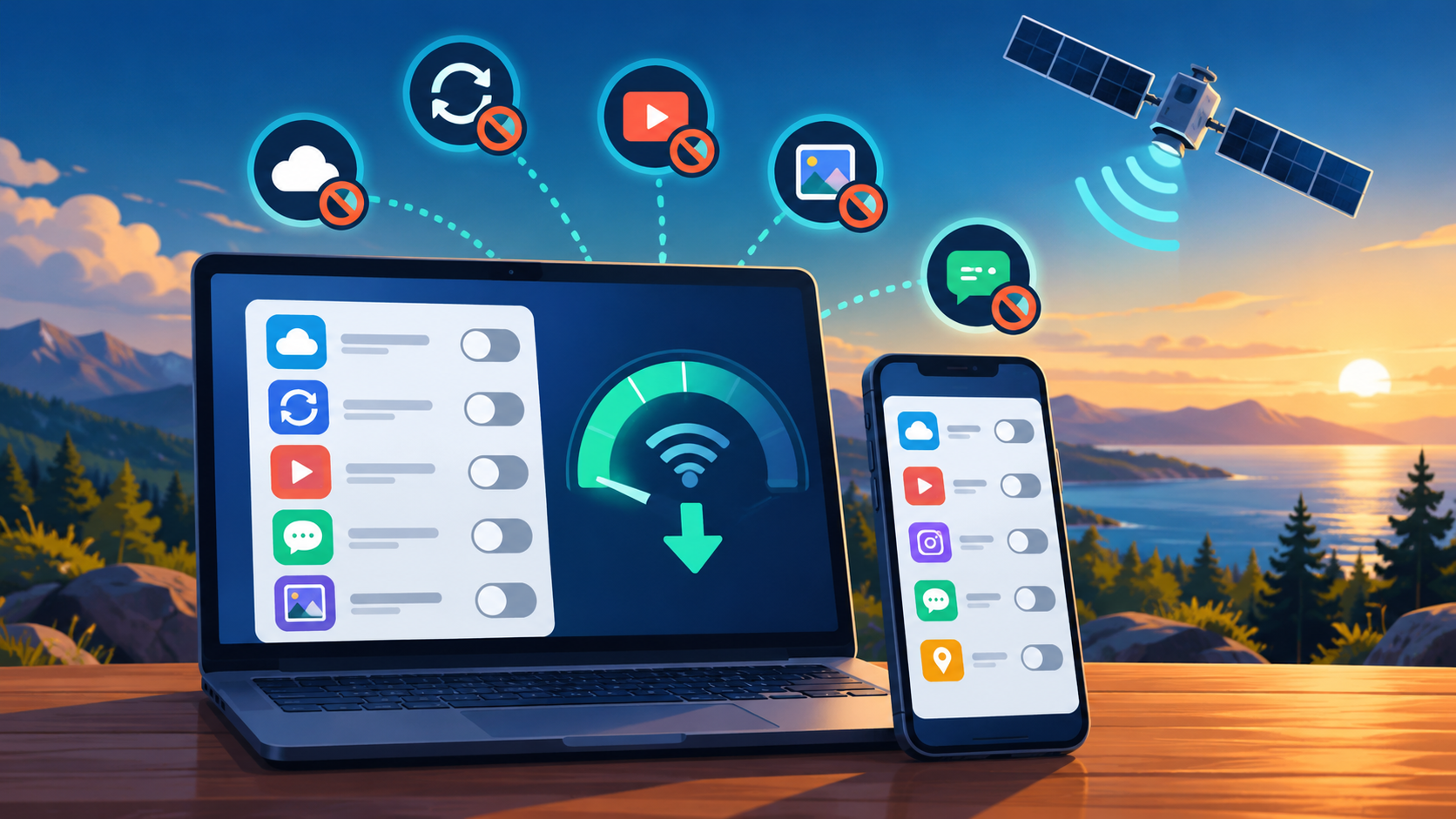
Use macOS Low Data Mode While Working on Starlink Roam
Tips & Tricks
A Mac connected to a travel network may start background transfers that were harmless at home. Treat a capped Starlink connection as a different working environment and review its profile before a trip.
Work through the setup
Step 1
Connect to the intended travel Wi-Fi and open that network's details in macOS. Confirm the network name rather than changing an unrelated saved connection.
Step 2
Review Low Data Mode and note the initial setting. Turn it on if conserving background data is appropriate for this network.
Step 3
Check cloud-drive, photo and backup applications individually. A system preference does not necessarily stop a manually started upload.
Step 4
Download essential work files before leaving a reliable uncapped connection. Check that they open without internet, not merely that thumbnails are visible.
Step 5
Observe a typical work session and review the Starlink allowance afterwards. Compare actual activities instead of relying on the mode's name.
Step 6
Schedule deferred synchronisation and updates for later. Restore the desired settings when you return to a connection where normal background work is appropriate.
Worked example
Suppose a Mac has been left on Low Data Mode throughout a long trip. The files appear locally, but the cloud application shows a pending queue. Do not delete the laptop's only originals because you assume the cloud has them. Complete the upload on an appropriate connection and verify the application's status. Review other background applications as well, because one system preference is not a complete data-management plan.
Interpret the result
- Sync queue is pending: Keep originals and schedule completion.
- Usage remains high: Check individual applications and active transfers.
- Backups are verified: Resume the normal policy appropriate to the connection.
Checks and limitations
Use a private checklist for the applications you depend on. Confirm completed backups explicitly. If your Mac is managed, ask the administrator which settings you may change and which updates must continue.
Does macOS Low Data Mode guarantee my cloud files are backed up?
No. Data-saving settings can defer background activity. Check the cloud application's sync status and schedule a suitable time to finish outstanding uploads. A local file and a verified off-device backup are different things.
Sources and review
Official documentation for this guide
Reviewed: 11 November 2026. The practical sequence and worked example are Starlink Tips editorial guidance. Check current instructions for your hardware, software and country.
Illustrative photograph: A contemporary workspace showcasing a laptop, tablet, and smartphones, ideal for tech and freelance use. Credit: Negative Space.