Reduce background data on laptops and phones
Tips & Tricks
Background downloads can consume a limited backup connection before you open your work app. Set a temporary low-data profile, check what it changes and restore normal updating when the main connection returns.
Windows
Microsoft's current instructions let you mark the connected Wi-Fi network as metered under Settings, Network & internet, Wi-Fi and that network's properties. Ethernet connections can also be marked metered. This reduces some background activity, but it is not a hard data cap and some features behave differently.
Check cloud-sync and game-launcher applications separately. Pause large nonessential transfers using their supported controls. Do not permanently disable security updates or assume the network setting controls every application.
iPhone and iPad
Apple provides Low Data Mode separately for cellular and Wi-Fi. For Wi-Fi, open Settings, Wi-Fi and the information control beside the connected network, then use Low Data Mode. Cellular menu paths vary by network and device; follow Apple's instructions for your configuration.
If you are using the phone as a hotspot, check the laptop too. The laptop may treat that Wi-Fi connection as ordinary broadband unless you configure it appropriately.
Mac and Android
On a supported Mac, check the connected Wi-Fi network's details for Low Data Mode. On Android, use your handset maker's current instructions for Data Saver and any metered-Wi-Fi controls. Names and effects vary; do not assume a cellular-only saver also limits Wi-Fi downloads.
Verify with a short test
Record the router or carrier's usage counter, leave the device idle briefly, then check again. Investigate unexpected use in the device's data-usage view and in active sync applications. Usage displays can update at different times, so compare consistent intervals.
Reduce streaming quality and avoid downloading offline maps or large software packages over the backup unless necessary. Prepare those while the main connection works.
Keep a reminder to resume paused backups and updates. A low-data mode is a temporary operating choice, not a substitute for maintenance. The related travel video provides usage context; its plan names and prices may be historical.
Related question
How can I reduce Starlink data use while travelling?
Sources and further reading
Topic inspiration: MIRC. This is an independently written Starlink Tips guide, not a reproduction or a claim of hands-on testing. Official instructions for your exact equipment take priority.
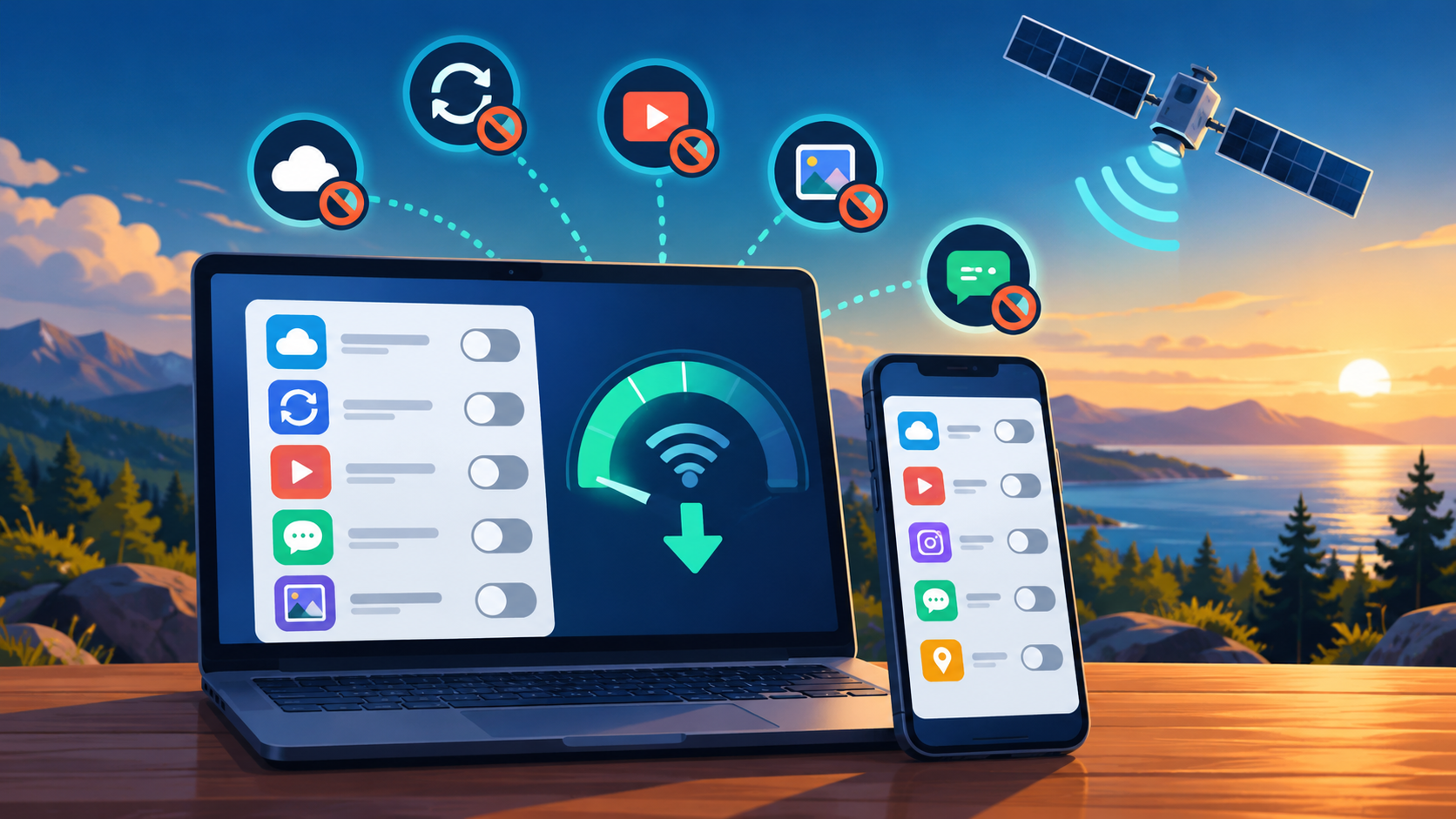
Thumbnail: original AI-generated conceptual illustration; not a fitting, wiring or measurement diagram. Reviewed 1 November 2026.