Set a Windows Starlink Connection as Metered and Plan Deferred Updates
Tips & Tricks
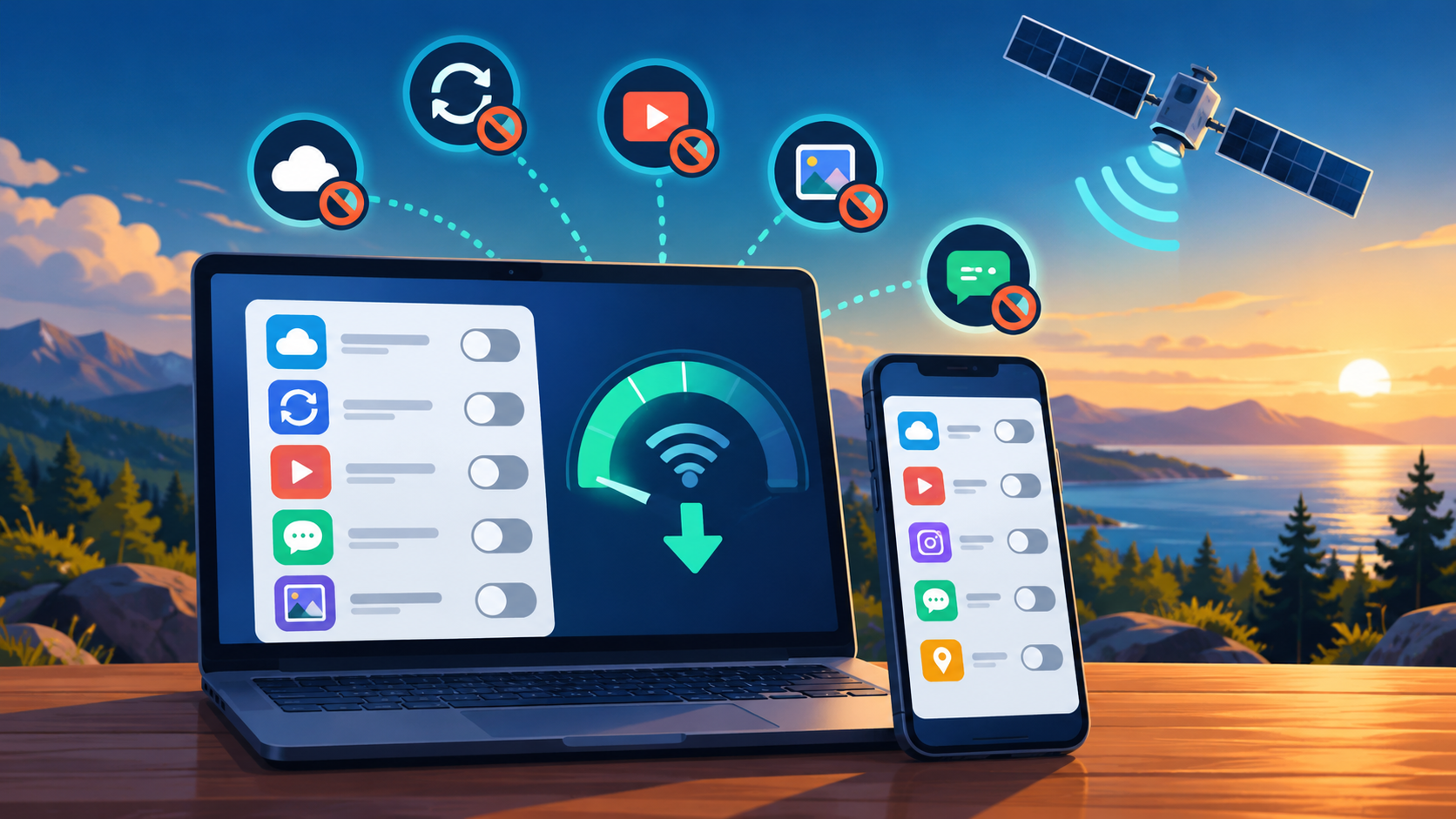
Windows can treat a Wi-Fi or Ethernet connection as metered to reduce certain background transfers. This is useful on a capped Starlink or cellular fallback connection, but it does not measure your remaining allowance.
Work through the setup
Step 1
Identify the active Windows network profile. A laptop using a dock may be on Ethernet even when its Wi-Fi settings look familiar.
Step 2
Open the connection's properties and review the Metered connection control. Record its current state before changing anything on a shared computer.
Step 3
Enable metering where appropriate and check which applications continue syncing. Browser downloads and manually started transfers still need attention.
Step 4
Review pending Windows and application updates. Schedule an opportunity to complete them on a suitable connection rather than leaving them deferred indefinitely.
Step 5
Compare usage over a representative work session. Include video meetings, cloud drives and browser activity in the observation.
Step 6
Repeat the setting check for backup network profiles. A metered Starlink profile does not automatically configure every phone hotspot you later join.
Worked example
Suppose a laptop has Starlink Wi-Fi marked as metered but uses an Ethernet dock at the desk. The active connection may have a different profile. Inspect the profile actually carrying traffic before assuming Windows ignored your setting. Do the same when switching to a phone hotspot. Keep a deliberate opportunity for deferred updates rather than discovering after a month that maintenance never resumed.
Interpret the result
- Wrong profile was configured: Set the intended active connection appropriately.
- Manual downloads dominate: Control those applications separately.
- Updates remain pending: Arrange a suitable completion window.
Checks and limitations
Microsoft says some updates and syncing can behave differently on a metered connection. Ask IT before altering a managed work machine. For billing decisions, use the provider's usage record rather than a Windows estimate alone.
Will marking Starlink as metered in Windows enforce my Roam data limit?
No. Metering helps reduce some background transfers; it is not a hard provider allowance limit. Check active applications and schedule deferred updates. Monitor the Starlink account's data usage for the actual service allowance.
Sources and review
Official documentation for this guide
Reviewed: 11 November 2026. The practical sequence and worked example are Starlink Tips editorial guidance. Check current instructions for your hardware, software and country.
Illustrative photograph: A neatly arranged desk featuring a smartphone, laptop, and pens in an office setting. Credit: Lukas Blazek.