Get One Month of Starlink FreeSPECIAL OFFER: GET A FREE MONTH OF STARLINK >
12

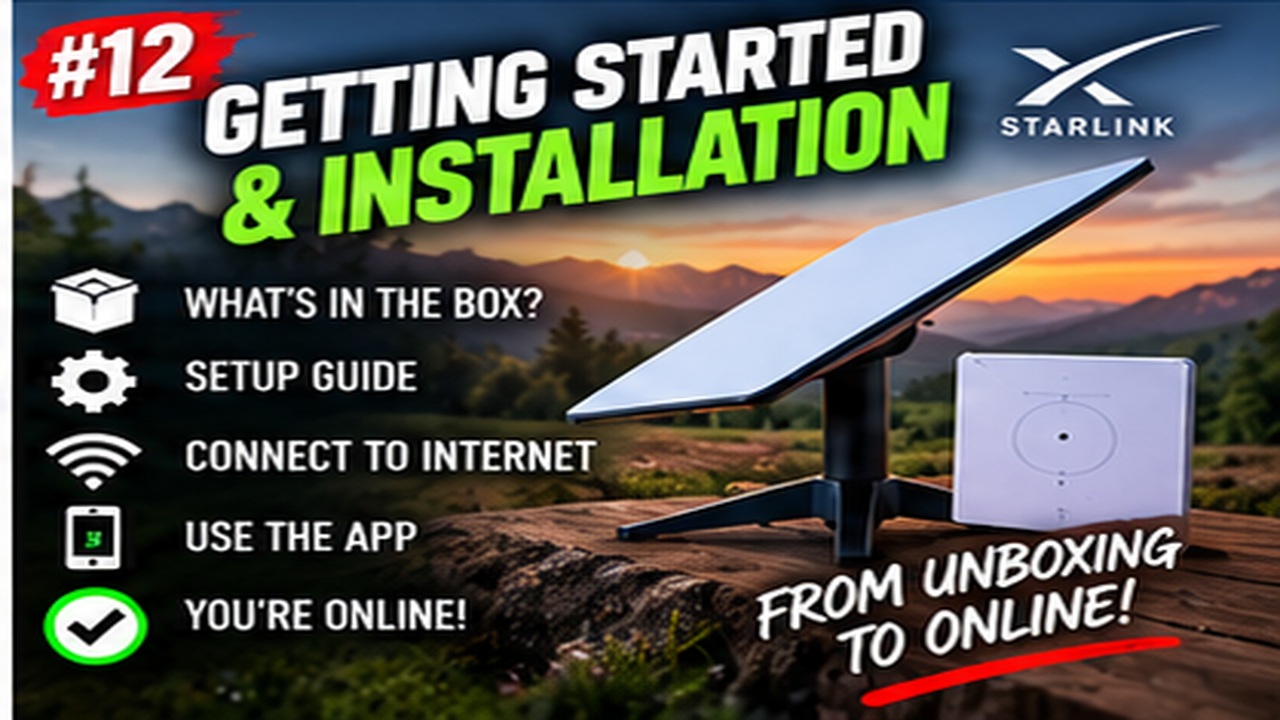
Getting Started & Installation

Getting started with Starlink: practical walkthroughs for first-time setup, activation, dish placement and installation.

More from Getting Started & Installation

View playlist

Meet Starlink Gen 3 Router How To Install & Setup

Follow this practical Starlink guide to Meet Starlink Gen 3 Router How To Install & Setup, covering the key installation or setup steps for a secure and reliable connection. Starlink Tips related reading Related answer: Can I keep my old Wi-Fi name and password when switching to Starlink? — Keep Old Wifi Name Password Starlink Related guide: How to Improve Starlink Wi-Fi: Mesh Systems and Routers — How To Boost Your Starlink Wi Fi Coverage A Complete Guide To Mesh Systems And Routers Get One Month of Starlink Free Claim Your Free Month: Starlink Order through my referral link and activate your service. Your second month of Starlink service will be free. Starlink Tips may receive a referral reward. Check the offer shown by Starlink for your order.

Meet Starlink Gen 3 Router How To Install & Setup

Follow this practical Starlink guide to Meet Starlink Gen 3 Router How To Install & Setup, covering the key installation or setup steps for a secure and reliable connection. Starlink Tips related reading Related answer: Can I keep my old Wi-Fi name and password when switching to Starlink? — Keep Old Wifi Name Password Starlink Related guide: How to Improve Starlink Wi-Fi: Mesh Systems and Routers — How To Boost Your Starlink Wi Fi Coverage A Complete Guide To Mesh Systems And Routers Get One Month of Starlink Free Claim Your Free Month: Starlink Order through my referral link and activate your service. Your second month of Starlink service will be free. Starlink Tips may receive a referral reward. Check the offer shown by Starlink for your order.

Questions & answers

Questions about this video

Straight answers to the questions readers ask most often.

Can I keep my old Wi-Fi name and password when switching to Starlink?

You can choose a network name and password during supported Starlink router setup. Reusing the old details may let some devices reconnect automatically, provided their security and band requirements are compatible.

Our migration checklist is to record the exact spelling, capitalisation and password, then test essential devices individually. Cameras, printers and smart-home equipment may still need attention because local addresses or other network settings can change.

Switch off the old router's Wi-Fi during the final test unless you intentionally designed the two systems to work together. Otherwise, a phone might remain connected to the old broadband and make the Starlink migration appear more complete than it is.

If the old password was weak or widely shared, use the move as an opportunity to replace it. Convenience should not carry an insecure password into the new setup. Keep account-login details separate from Wi-Fi credentials.

Next useful answers

Related guides

Related video

How to Set Up Starlink Satellite Internet: Step-by-Step Installation Guide

This related demonstration may show older hardware or plan details; use the official guidance below for current requirements.

Sources

Reviewed: 26 September 2026. Practical checklists are our editorial recommendations; plan availability and hardware requirements vary by country and model.

Get One Month of Starlink Free

Claim Your Free Month

Order through my referral link and activate your service. Your second month of Starlink service will be free.

Starlink Tips is independent and may receive a referral reward. See the offer shown by Starlink when ordering.

Open and share this answer
Browse all questions