Fix a streaming app showing the wrong location
Troubleshooting & Fixes
When a streaming app says you are in the wrong area, separate the service's viewing rules from the location it has inferred from your internet connection. Moving the dish or repeatedly resetting the router is not a sensible first response to an account-area error.
Capture the exact problem
Write down the app, device, error wording, time and whether ordinary websites still work. Try the same service on a second device using the same connection. Note whether a VPN, proxy or privacy relay is active, without changing an employer-managed device's settings yourself.
An internet address can be associated with a different town from your physical location. That does not automatically mean your Starlink service address is wrong. The viewing provider may also maintain a separate home-area record.
Use the provider's verification route
For YouTube TV on a television, its official help directs you to the profile menu, Location and Current Playback Area, then verification using a mobile device or browser. Allow location access only on the genuine service page when you choose to complete that check. Home area and current playback area are different settings; do not change the home area merely to experiment.
For other services, open the official help centre from the app and look for the exact error. Follow that service's process rather than transplanting YouTube TV steps. If you are genuinely outside the permitted region, verification does not grant additional viewing rights.
Escalate with useful evidence
If verification fails while you are in an eligible area, contact the streaming provider with the error and device details. Ask whether its location record needs correction. If multiple unrelated services identify the wrong country, also contact Starlink through its official support route. Share account or network details privately, not in a public question.
Do not use a VPN to evade a regional restriction. YouTube TV explicitly restricts playback through VPNs or proxies. A support request is the appropriate next step when legitimate access is misidentified.
The related app video explains Starlink management, not the streaming provider's verification interface.
Related question
Why do websites think my Starlink connection is in another town or region?
Sources and further reading
Topic inspiration: Insider. This is an independently written Starlink Tips guide, not a reproduction or a claim of hands-on testing. Official instructions for your exact equipment take priority.
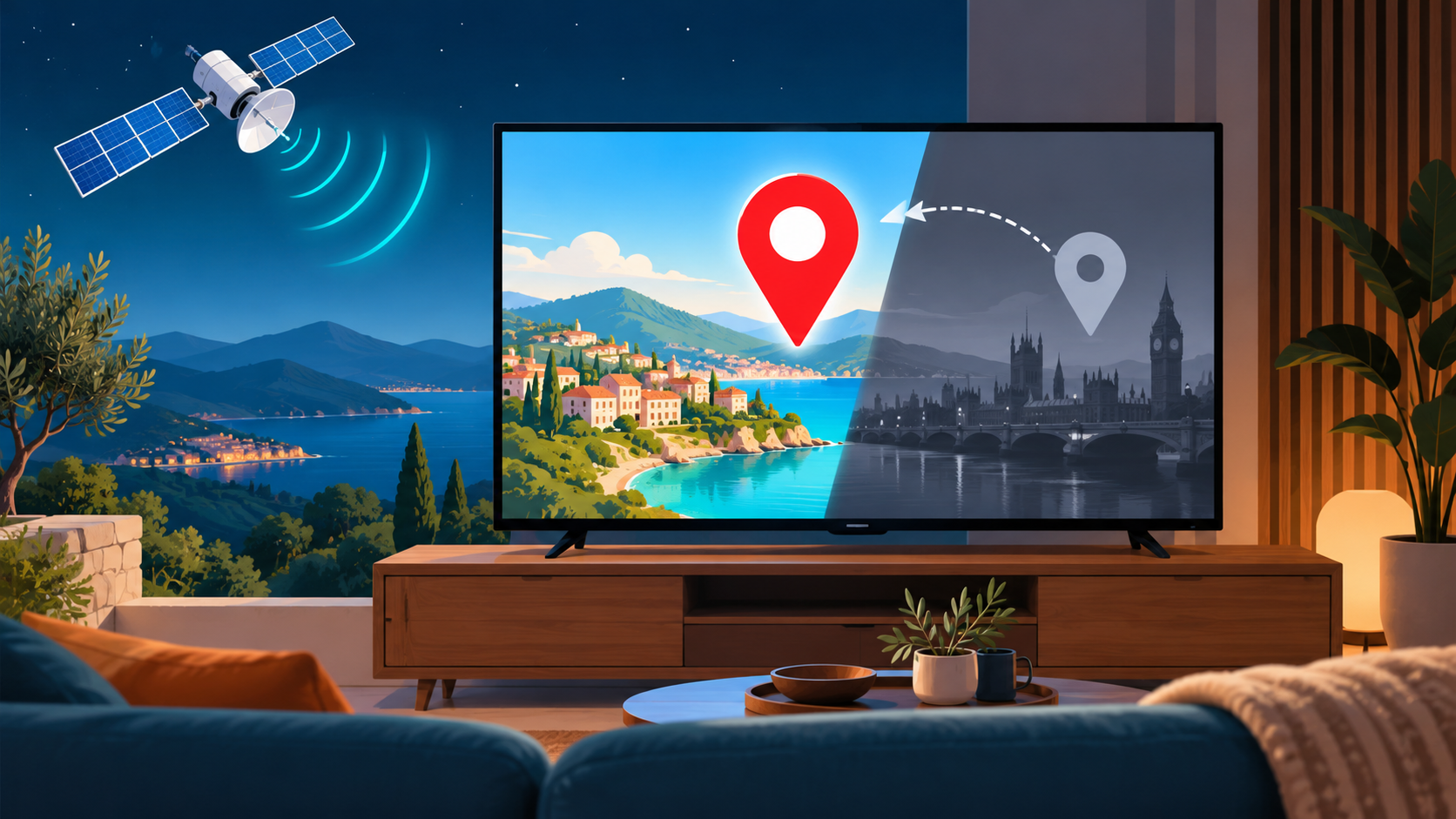
Thumbnail: original AI-generated conceptual illustration; not a fitting, wiring or measurement diagram. Reviewed 1 November 2026.