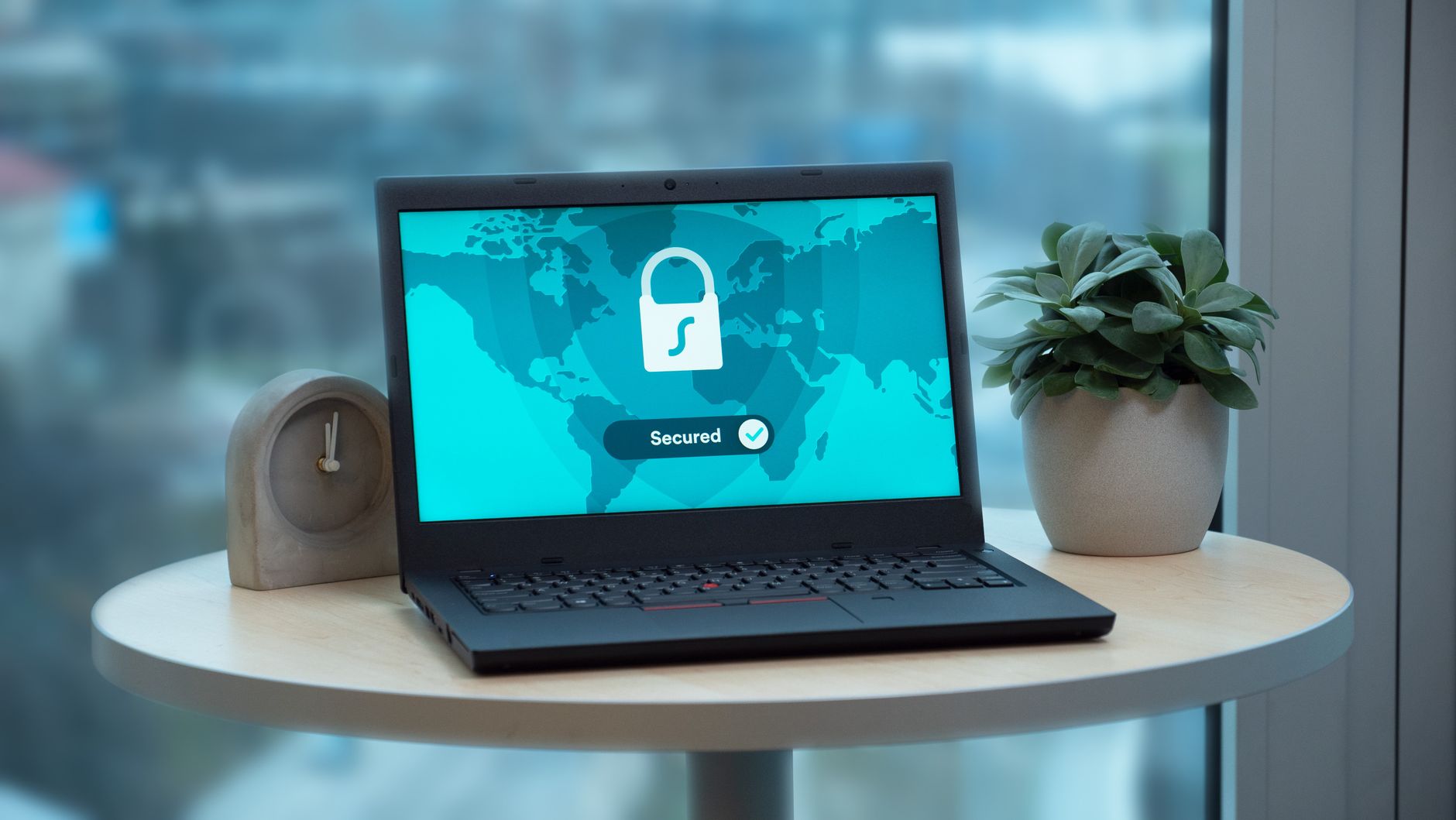
Starlink Account Security: Two-Step Verification and Recovery Guide
Tips & Tricks
Your Starlink account controls much more than the internet connection. It can contain billing details, service-location information, plan changes, hardware transfers and access for other users. Protecting the account is separate from securing your Wi-Fi network.
Starlink currently uses two-step verification with a passcode sent to the email address on the account. If you cannot use that email, Starlink may offer SMS verification. The exact prompts can vary by country, account type, app version and browser, so use the options shown in your current Starlink account as the final authority.
The short answer
Use a unique Starlink password, keep the account email and phone number under your control, and never share a Starlink verification passcode.
Starlink says you may be asked for a passcode when you:
- Sign in.
- Change account information.
- Add a user to the account.
This is an account-protection step, not proof that your dish or router has a fault. Starlink also says it will never call or text you asking for the passcode.
Secure the account before you need it
1. Protect the email account first
Your Starlink email address is part of the recovery path. Make sure you can sign in to that email account and that its recovery phone number or backup email is current.
Where your email provider supports it, enable its own multi-factor authentication. Use a different password for email than for Starlink. If someone can read your email, they may be able to receive account-reset messages even if your Starlink password is strong.
Do not use a shared household inbox for the account unless everyone who can open it is trusted and the inbox itself is protected.
2. Use a unique Starlink password
Choose a long password or passphrase that has not been used on another site. A password manager is useful for generating and storing it.
Do not put your Starlink password in a forum post, support screenshot, shared note or message to someone offering help. Starlink support should not need your password.
Change the password if:
- You reused it on another service.
- Your email account was compromised.
- You entered it on a suspicious page.
- Someone else who should not have access may know it.
- You see account changes you did not make.
Changing the password is not a substitute for checking the email account and payment details as well.
3. Keep the phone number current
A phone number may be useful when you cannot receive the email verification code. Keep it current in the account and make sure you can receive SMS messages on it.
Do not treat SMS as a reason to share the code. Enter the code only into the Starlink sign-in or account flow that you opened yourself. Never read it aloud to a caller.
How Starlink two-step verification works
When Starlink asks for a verification passcode, request it from the sign-in or account-change screen. Check your email, including spam or junk folders, and enter the newest code only.
If email verification is not possible, look for the option such as Need help? or the SMS alternative shown by the current Starlink flow. The labels can change, so follow the prompt on the official Starlink site or app.
A passcode can expire. Starlink's Help Center also says that if you have too many outstanding passcodes, you should wait 15 minutes before requesting another one.
Starlink will never call or text you for this passcode. Anyone asking you to forward it, dictate it or paste it into a chat is trying to access your account.
If the passcode does not work
Use this order so you do not create a pile of competing codes:
- Check that you are signing in at starlink.com or in the official Starlink app.
- Enter the newest passcode, not an older message.
- Check the email address and phone number you are using belong to this account.
- Request one fresh code and check spam or junk folders.
- If the code has expired, request another one.
- If you have requested too many codes, wait 15 minutes before trying again.
- If the app rejects the code, update the app and retry.
- If email is unavailable, use the SMS option if Starlink presents it.
- If neither route works, use the official account-recovery or support path.
Do not disable security controls, install remote-access software, or give a helper your passcode just to get past this screen.
Recover a locked-out Starlink account
If you forgot the password or cannot sign in, use Starlink's account recovery page directly:
- Open Starlink account recovery.
- Choose the email, phone or other recovery option shown for your account.
- Request a password reset.
- Check the matching email inbox or phone for the reset message.
- Set a new, unique password and sign in again.
- Review your account information after you regain access.
If you no longer have access to the account email or phone, use Starlink's locked-out recovery process and follow the support instructions. You may be asked for identifying information so support can verify ownership. Share it only through the official Starlink recovery or support flow.
Do not create a second Starlink account just because the first one is difficult to access. That can make billing, service location and hardware ownership harder to untangle.
Check for unwanted account changes
After recovering access, review the account methodically:
- Account email address and phone number.
- Service address or service location.
- Current plan and any recent plan change.
- Billing balance, payment method and recent invoices.
- Connected or added users.
- Hardware transfer or ownership information.
- Recent support messages or tickets.
Take screenshots only after hiding email addresses, payment details, recovery information and verification codes. If you see a change you did not make, change the password, secure the email account, record the date and contact Starlink through the account.
Avoid Starlink account scams
Use these habits whenever you receive a message about your account:
- Open the Starlink app yourself or type the official site address instead of following an unexpected payment or recovery link.
- Check the domain before signing in.
- Never share a verification code, password, card number or full account screenshot.
- Treat urgent requests for gift cards, cryptocurrency, remote access or a phone call as suspicious.
- Contact support from inside the signed-in Starlink account when possible.
- Keep the original message if you need to report a phishing attempt, but do not click additional links in it.
A real verification prompt can appear during a normal sign-in or account change. An unexpected prompt is still a reason to pause and check that you are using the official app or site before entering anything.
Five-minute account security check
Run this short check today:
- Confirm you can access the account email.
- Confirm the recovery phone number is current.
- Make sure the Starlink password is unique.
- Sign out of shared or public devices.
- Review billing, plan, service location and account users.
- Save the official recovery link in your password manager or trusted notes.
- Tell household members never to share a Starlink verification code.
Official Starlink references
- Two Step Verification
- How do I sign into my account if I've forgotten my account email/password?
- Change Account Password
- Starlink Help Center
Starlink can change account screens, recovery options and verification methods by country. The current prompts in your Starlink account are the final authority.
Bottom line
The strongest Starlink account setup is simple: protect the email account, use a unique password, keep phone recovery current and treat every verification code as secret.
If a code fails, slow down, request one fresh code and use the official recovery path. If you regain access after a lockout, review billing, service location, plan and users before assuming everything is unchanged.
Get One Month of Starlink Free
Order through my referral link and activate your service. Your second month of Starlink service will be free.
Questions to explore next
- What should I do if I lose access to my Starlink two-step verification method?
- How can I recover my Starlink account if my email address changes?