Separate Local NAS Transfers From Starlink Cloud Uploads
Tips & Tricks
A local copy to a home NAS and an upload from that NAS to the cloud use different paths. Distinguishing them prevents a slow disk or Wi-Fi link being mistaken for a satellite speed problem.
Work through the setup
Step 1
Draw the path for each task: computer to NAS on the LAN, NAS to cloud over Starlink, and remote user to NAS through the chosen access method.
Step 2
Choose a test file that contains no sensitive information. Note its size, location and whether the NAS is busy with other jobs.
Step 3
Copy the file locally over a known-good wired connection. Record elapsed time and inspect disk or CPU activity on the NAS.
Step 4
Repeat from the normal Wi-Fi position. If only this copy is slow, investigate the local path before changing internet settings.
Step 5
Test a separate cloud upload with other backups paused by agreement. Compare it with Starlink's upload result at roughly the same time.
Step 6
Restore backup schedules and remove temporary files. Keep remote access private; do not open NAS management ports just to simplify a test.
Worked example
Suppose a video file copies slowly from a laptop to a NAS even though the internet speed test is strong. Test the local copy with the laptop wired and inspect the NAS disks before buying another Starlink plan. Then measure a separate cloud upload. A NAS application may also use a remote relay despite both devices being nearby, so verify whether the transfer actually stays local.
Interpret the result
- Local wired copy is slow: Inspect storage, device load and LAN links.
- Local is fast, cloud is slow: Investigate upload capacity and the cloud path.
- Only remote access is slow: Check the overlay or relay connection.
Checks and limitations
A strong local transfer says nothing about off-site upload capacity. Likewise, a slow cloud backup does not establish that your Ethernet cable is faulty. Keep one test for each path.
Does copying a file to my NAS use Starlink internet data?
A copy that stays between devices on the same local network normally stays on the LAN. A cloud backup, remote connection or app using an external relay can use internet data. Trace the actual application's path rather than assuming every NAS operation is local.
Sources and review
Official documentation for this guide
Reviewed: 11 November 2026. The practical sequence and worked example are Starlink Tips editorial guidance. Check current instructions for your hardware, software and country.
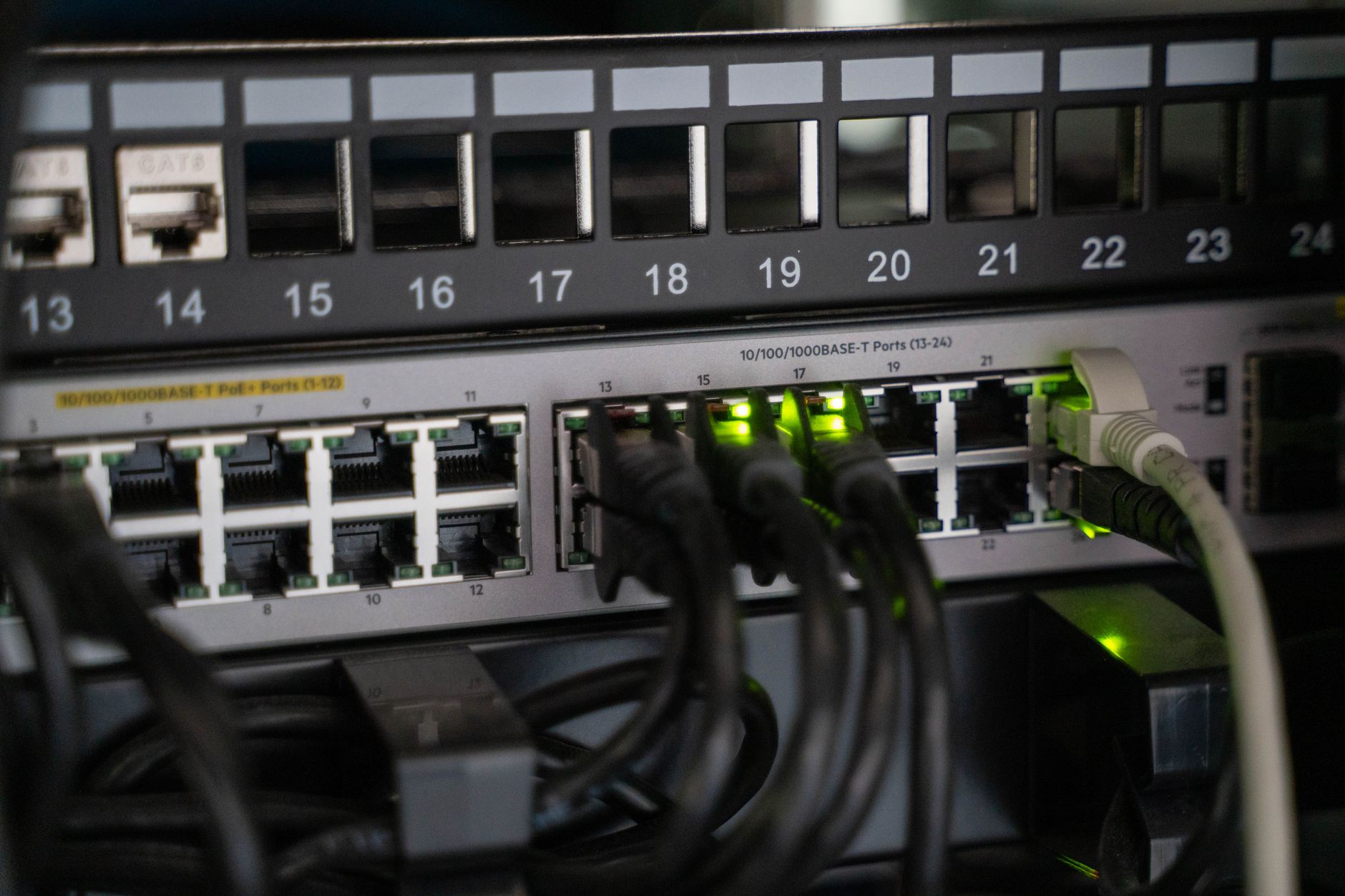
Illustrative photograph: Networking equipment with connected cables, showcasing modern technology infrastructure. Credit: Vladimir Srajber.