Budget camera uploads before adding more cameras
Tips & Tricks
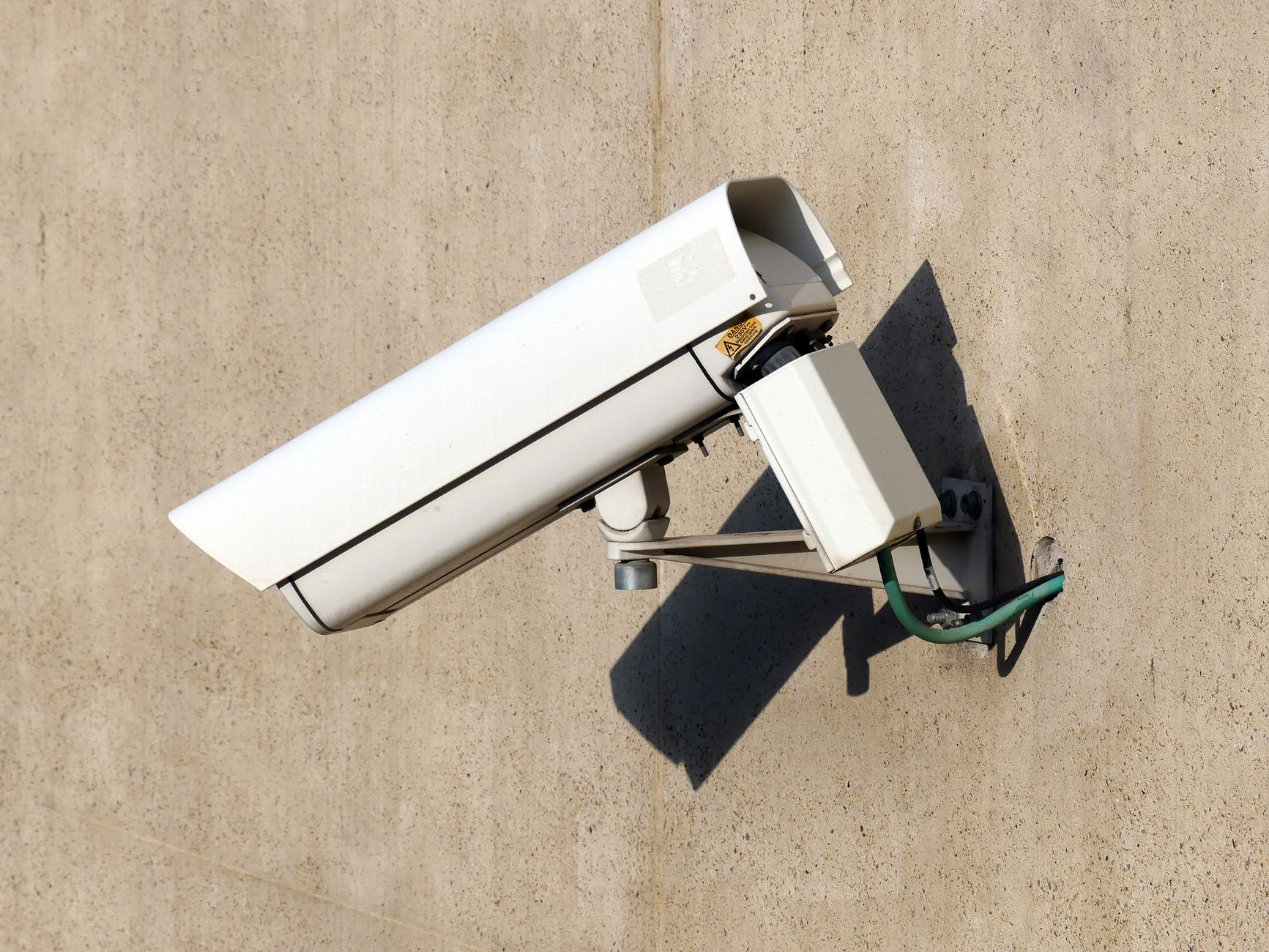
Count the streams that leave your property, not simply the number of cameras. A camera recording locally may use little internet until you view it remotely; continuous cloud recording can create a very different upload load.
Map where each stream goes
For every camera, record its model, local recording destination, cloud-upload setting, remote-viewing setting and any secondary stream. Check the maker's documentation rather than assuming motion detection means nothing is uploaded between events.
Axis explains that variable bitrate changes with scene activity. Daylight, movement and image settings can therefore change the load. A single quiet daytime measurement is not a complete budget.
Build a measured worksheet
For each device, fill in: camera name; normal upload Mbps; observed busy-period upload Mbps; continuous or event-based; remote-viewing sessions; recording destination. Then total the streams likely to be active together.
As an arithmetic example only, three simultaneous uploads measured at 2 Mbps each require 6 Mbps before other traffic and overhead. That is not a suggested camera setting or a claim about Starlink's available upload speed. For a continuous stream, 1 Mbps is approximately 10.8 decimal GB per day before overhead; intermittent recording needs its actual active time.
Compare with the connection you actually have
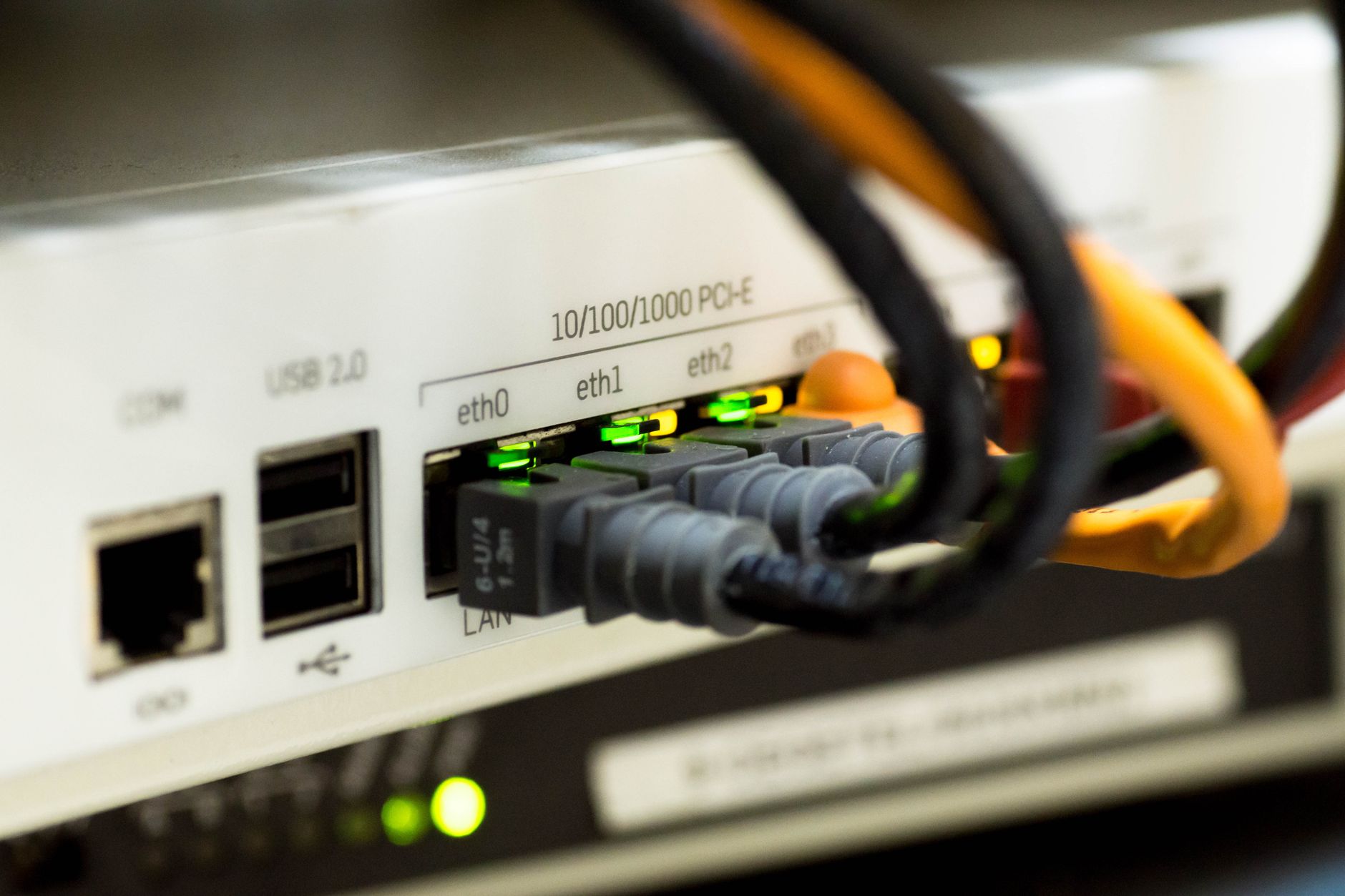
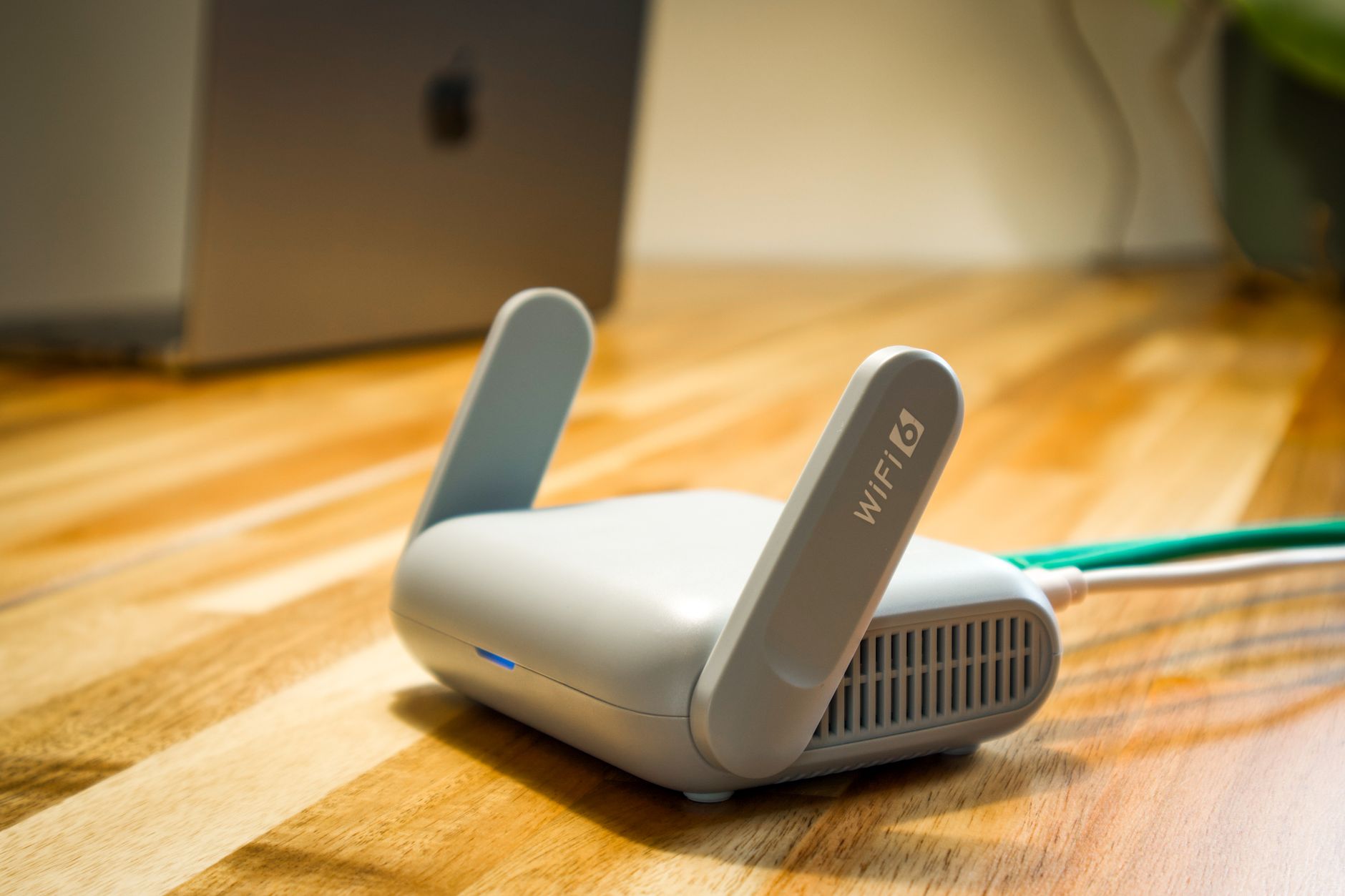
Measure available upload at the property across normal and busy periods. Include calls, backups and other concurrent work. Do not allocate every measured megabit to cameras: leave capacity for variation and test the actual household workload.
If calls break up when cameras upload, review cloud settings, recording design and supported traffic management with the installer. Reducing a recording stream may affect evidence quality; agree that tradeoff before changing a security system.
Test before adding more
Add or enable one camera at a time and watch router usage. Check remote access from outside the home network. Keep the original settings so a test can be reversed. Protect camera accounts and avoid exposing their management ports publicly.
The linked renovation video shows cameras as part of a rural project; it is context, not a bitrate sizing test.
Related question
Can Starlink connect my security cameras?
Sources and further reading
Topic inspiration: Farm. This is an independently written Starlink Tips guide, not a reproduction or a claim of hands-on testing. Official instructions for your exact equipment take priority.
Thumbnail: original AI-generated conceptual illustration; not a fitting, wiring or measurement diagram. Reviewed 1 November 2026.