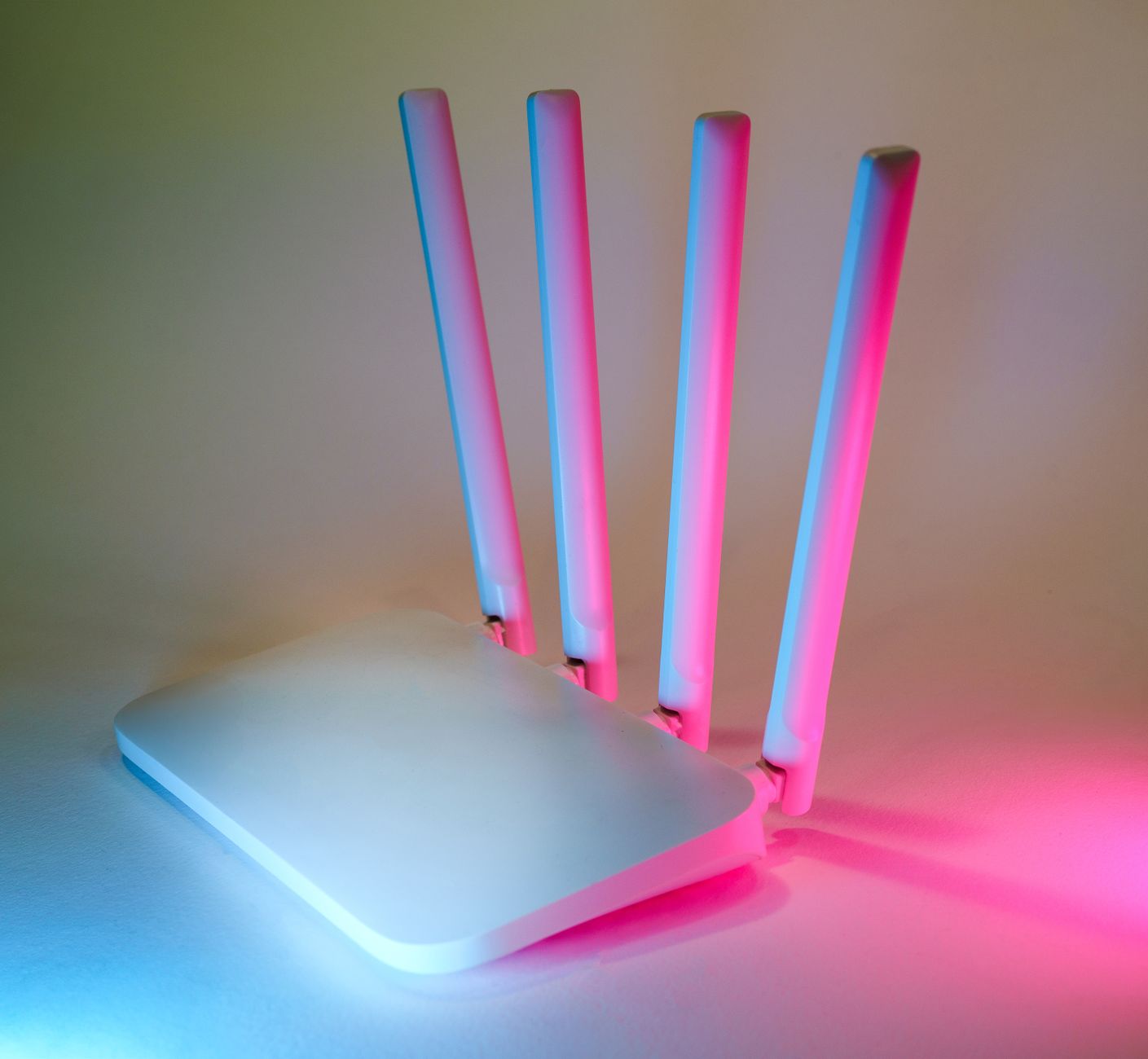
Where to Place Your Starlink Router for Stronger Wi-Fi
Equipment & Accessories
Independent owner’s guide: Starlink Tips is not part of Starlink. Results vary with location, hardware, obstructions, Wi-Fi and network conditions.
Claim Your Free Month
Order through my referral link and activate your service. Your second month of Starlink service will be free.
The Hidden Challenge: Wi-Fi vs. Starlink Signal
Many new Starlink users make a fundamental mistake: they confuse the satellite signal (the connection from your dish to space) with the Wi-Fi signal (the connection from your router to your devices). You can have a perfect, high-speed connection to the satellites, but if your router is tucked in a corner or hidden behind a TV, your devices will suffer from slow speeds, high latency, and frequent disconnections.
Where NOT to Place Your Starlink Router
To maximize your performance, you must avoid these common "Wi-Fi Killers":
- The Floor: Wi-Fi signals radiate outward and downward. Placing a router on the floor significantly limits its range.
- Inside Cabinets or TV Stands: Wood, glass, and especially metal can heavily attenuate (weaken) Wi-Fi signals.
- Near Large Metal Objects: Refrigerators, appliances, and even large mirrors can reflect and distort the signal.
- Near Other Electronics: Microwaves, cordless phones, and baby monitors often operate on the same 2.4GHz frequency and can cause significant interference.
The Golden Rules of Router Placement
1. Centrality is Key
The closer your router is to the center of your home (or the area where you use devices most), the better. Think of your Wi-Fi as a ripple in a pond; the further you get from the center, the weaker the ripple becomes.
2. Elevation Matters
Place your router on a shelf, a mantle, or mount it on a wall. Getting the router even 3-5 feet higher can significantly improve signal propagation and reduce obstacles like furniture and people.
3. Line of Sight (As much as possible)
While Wi-Fi can pass through walls, every wall it passes through weakens the signal. If you are gaming or doing video calls, try to maintain as much "line of sight" as possible between your device and the router.
Optimizing for Different Environments
For Small Apartments
In a compact space, your main enemy is interference.
- Pro-Tip: Use the Starlink app to check for congestion and consider switching between the 2.4GHz and 5GHz bands. 5GHz is faster but has shorter range; 2.4GHz is slower but penetrates walls better.
For Large Homes or Multi-Story Buildings
A single Starlink router will almost never cover a large, multi-story home effectively.
- The Solution: Use a Mesh Wi-Fi System. Starlink offers its own mesh nodes, but you can also use third-party systems (like Eero, Google Nest, or Orbi) if you are using the Ethernet Adapter/Bypass Mode.
Troubleshooting Weak Wi-Fi
If you are experiencing "dead zones," follow this diagnostic path:
- Check the Starlink App: Is the internet connection stable, or is the Wi-Fi connection the problem?
- The "Phone Test": Stand next to the router and run a speed test. Then, move to the dead zone and run it again. If the speed drops significantly, it's a coverage issue.
- Reduce Obstacles: Move the router away from metal, electronics, and corners.
- Consider an Upgrade: If placement doesn't help, it's time for a Mesh system or an Ethernet-based solution.
Summary Checklist
- [ ] Is the router in a central location?
- [ ] Is the router elevated (not on the floor)?
- [ ] Is the router away from metal and other electronics?
- [ ] Have you considered a Mesh system for larger areas?
Related next steps
- Extend coverage with Starlink mesh Wi-Fi
- Use your own router with Starlink bypass mode
- Optimise your complete Starlink connection
Claim Your Free Month
Order through my referral link and activate your service. Your second month of Starlink service will be free.