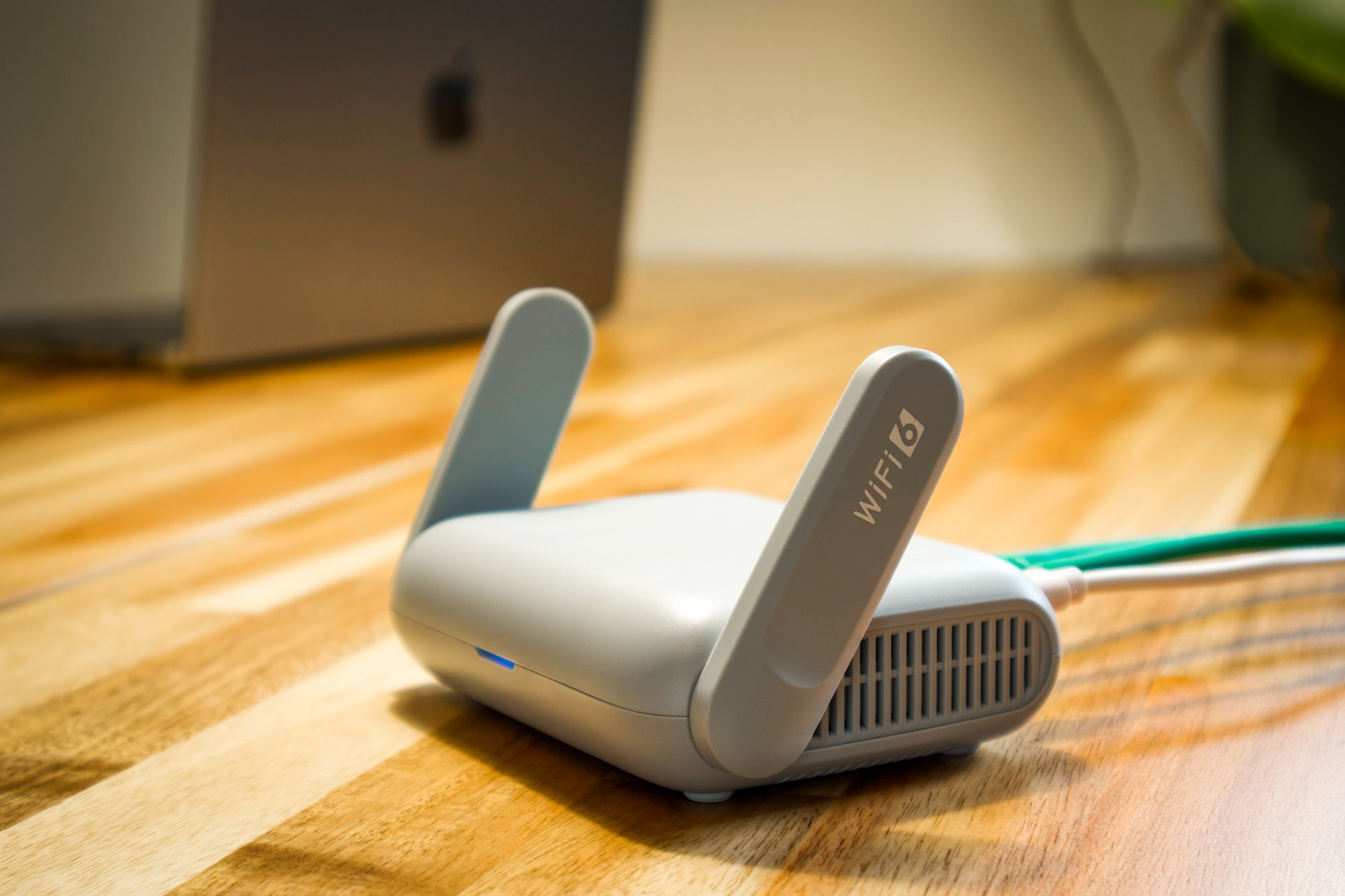
How to Add Wi-Fi 6 to Starlink: A Practical Router Upgrade Guide
Equipment & Accessories
Wi-Fi 6 can improve the wireless network inside your home, but it cannot remove dish obstructions, repair an upstream outage or make a congested satellite cell faster. The useful upgrade is a controlled change: put a compatible Wi-Fi 6 router or access point in the right place, keep one device in charge of routing, then compare the result with a repeatable test.
Decide whether Wi-Fi 6 solves your problem
A Wi-Fi 6 upgrade is worth considering when:
- several phones, laptops, TVs and smart-home devices share Wi-Fi at the same time;
- local file transfers or streaming between devices are slow even when Starlink is online;
- the current router has weak coverage or struggles when many clients are connected;
- you want a newer router with better local-network capacity and longer firmware support.
It is unlikely to fix:
- an obstructed dish or a poor installation location;
- peak-hour Starlink congestion;
- rain fade, a damaged cable or a service outage;
- slow internet caused by the satellite link rather than your household Wi-Fi.
Before buying hardware, run a normal speed test and note where the problem occurs. A new Wi-Fi standard should be treated as a local-network upgrade, not a promise of a faster Starlink plan.
Wi-Fi 6, Wi-Fi 6E and Starlink
Wi-Fi 6 is an IEEE 802.11ax wireless standard used mainly on the 2.4 GHz and 5 GHz bands. Wi-Fi 6E adds a 6 GHz band, but a Wi-Fi 6E label does not mean every device or room will use 6 GHz.
Check the exact Starlink router model and the devices you use. Some Starlink kits already include newer wireless hardware, while others may benefit more from better placement or a separate router. Do not assume that a connector, app menu or product name is identical across Starlink hardware generations.
The upgrade only helps a client that supports it. Older phones, printers and smart-home devices can still connect, but they may need a 2.4 GHz network and WPA2-compatible security.
Choose the network layout
There are two sensible ways to add Wi-Fi 6.
Keep the Starlink router as the main router
Use this layout when you want the Starlink router to keep providing the gateway, DHCP and basic firewall:
Starlink dish -> Starlink router -> Ethernet -> Wi-Fi 6 access point
Put the new device into Access Point, AP mode or its documented wired-bridge mode. This avoids creating a second routed network and usually keeps printers, cameras and other local services easier to discover.
Let the Wi-Fi 6 router take over
Use this layout when you want the new router to manage routing, DHCP, firewall rules and the main Wi-Fi network:
Starlink dish -> Starlink router in bypass mode -> Wi-Fi 6 router
Bypass mode is hardware-specific. Follow the instructions for your exact Starlink kit and third-party router. After the change, the new router becomes the place where you configure Wi-Fi, guest access and local-network settings.
Do not put a new router behind the Starlink router in ordinary router mode unless you deliberately want two separate networks and understand the extra work that causes. Double NAT can interfere with local discovery, gaming, remote access and some VPN setups.
Check the hardware before you buy
Look for these features in the Wi-Fi 6 device:
- a documented access-point mode if you plan to keep the Starlink router routing;
- an Ethernet uplink fast enough for the devices you want to use;
- at least one 2.4 GHz network for older or low-power devices;
- WPA2 or a documented WPA2/WPA3 compatibility mode;
- firmware support from a manufacturer you can still reach;
- enough coverage for the space, rather than the largest advertised speed number.
Check how your Starlink kit exposes Ethernet. Some hardware needs a compatible adapter or has a different port arrangement. Use the cable and adapter specified for your model; a plug that fits is not proof that the accessory is suitable.
If the new device will sit in another room or outbuilding, plan the cable route, power and weather protection before ordering. Do not use an indoor cable where it will be exposed to water, sharp edges, heat or foot traffic.
Record a baseline before changing anything
Write down the current arrangement and take a photo of the connections. Then test:
- Starlink status in the Starlink app.
- A speed test near the current router.
- A speed test in the room where performance is poor.
- A local task, such as copying a file between two devices or reaching a printer.
- One ordinary video call or streaming session if that is the problem you are trying to solve.
Use the same device and test location after the upgrade where possible. A different phone, different room or busy evening can make an upgrade look better or worse than it really is.
Install the Wi-Fi 6 device
- Keep the existing Starlink network working while you prepare the new device.
- Connect the Wi-Fi 6 device using the Ethernet path described by its documentation.
- Choose Access Point/AP mode or prepare the router for the Starlink bypass layout.
- Set a strong Wi-Fi password and update the new device's firmware when its setup flow recommends it.
- Create a separate 2.4 GHz network temporarily if older smart-home devices cannot join the combined network.
- Connect one phone or laptop first and confirm that it can browse.
- Reconnect printers, cameras, smart-home hubs and other important devices one group at a time.
- Keep the old arrangement recoverable until the new layout passes the tests below.
Using the same Wi-Fi name and password can make reconnecting devices easier, but it can also hide which device a client is using. During testing, a temporary name such as Home-WiFi6-Test makes the comparison clearer. Rename it later if the results are good.
Place and tune the new router
Put the Wi-Fi 6 device in an open, raised position with space around it. Keep it away from metal cabinets, large appliances and heat sources. If it is replacing the Starlink router, place it where people actually need wireless coverage, not automatically next to the dish or power supply.
Start with automatic channel selection and the manufacturer's normal compatibility settings. Do not enable every advanced option at once. Very wide channels, unusual security modes or aggressive band-steering settings can make older clients less reliable.
If a printer or smart-home device will not connect:
- confirm that the device is joining the intended 2.4 GHz network;
- temporarily disable band steering if the router offers that choice;
- try WPA2-compatible security;
- keep the older device close to the router during setup;
- reconnect it after the main Wi-Fi network has been verified.
Wi-Fi 6 does not guarantee seamless roaming between separate access points. If you are extending coverage, test the access point on its own first, then decide whether to use the same network name as the Starlink router.
Verify whether the upgrade helped
Repeat the baseline tests using the same device and locations:
- Confirm that Starlink is online before judging the local Wi-Fi.
- Check the device's connection details to see which network and band it is using.
- Run the same internet speed test near the router and in the problem room.
- Repeat a local file transfer or printer task.
- Walk between coverage areas and watch for disconnects or long pauses.
- Test an older 2.4 GHz device.
- Leave the network running through a normal evening of calls, streaming or gaming.
A faster local file transfer with no meaningful change in the Starlink speed test usually means the upgrade improved Wi-Fi, which is still a successful result. If both wired and wireless tests remain slow, look at the dish, service status, obstructions, cable and peak-hour congestion instead of buying a faster router.
Troubleshoot the common failures
The new router has Wi-Fi but no internet
Check whether the device is in the intended AP or bypass layout. In access-point mode, confirm that the Ethernet path reaches the Starlink router. In bypass mode, confirm that the new router's WAN connection is using the port and settings required by its documentation.
Devices connect but local services disappear
This usually points to router mode, guest isolation, client isolation or an unintended second DHCP service. Return the new device to documented AP mode, or complete the bypass layout so only the intended router manages the home network.
A smart-home device refuses to join
Use a separate 2.4 GHz network, WPA2-compatible security and a simple temporary network name. Avoid changing multiple wireless settings at the same time, and reconnect the device after the main network has been tested.
Wi-Fi 6 devices are still slow
Check signal strength and the band in use before blaming the satellite connection. A device at the edge of coverage may perform worse than a closer older device. Test beside the router, then test again in the problem room.
The Starlink app behaves differently
Changing router mode can change which device provides local network services. Keep the Starlink app for dish and service checks, and use the Wi-Fi 6 router's own app or administration page for its wireless settings. Follow the instructions for the exact Starlink model before enabling or disabling bypass mode.
Final checklist
- [ ] I identified the exact Starlink hardware and Ethernet arrangement.
- [ ] I chose access-point mode or bypass mode intentionally.
- [ ] Only the intended device provides routing and DHCP.
- [ ] The Wi-Fi 6 device supports 2.4 GHz clients where needed.
- [ ] I recorded a baseline before changing the network.
- [ ] The new layout passes an internet test and a local-network test.
- [ ] Older printers and smart-home devices still work.
- [ ] I kept the previous connections and recovery steps documented.
Reviewed: 18 October 2026. Starlink hardware, app labels and router features can change, so check the current instructions for your exact kit and Wi-Fi 6 device before changing settings.
Get One Month of Starlink Free
Order through my referral link and activate your service. Your second month of Starlink service will be free. Current terms are shown at checkout.
Starlink Tips is independent and may receive a referral reward. Check the offer shown for your order.