
Get One Month of Starlink FreeSPECIAL OFFER: GET A FREE MONTH OF STARLINK >
9

Troubleshooting & Fixes

Useful fixes for Starlink dropouts, obstructions, slow speeds, Wi-Fi faults and hardware problems.

More from Troubleshooting & Fixes

View playlist

How to Perform a Starlink Router Factory Reset

Video by DISHYtech on “How to Perform a Starlink Router Factory Reset”. Starlink Tips viewing notes: A factory reset is a configuration recovery step, not a promise of faster internet. Confirm the reason for resetting and use the instructions for the exact router, with a plan to reconnect devices. Related answer: Should I reboot Starlink or factory reset the router when it stops working? — Reboot Starlink Or Factory Reset Router Related guide: How to Reboot or Factory Reset a Starlink Router — How To Reboot Factory Reset Starlink Router Get One Month of Starlink Free — Claim Your Free Month: Starlink Order through my referral link and activate your service. Your second month of Starlink service will be free. Starlink Tips may receive a referral reward. Check the offer shown by Starlink for your order.

How to Perform a Starlink Router Factory Reset

Video by DISHYtech on “How to Perform a Starlink Router Factory Reset”. Starlink Tips viewing notes: A factory reset is a configuration recovery step, not a promise of faster internet. Confirm the reason for resetting and use the instructions for the exact router, with a plan to reconnect devices. Related answer: Should I reboot Starlink or factory reset the router when it stops working? — Reboot Starlink Or Factory Reset Router Related guide: How to Reboot or Factory Reset a Starlink Router — How To Reboot Factory Reset Starlink Router Get One Month of Starlink Free — Claim Your Free Month: Starlink Order through my referral link and activate your service. Your second month of Starlink service will be free. Starlink Tips may receive a referral reward. Check the offer shown by Starlink for your order.

Questions & answers

Questions about this video

Straight answers to the questions readers ask most often.

Should I reboot Starlink or factory reset the router when it stops working?

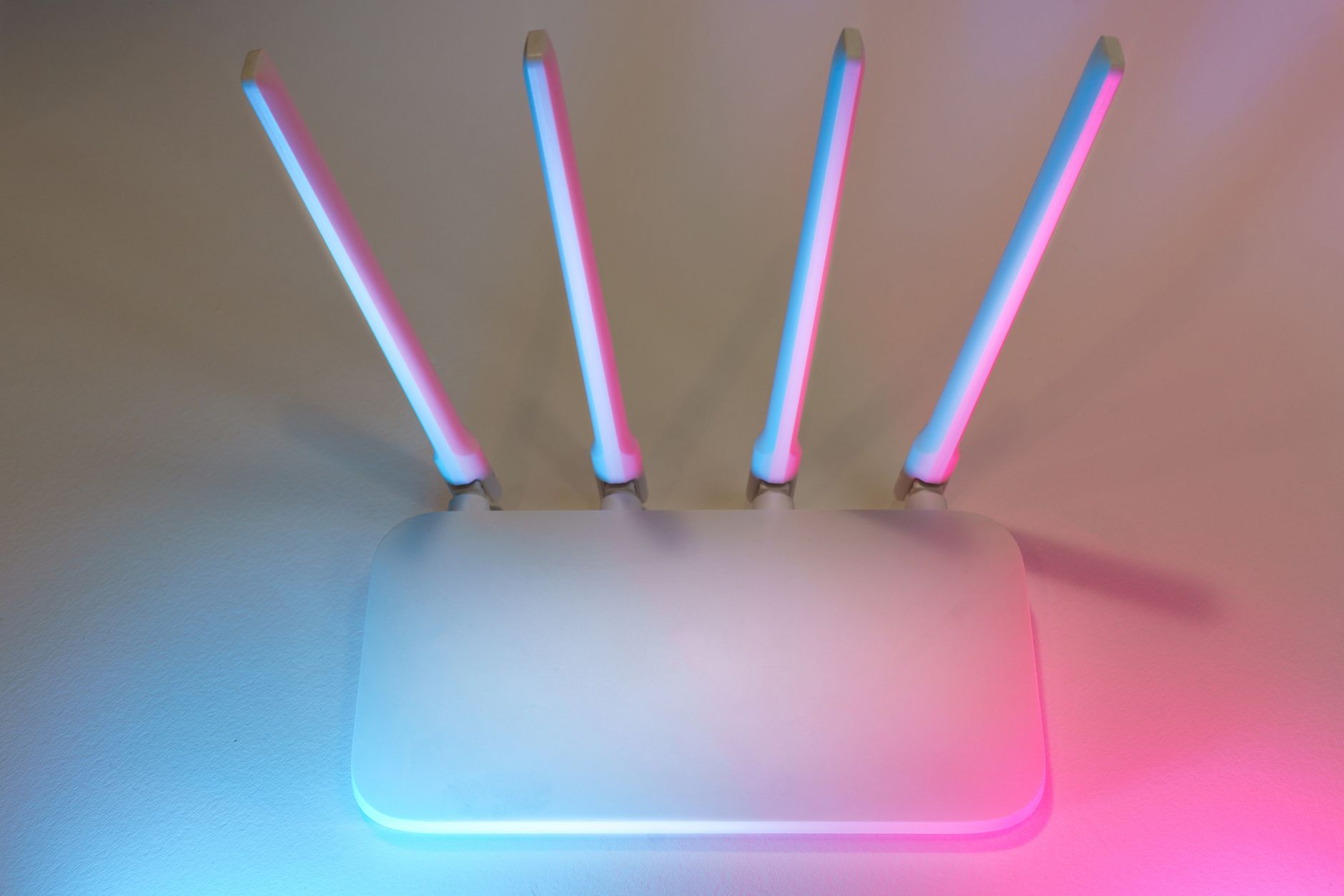
A reboot restarts equipment; a factory reset returns the router to its initial configuration and can remove your Wi-Fi settings. For an unexplained connection problem, check the cause before choosing the more disruptive option.

Starlink's Standard setup guide starts with app alerts, the router light and cable checks before progressing to a power cycle and factory reset. Our practical checklist is:

  1. Identify the scope. Is every device offline, or only one phone, television or computer?
  2. Read the app. Record any outage, obstruction or equipment alert and the time it appeared.
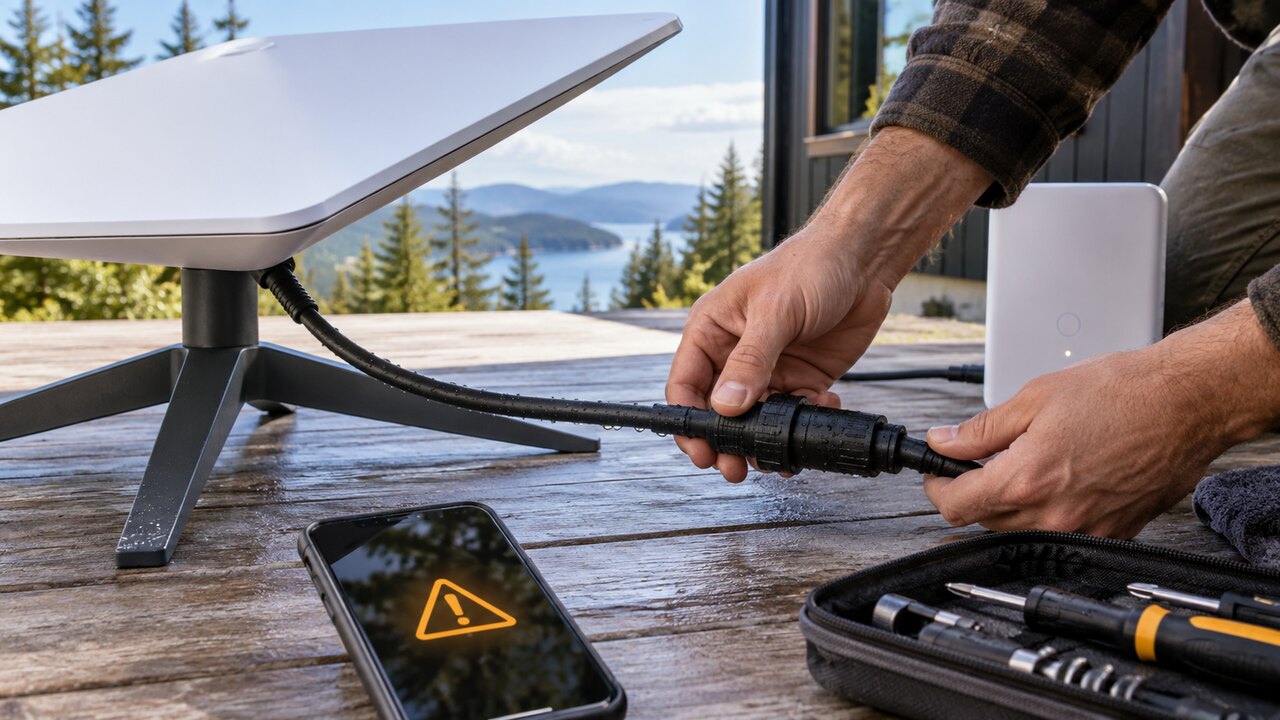
  3. Check the basics safely. Confirm power and accessible connections; do not open electrical equipment or handle damaged parts.
  4. Try an ordinary restart if appropriate. Follow the instructions for your model and allow it to finish starting before judging the result.
  5. Reserve a factory reset for a clear reason. Use the matching official procedure when troubleshooting directs you to reset, or when recovery of the router's configuration requires it.

Before resetting, record the network details and consider which cameras, printers or other devices might need reconnecting. Reset controls differ by generation, so do not copy a rapid power-cycling sequence from a different model.

A reset cannot clear a tree from the dish's view or resolve a wider provider outage. If the same fault returns, collect the alerts and steps already tried for support.

Read our reboot and factory-reset guide.

Official reference: Starlink Standard setup and troubleshooting guide. Its physical reset instructions apply to the hardware shown.

Reviewed: 23 September 2026.

Get One Month of Starlink Free

Claim Your Free Month

Order through my referral link and activate your service. Your second month of Starlink service will be free.
Open and share this answer
Browse all questions