Get One Month of Starlink FreeSPECIAL OFFER: GET A FREE MONTH OF STARLINK >
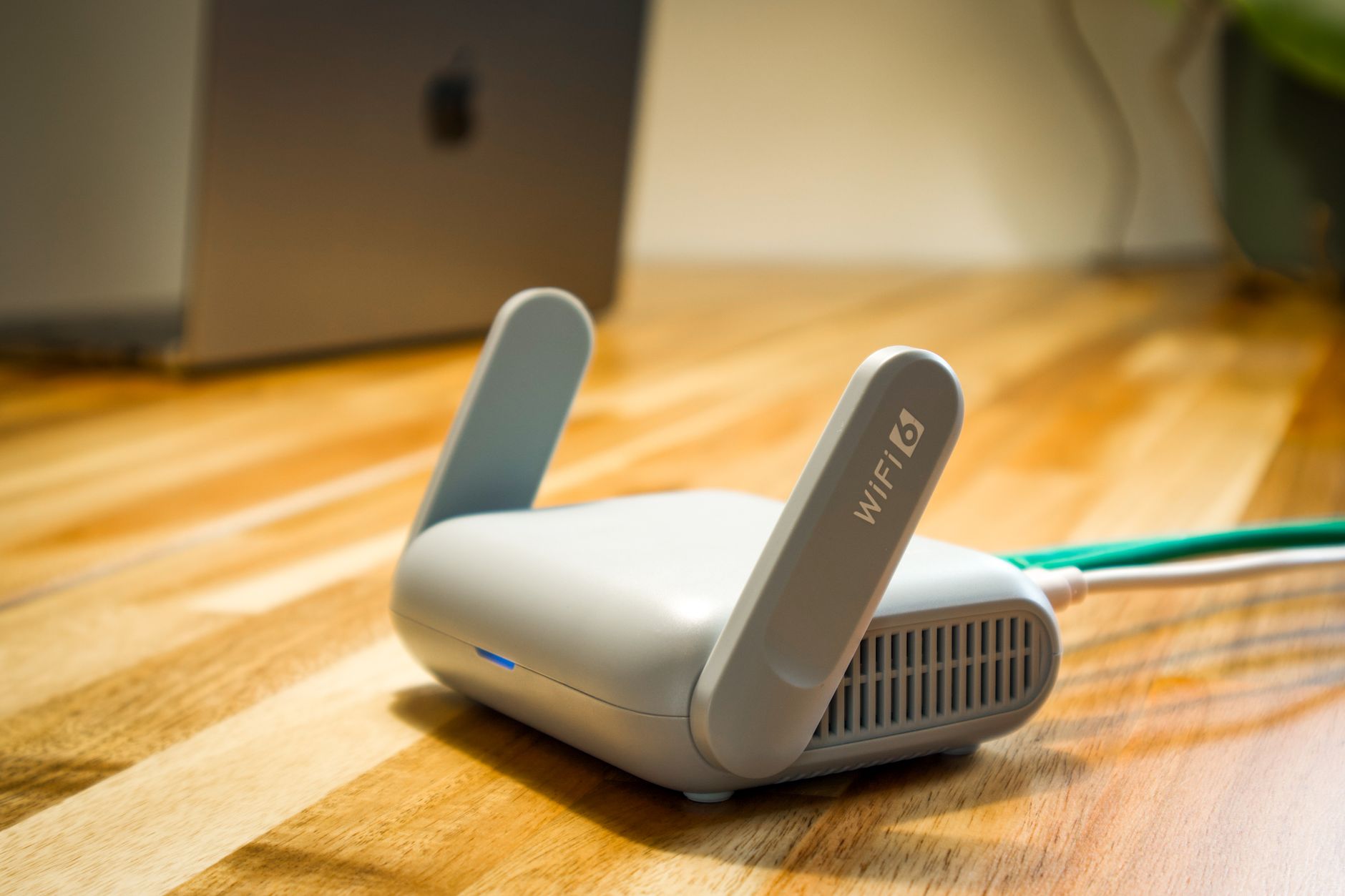
Wireless router and cable representing Starlink hardware and accessories

Starlink Hardware & Accessories

Reviews and guides covering Starlink routers, mounts, adapters, cables and useful accessories.

More from Starlink Hardware & Accessories

View playlist

Worth It? Starlink Gen3 Router

Crosstalk Solutions reviews the Starlink Gen 3 router and considers its value. Starlink Tips viewing notes: A router review is most useful when compared with a specific need: indoor coverage, the number of wired devices or management features. Confirm the hardware generation and current app capabilities before purchasing. Keep account security, Wi-Fi security and device-level family controls separate in your plan. The related answers explain why a paused phone can remain online and why a device can appear under more than one network identity. These are written network-management resources, not a claim that the video demonstrates those exact features or that every router provides the same parental controls. Related guides and practical Q&A are linked in the questions section below. For the referral offer, use the “Claim Your Free Month” button beneath the player. Order through my referral link and activate your service. Your second month of Starlink service will be free.

Worth It? Starlink Gen3 Router

Crosstalk Solutions reviews the Starlink Gen 3 router and considers its value. Starlink Tips viewing notes: A router review is most useful when compared with a specific need: indoor coverage, the number of wired devices or management features. Confirm the hardware generation and current app capabilities before purchasing. Keep account security, Wi-Fi security and device-level family controls separate in your plan. The related answers explain why a paused phone can remain online and why a device can appear under more than one network identity. These are written network-management resources, not a claim that the video demonstrates those exact features or that every router provides the same parental controls. Related guides and practical Q&A are linked in the questions section below. For the referral offer, use the “Claim Your Free Month” button beneath the player. Order through my referral link and activate your service. Your second month of Starlink service will be free.

Questions & answers

Questions about this video

Straight answers to the questions readers ask most often.

Why can a paused phone still access the internet on my Starlink network?

A router pause applies to the network connection or device entry being controlled. A phone may instead use mobile data, another Wi-Fi network or a hotspot. Downloaded videos and offline apps may also keep working without any internet connection.

For a simple check, use a non-essential phone, temporarily turn off mobile data, confirm it is on your Starlink Wi-Fi and try loading a new web page. Check that you paused the correct device entry, then resume it and confirm access returns.

Private Wi-Fi addresses can make device identification confusing after settings or network changes. Compare the address shown in the phone's current Wi-Fi details with the router entry before drawing conclusions. Do not disable privacy features across every network just to simplify a device list.

Use device-level family controls for screen time, purchases and app restrictions. Network pausing alone is not a complete parental-control system. The related router review is equipment background, not a demonstration of a guaranteed parental-control feature.

Related guides

Related videos

Source and review

Official reference. Reviewed 26 September 2026. Practical test sequences are Starlink Tips editorial guidance.

Get One Month of Starlink Free

Claim Your Free Month

Order through my referral link and activate your service. Your second month of Starlink service will be free.

Starlink Tips is independent and may receive a referral reward. Check the offer displayed by Starlink for your order.

Open and share this answer
Why does the same device appear more than once in the Starlink app?

A duplicate-looking name does not necessarily mean a stranger has joined your network. One device can use different network interfaces, and phones or computers may use a private Wi-Fi address that changes after certain settings or network resets. Old inactive entries can also be confused with the current connection.

Check which entries are actually online. Compare the MAC address in the device's current Wi-Fi details with the router's information. Switch Wi-Fi off on that device briefly, watch which connection disappears, and reconnect it. Label the confirmed entry clearly.

Apple documents fixed and rotating private-address modes on supported software. Retain privacy protection where possible instead of turning it off everywhere. Settings and behaviour differ between platforms.

If you still find an active device you cannot identify, follow the network-security checklist: review who has access and change the Wi-Fi password deliberately if warranted. Reconnect essential equipment afterwards. Device names alone are not reliable proof of an intruder.

Related guides

Related videos

Source and review

Official reference. Reviewed 26 September 2026. Practical test sequences are Starlink Tips editorial guidance.

Get One Month of Starlink Free

Claim Your Free Month

Order through my referral link and activate your service. Your second month of Starlink service will be free.

Starlink Tips is independent and may receive a referral reward. Check the offer displayed by Starlink for your order.

Open and share this answer
Browse all questions