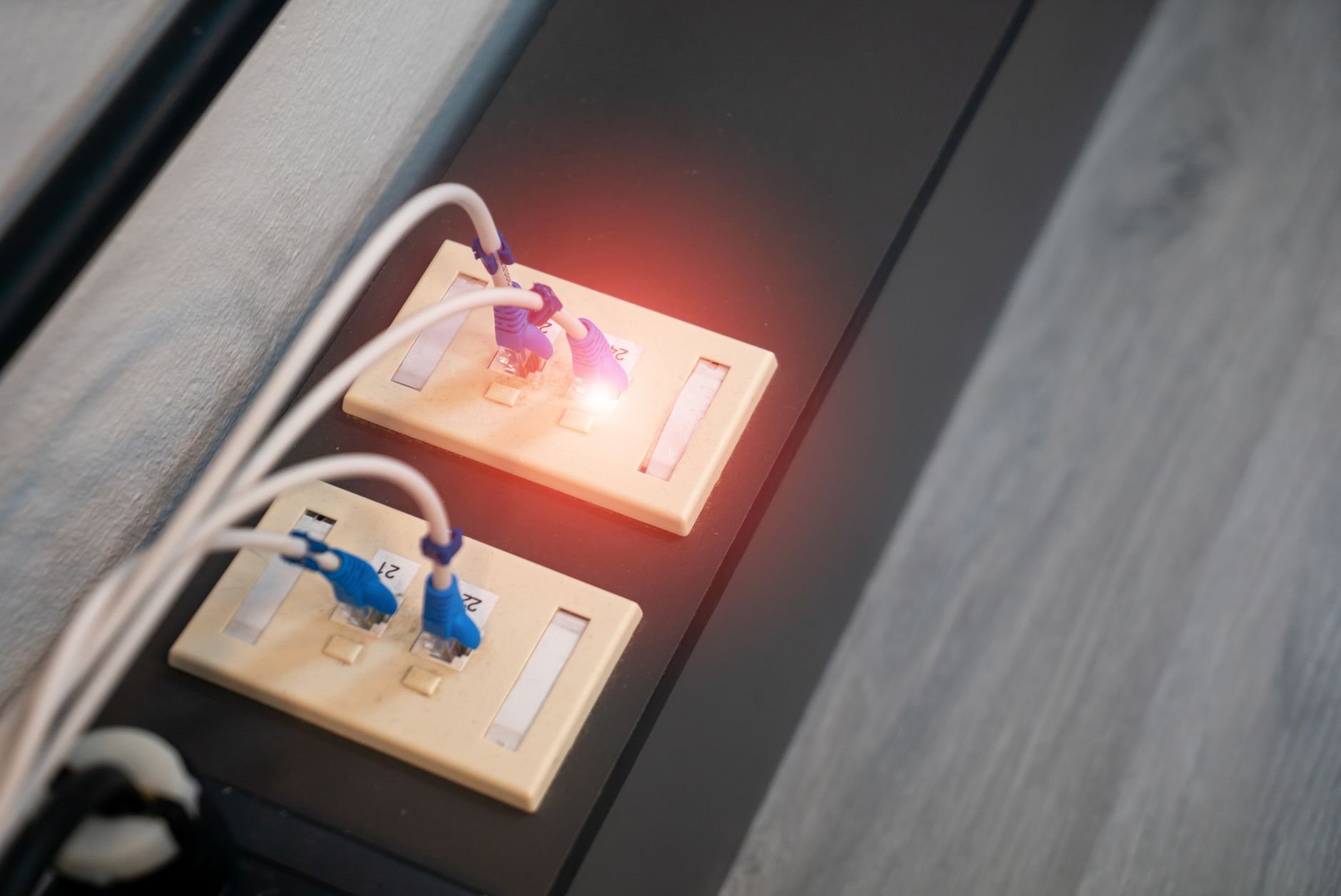
Starlink Router Red Light? A Safe Troubleshooting Checklist
Troubleshooting & Fixes
A red light on a Starlink router or power unit is a warning sign, not a diagnosis. Starlink hardware has changed across generations, and some kits have no user-visible status light at all. Use the light together with the Starlink app, the exact hardware message and what your devices can or cannot reach.
This checklist stays at safe, user-accessible checks. Do not open the router or power supply, probe proprietary connectors, or keep swapping parts just because a plug fits.
1. Read the app before restarting anything
Open the Starlink app while the red light or offline condition is present. Record or screenshot:
- The exact connection status and any alert wording.
- Whether the app reports an obstruction, booting state, service issue or hardware problem.
- Whether the app can connect to the local router.
- The time the problem began and anything that changed just before it.
A reboot can clear the message that would have helped you identify the fault, so preserve the evidence first.
2. Find out how wide the failure is
Test a second device close to the main Starlink router.
- If one device fails but another works, focus on that device, its saved Wi-Fi network, VPN or local network path.
- If every device fails, continue with the router, power and Starlink checks.
- If the app shows the service online but devices cannot browse, treat that as a local Wi-Fi or added-network problem until a second device confirms otherwise.
This separates a router-light symptom from a single-device problem before you change the installation.
3. Check power at ground level
With no damaged or wet equipment in sight:
- Confirm that the power plug is fully seated and the wall outlet works with another appliance.
- Temporarily bypass a power strip, extension lead, UPS, inverter or generator and connect to a known-good wall outlet.
- Check the outside of the power supply and router for unusual heat, a burning smell, melted plastic or visible damage.
- Keep the equipment dry, ventilated and off soft furnishings while testing.
Do not climb onto a roof or move a mounted dish just because the router light is red. Stop immediately if a breaker or RCD/GFCI trips, or if you smell burning.
4. Reseat accessible cables with power removed
Unplug the system before inspecting connections. Check for crushed sections, sharp bends, water, corrosion, loose housings or cable strain. Reseat only the connectors your kit instructions identify, and make sure each one is fully inserted.
Never force or twist a connector, use contact cleaner, add an improvised shim, or substitute a power supply or cable because the connector looks similar. Different Starlink generations are not automatically interchangeable.
5. Allow a complete boot cycle
After the physical checks:
- Leave the kit disconnected for about five minutes.
- Reconnect the correct cables in the normal order for your hardware.
- Use the known-good wall outlet and keep the router ventilated.
- Wait several minutes for the router and dish to boot and acquire service.
- Check the app again instead of repeatedly power-cycling the equipment.
One controlled restart is useful. Rapid repeated restarts can make the symptom harder to interpret and will not repair a damaged cable or power supply.
6. Test added networking equipment separately
If you use your own router, mesh nodes, switch or travel router, test the simplest safe path you can:
- Connect one device to the main Starlink Wi-Fi or a confirmed working wired path.
- Temporarily remove one added device at a time from the test path.
- Write down which part was changed and whether the red light or offline message changed.
- Do not connect a normal Ethernet switch or other device into a cable that carries power to the dish.
If the main router works but a mesh node or switch does not, troubleshoot that added device instead of factory-resetting Starlink.
7. Know when the red light needs support
Contact Starlink support if the red light or offline state remains after the safe checks, especially when the app reports a hardware fault or the router repeatedly restarts. Include:
- The Starlink hardware model or kit details.
- The exact light behaviour and app message.
- Whether one device or every device is affected.
- The outlet, cable and added-equipment tests you completed.
- Photos of any visible damage, only if it is safe to take them.
Stop using the equipment and seek help promptly for burning smells, melted plastic, water inside a connector, repeated breaker trips or a cable that will not seat correctly. Do not dismantle the hardware.
Quick checklist
- [ ] Recorded the app status and exact message before restarting.
- [ ] Tested a second device near the main router.
- [ ] Bypassed the power strip, UPS, inverter or extension lead.
- [ ] Checked for heat, moisture, damage and cable strain.
- [ ] Unplugged before reseating accessible cables.
- [ ] Used only parts confirmed for the exact Starlink kit.
- [ ] Allowed a complete boot cycle.
- [ ] Tested added routers, mesh nodes and switches separately.
- [ ] Collected the model, symptoms and test results for support.
A red light is a useful clue, but it does not by itself prove that the dish, router, power supply or Starlink service has failed. Isolate one part at a time, keep every change reversible, and stop when a check becomes unsafe.
For official help, use Starlink Support and include the evidence from this checklist.