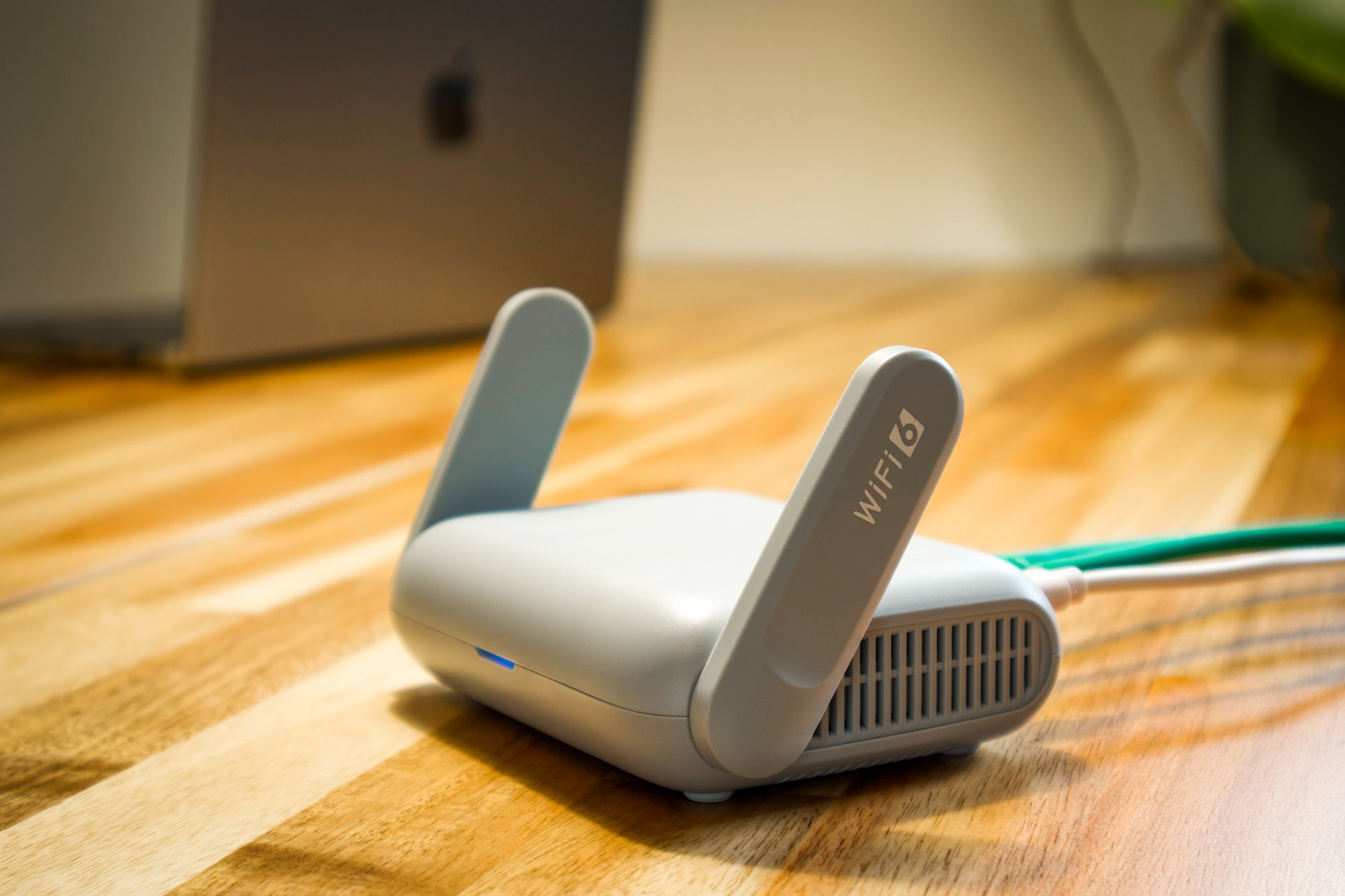
Starlink Power Supply Failure? How to Test the Adapter, Cable and Router Safely
Troubleshooting & Fixes
Starlink power problems can look like an outage, a bad dish, a faulty router, or a damaged cable. The fastest safe diagnosis is to isolate one part at a time: the wall outlet, the power supply, the Starlink cable, the router, and finally the dish.
This guide is deliberately model-neutral. Starlink hardware has changed over time, so connector shapes, power supplies, lights, and router behaviour vary by kit.
Before you start: safety first
- Unplug the system from mains power before reseating any cable.
- Do not open the power supply or router. There are no useful user-serviceable parts inside.
- Do not probe a proprietary Starlink connector with a multimeter unless the exact Starlink documentation for your kit specifies a test. A wrong probe or short can damage the equipment.
- Never substitute a power supply just because its plug fits. Voltage, polarity, connector wiring, and current capacity must all be compatible.
- Stop immediately if you smell burning, see melted plastic, hear arcing, find water inside a connector, or the circuit breaker trips.
What a Starlink power fault looks like
A power problem is more likely when you see one or more of these symptoms:
- The router shows no sign of life after testing a known-good wall outlet.
- The router starts, stops, and starts again in a repeating cycle.
- The connection works after cooling down, then drops when the equipment becomes hot.
- The router appears powered, but the dish repeatedly goes offline after the cable is reseated.
- The system behaves differently after a cable has been moved or reconnected with the power removed.
- The app reports an offline or booting state even after a normal restart.
One symptom is not proof of a failed power supply. A loose connector, damaged cable, blocked ventilation, bad outlet, or service outage can look similar.
1. Record the current state
Before unplugging anything, record what you can:
- Note whether the router has power, whether any status light is present, and whether the app can connect locally.
- In the Starlink app, capture the current status or alert screen if one is available.
- Write down whether the failure is constant, happens after rain or heat, or appears after a particular cable has been disturbed.
- If possible, test from a second phone. A phone that cannot reach the router does not by itself prove that the Starlink hardware has lost power.
This gives you a useful before-and-after comparison.
2. Rule out the wall outlet and power strip
- Unplug the Starlink power supply from the wall.
- Check the plug, cable, and outlet for looseness, scorch marks, moisture, or damage.
- Leave the system disconnected for at least five minutes.
- Connect it directly to a known-good wall outlet, temporarily bypassing a power strip, extension lead, UPS, inverter, or generator.
- Allow a few minutes for the kit to boot before deciding that it has failed.
If it works from the second outlet, investigate the original outlet or the intermediate power equipment. If it behaves the same way, continue with the Starlink-side checks.
3. Inspect every connection with power removed
With the system unplugged, check both ends of every cable you can access:
- Look for bent, recessed, loose, corroded, dirty, wet, or discoloured contacts.
- Check that the connector housing is not cracked and that its locking or weather seal is seated correctly.
- Look along the cable for crushing, sharp bends, cuts, abrasion, or a section that has been pinched by a door, window, roof tile, or mount.
- Confirm that the cable is not pulling sideways on the router or dish connector.
- Reseat each connector firmly according to the instructions for your kit. Never force a connector or twist it into place.
Do not use contact cleaner, household tape, or improvised shims inside a Starlink connector. If a connector is wet, let it dry completely and address the source of the moisture before powering the system again.
4. Check heat and ventilation
A power supply or router that is too hot can shut down or restart to protect itself.
- Move the router and power supply into a dry, ventilated position while testing.
- Keep them off soft furnishings and away from direct sun, heaters, and enclosed cupboards.
- Remove dust from the outside vents with the equipment unplugged.
- Note whether the failure appears only after the system has been running for a while.
- Do not cool the equipment with water, ice, or a freezer.
A failure that follows temperature is a useful clue, but it still does not identify whether the power supply, router, or another component is at fault.
5. Isolate the power supply
The exact power layout depends on the Starlink generation. Some kits use a separate power supply, while others combine more of the power electronics in the router or another unit.
If your kit has a separate power supply:
- Check its label and part number against the documentation for your exact kit.
- If you have a known-good, exact compatible replacement, swap only the power supply.
- Keep the original cable and router in place so that one change is tested at a time.
- Wait through a complete boot cycle and then monitor the connection for at least 15 minutes.
Do not use a generic laptop adapter, a higher-voltage supply, a supply with an unknown polarity, or a replacement that only matches the connector shape. A higher wattage rating alone does not make an adapter safe.
If the kit does not use a separate user-replaceable power supply, do not dismantle it. Treat the router or power unit as a single serviceable component and contact Starlink support if the outlet and cable checks do not resolve the fault.
6. Test the Starlink cable without stressing it
A cable can carry power and data, so a partial fault may allow the router to start while the dish remains offline.
- Use the original cable first and check that both ends are fully seated.
- If you have a known-good replacement made for the same Starlink kit, swap only that cable.
- Keep the replacement route short and protected while testing.
- Do not bend, twist, or wiggle a powered connector to make the fault appear.
- If the connection returns after a cable swap, stop using the suspect cable and replace it with the correct model.
Never assume that a cable from another Starlink generation is interchangeable. Confirm compatibility before connecting it.
7. Interpret the result
Use these results as working diagnoses:
- No response from a known-good outlet and an exact compatible power supply: The power supply, router, or internal hardware is the most likely direction.
- The router powers but the dish stays offline, and a compatible cable fixes it: Suspect the cable or one of its connectors.
- The system restarts only when hot and improves with ventilation: Suspect a thermal problem or a component that is failing under load.
- The problem disappears when a UPS, inverter, or extension lead is bypassed: Investigate the intermediate power equipment or outlet.
- Everything powers normally but the app reports an outage or service issue: Investigate service, obstruction, or another network-side problem rather than mains power.
- A breaker trips, there is a burning smell, or hardware is visibly damaged: Stop testing and seek Starlink support or a qualified electrician.
These are clues, not a reason to keep swapping parts indefinitely. Change one thing at a time and write down the result.
8. Finish with a controlled reboot
After the physical checks:
- Leave the system unplugged for five minutes.
- Connect the correct cables in the normal order for your kit.
- Use a known-good wall outlet.
- Keep the router and power supply ventilated.
- Wait for the full boot and acquisition process before judging the result.
- Check the app for status, alerts, obstruction information, and connection history.
Avoid factory resetting the router as a first response to a suspected power fault. A reset can remove useful configuration and does not repair a damaged cable or power supply.
When to contact Starlink support
Contact Starlink support with the exact kit model, serial number, purchase or installation date, and a short record of the tests you completed. Include clear photos of any damaged connector, cable, or power unit.
Stop using the equipment and seek help promptly if:
- The power supply or router smells burnt or becomes unusually hot.
- Plastic is melted, cracked, wet, or discoloured.
- A breaker or RCD/GFCI trips when the kit is connected.
- The system repeatedly reboots after you have ruled out the outlet and used only compatible parts.
- A cable or connector is loose, damaged, or will not seat correctly.
Quick checklist
- [ ] Tested a known-good wall outlet.
- [ ] Bypassed the power strip, UPS, inverter, or extension lead.
- [ ] Unplugged the kit before inspecting and reseating cables.
- [ ] Checked for heat, moisture, physical damage, and strain.
- [ ] Used only an exact compatible replacement power supply or cable.
- [ ] Changed one component at a time.
- [ ] Avoided opening the equipment and probing proprietary connectors.
- [ ] Recorded the result before contacting support.
The goal is to identify the failing part without turning a repairable cable or adapter problem into a damaged router or dish.