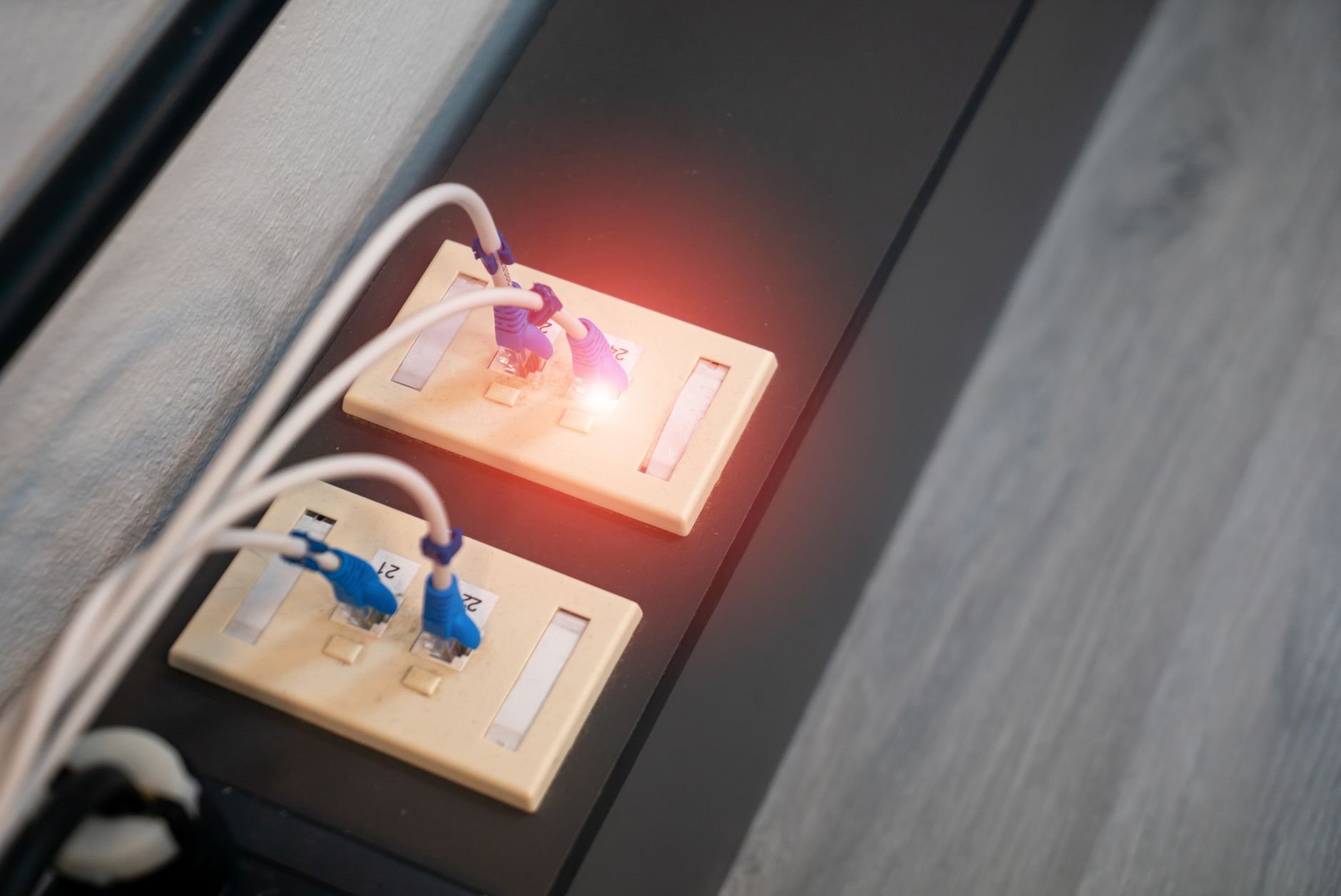
Starlink Ethernet Keeps Dropping? A Safe Cable, Port and Router Test
Troubleshooting & Fixes
Starlink Ethernet Keeps Dropping? A Safe Cable, Port and Router Test
A wired device that repeatedly disconnects and reconnects can make Starlink look unreliable, but the fault may be a cable, wall jack, switch, adapter, router port, device dock or power issue. This guide isolates those causes in a controlled order before you replace hardware or reset the network.
The steps are model-neutral. Port names, light behaviour and app labels vary between Starlink hardware generations and third-party routers.
Before you start
Write down:
- Which device is dropping
- The approximate time of each drop
- Whether the device loses its wired link completely or only loses internet access
- Whether other wired or Wi-Fi devices drop at the same time
- What the Starlink app shows during the event
Do not keep power-cycling the system after every short drop. Repeated restarts remove useful evidence. If you see a damaged cable, exposed conductor, liquid, burning smell or unusual heat, disconnect the affected equipment safely and stop testing.
1. Prove that the problem is the wired path
Temporarily turn off Wi-Fi on the affected laptop, desktop, TV or other device. Test it over Ethernet, then repeat the same activity over Wi-Fi if practical.
- If only the Ethernet test fails, concentrate on the cable, port, adapter, dock, switch or wall route.
- If both wired and Wi-Fi devices fail together, investigate Starlink service, power, the router or the wider network.
- If only one computer fails, include its Ethernet adapter, USB-C dock, driver and sleep settings in the investigation.
A single device is not enough evidence to blame the dish.
2. Separate a link drop from an internet outage
Watch the Ethernet port or the device's network status while the fault occurs. The exact lights differ by equipment, but the useful distinction is:
- The link light goes out or the device reports that the cable is unplugged: suspect the physical path, port, adapter or local power.
- The link stays connected but websites stop loading: suspect DNS, the router, upstream service, VPN or another network-path problem.
- The device reconnects after a few seconds: record the interval and whether the port renegotiates at the same time.
Do not treat a speed test failure as proof of a cable fault. A speed test can fail while the Ethernet link itself remains healthy.
3. Reseat and inspect every connection
Shut down or disconnect the relevant equipment before moving cables. Then:
- Unplug the Ethernet cable at both ends.
- Check that each plug's locking tab is intact and that the contacts are clean and dry.
- Look for tight bends, crushed sections, pulled connectors, water ingress or a cable being trapped under furniture.
- Reconnect each end until it is fully seated.
- Make sure the router, Ethernet adapter, switch and any dock have firm power connections.
If the cable passes through a wall plate, coupler, patch panel or floor box, include those connection points. A tidy-looking fixed run can still have a loose termination.
4. Test with one short, known-good cable
Remove extra variables for one test. Use a short Ethernet cable that is known to work with another device, connected directly between the Starlink LAN path and the affected device or router.
For this test, avoid:
- Couplers and extension joins
- Wall plates and patch panels
- Unmanaged or managed switches
- Power-over-Ethernet injectors
- USB or USB-C docks, if the device has another Ethernet option
Keep the cable away from sharp edges and heavy electrical equipment while testing. If the connection becomes stable, add the removed parts back one at a time. The first component that brings the drops back is the leading suspect.
5. Test another port and another device
If the router or switch has another suitable LAN port, move only the tested cable to that port. Then test a second device through the same path.
The results narrow the fault:
- One port fails with multiple cables and devices: suspect that port or the equipment containing it.
- Multiple ports work with one device but not another: suspect the device's adapter, dock or driver.
- Two devices fail through one cable or wall route: suspect that shared path.
- A direct test is stable but the normal network path drops: work outward through the switch, wall wiring, mesh node or third-party router.
Do not move several cables and network settings at once. Change one thing, test, and record the result.
6. Temporarily remove extra network gear
If you use a third-party router, switch, mesh node or access point, test the affected device on the simplest safe path available. This may mean connecting directly to the Starlink router or Ethernet adapter, or temporarily removing one downstream component while preserving its settings.
Do not factory-reset the Starlink router or third-party equipment just to test a cable. A reset destroys configuration evidence and can create a second problem. If bypass mode is in use, keep the current routing layout documented before changing it and restore the original layout after the test.
If the drops stop when one switch, access point or dock is removed, check that device's power, firmware, port configuration and cable before changing the Starlink settings.
7. Check power and heat at the same time
A router, switch, dock or power unit that briefly restarts can look like an Ethernet fault. Check whether the drop lines up with:
- A router or switch reboot
- A UPS transfer or smart-plug action
- A loose mains connection
- A hot or poorly ventilated power unit
- Several devices starting at once
Keep equipment ventilated and use the supplied or properly compatible power equipment. Never probe a power supply or substitute an unknown adapter. If the whole network restarts, solve the power or thermal problem before replacing Ethernet cables.
8. Compare the wired result with the Starlink app
During a drop, check the Starlink app when you can do so safely:
- If the app shows the Starlink connection online while one wired device drops, the local Ethernet path is more likely.
- If the app records outages, obstructions or a reboot at the same time, the problem may be upstream of Ethernet.
- If Wi-Fi and several wired devices fail together, test power, the router and the Starlink service rather than focusing on one cable.
- If the app stays healthy but only one device loses internet access, investigate its adapter, dock, VPN, DNS or operating-system network settings.
The app is evidence, not a substitute for a controlled wired test. Record the time and the result of both checks.
9. Decide what to replace
Replace the smallest confirmed fault:
- A known-bad cable or connector: replace the cable with a suitable, undamaged one.
- A wall termination, coupler or patch lead: repair or replace that part.
- A failing USB or USB-C Ethernet adapter or dock: test a different adapter before changing the router.
- One router or switch port: use a different suitable port and plan a hardware replacement if the fault follows the port.
- A router, power unit or Starlink adapter that drops multiple direct wired devices: collect evidence for Starlink support before buying a new kit.
- A third-party switch or access point that causes the drops: check its power, port and configuration first.
A higher category cable is not a cure for a loose plug, damaged port or failing adapter.
When to contact Starlink support
Contact support after you have a short record of:
- The Starlink hardware and router arrangement
- The affected device and whether a second device was tested
- Direct-cable and alternate-port results
- The time of several drops
- What the Starlink app reported at those times
- Any photos showing damaged connectors or equipment
Do not send your Starlink password, payment details or verification codes. Explain whether the wired link itself went down or whether the link stayed up while internet access failed. That distinction helps support route the problem correctly.
Quick checklist
- Confirm whether the drop affects one device or the whole network.
- Separate a physical link loss from an internet outage.
- Reseat and inspect both cable ends and every intermediate join.
- Test one short, known-good cable directly.
- Try one other suitable port and one other device.
- Remove switches, wall runs, docks and mesh gear one at a time.
- Check for reboots, heat and power interruptions.
- Compare the test times with Starlink app events.
- Replace only the component the evidence points to.
- Contact support with timestamps and test results if the fault remains.
For current account-specific diagnostics and support options, use Starlink Support.