Keep iPhone Cellular Usage Separate From a Starlink Wi-Fi Test
Troubleshooting & Fixes
A phone can use mobile data when Wi-Fi is poor, so a successful webpage does not always prove the Starlink connection recovered. Check which connection carried the test before comparing results.
Work through the setup
Step 1
Write down whether your phone has mobile data available and whether you are roaming. Keep a separate communication route for anything important.
Step 2
Check the current Wi-Fi Assist or connectivity-assistance controls in your iOS version. Record their original state before testing.
Step 3
For a short controlled comparison, temporarily stop mobile data on the test phone while staying connected to the intended Wi-Fi network.
Step 4
Run the same small browsing or speed test near the router. Avoid a large download that could use an expensive cellular allowance.
Step 5
Restore mobile data and repeat only if needed. Compare the status indicators and the mobile-data usage counter rather than guessing from Wi-Fi bars.
Step 6
Return the phone to its normal settings. Keep the test notes with the time, network name and whether cellular assistance was permitted.
Worked example
Suppose a phone loads a page at the far end of the garden while a Wi-Fi-only tablet cannot. The phone may have changed to cellular, so the two devices are not necessarily demonstrating different Starlink performance. A brief test with the phone's mobile data disabled can make the comparison clearer. Restore it afterwards, especially if the phone is your normal backup route for calls or messages.
Interpret the result
- Result changes without cellular: Investigate Wi-Fi coverage rather than satellite speed alone.
- Both devices fail near the router: Compare the WAN connection.
- Phone changes network name: Control auto-join before repeating the test.
Checks and limitations
Apple explains that assistance features may use cellular when Wi-Fi is weak. Availability and controls change with iOS version. This test is about identifying the path, not recommending that you remove your backup connection.
Could my iPhone use mobile data while I think I am testing Starlink?
Yes, assistance features can use cellular when Wi-Fi is poor. For a brief controlled test, record the settings and compare with mobile data temporarily disabled. Restore normal connectivity afterwards and check which path actually carried the traffic.
Sources and review
Official documentation for this guide
Reviewed: 11 November 2026. The practical sequence and worked example are Starlink Tips editorial guidance. Check current instructions for your hardware, software and country.
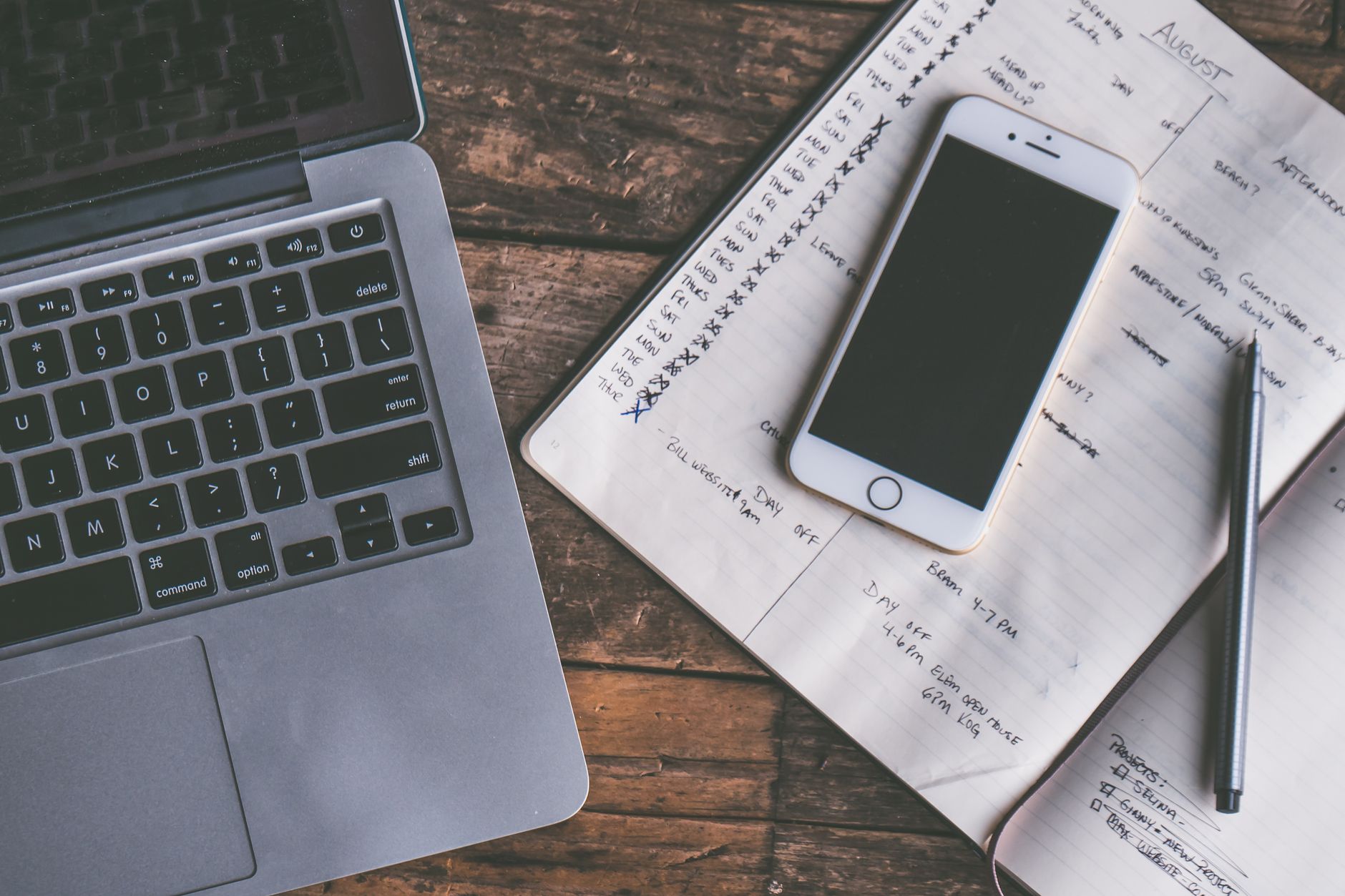
Illustrative photograph: Aerial view of a modern office desk setup featuring a laptop, smartphone, and open notebook on a wooden surface. Credit: Jessica Lewis 🦋 thepaintedsquare.