Check Network Discovery Before Casting or Printing Across Starlink VLANs
Troubleshooting & Fixes
Devices on different VLANs can have working internet and still fail to discover one another. Discovery traffic and permission to use a service are separate parts of the design.
Work through the setup
Step 1
Record which network contains the phone or laptop and which contains the printer, speaker or display. Confirm both can use their normal network functions.
Step 2
Test the devices on the same trusted LAN temporarily if policy permits. This helps distinguish application setup from cross-network discovery.
Step 3
Review the router's supported mDNS or discovery controls. Use only the required network pairs rather than relaying every VLAN.
Step 4
Review firewall rules for the actual service as well as discovery. Seeing a printer's name does not establish permission to print.
Step 5
Test from the intended user network and from a guest network that should remain isolated. Record both outcomes.
Step 6
Remove temporary broad rules and keep a diagram of the intentional exceptions. Recheck after major controller or firmware changes.
Worked example
Suppose a phone on an owner VLAN sees a television's name but cannot cast to it. Discovery may have been relayed while the session traffic remains blocked. Test both parts instead of widening the discovery relay to every network. Keep a separate guest test device to confirm visitors cannot reach the television or other private resources unless that is an explicit part of the site's policy.
Interpret the result
- Name appears, session fails: Check the service permission and path.
- Nothing is discovered: Check discovery and isolation settings.
- Guests can reach private devices: Correct isolation before expanding convenience features.
Checks and limitations
Client isolation can intentionally block device-to-device access. Do not disable guest isolation across the site to fix one owner's casting problem; place personal media devices on a suitable private network.
Why can I see a printer across VLANs but still not print?
Discovery and the printing connection may use different traffic and rules. Check both the discovery relay and the service's firewall permission. Test the intended client while keeping guest networks isolated instead of broadly allowing every VLAN.
Sources and review
Official documentation for this guide
Reviewed: 11 November 2026. The practical sequence and worked example are Starlink Tips editorial guidance. Check current instructions for your hardware, software and country.
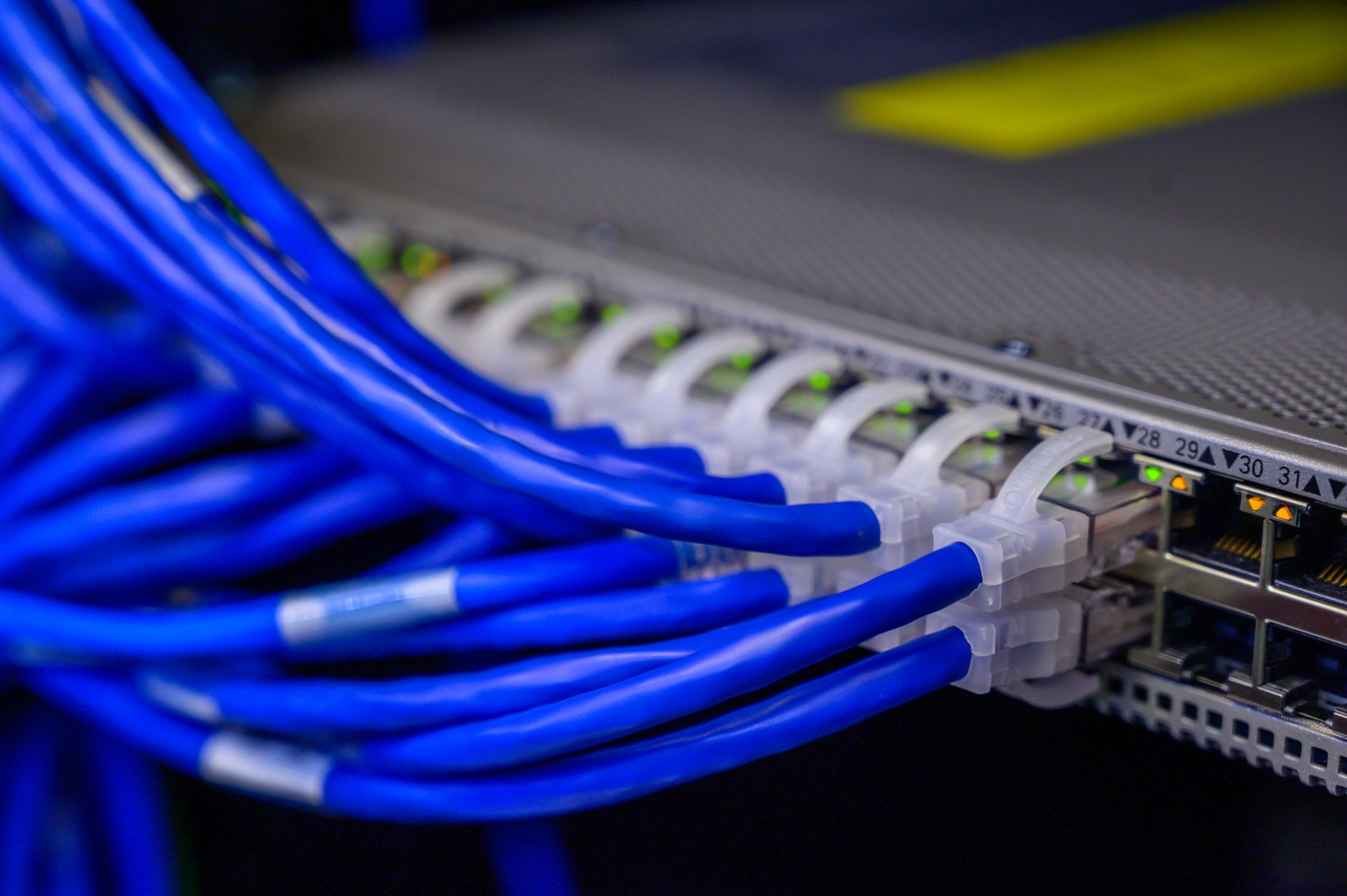
Illustrative photograph: Close-up image of ethernet cables plugged into a network switch, showcasing IT infrastructure. Credit: Brett Sayles.