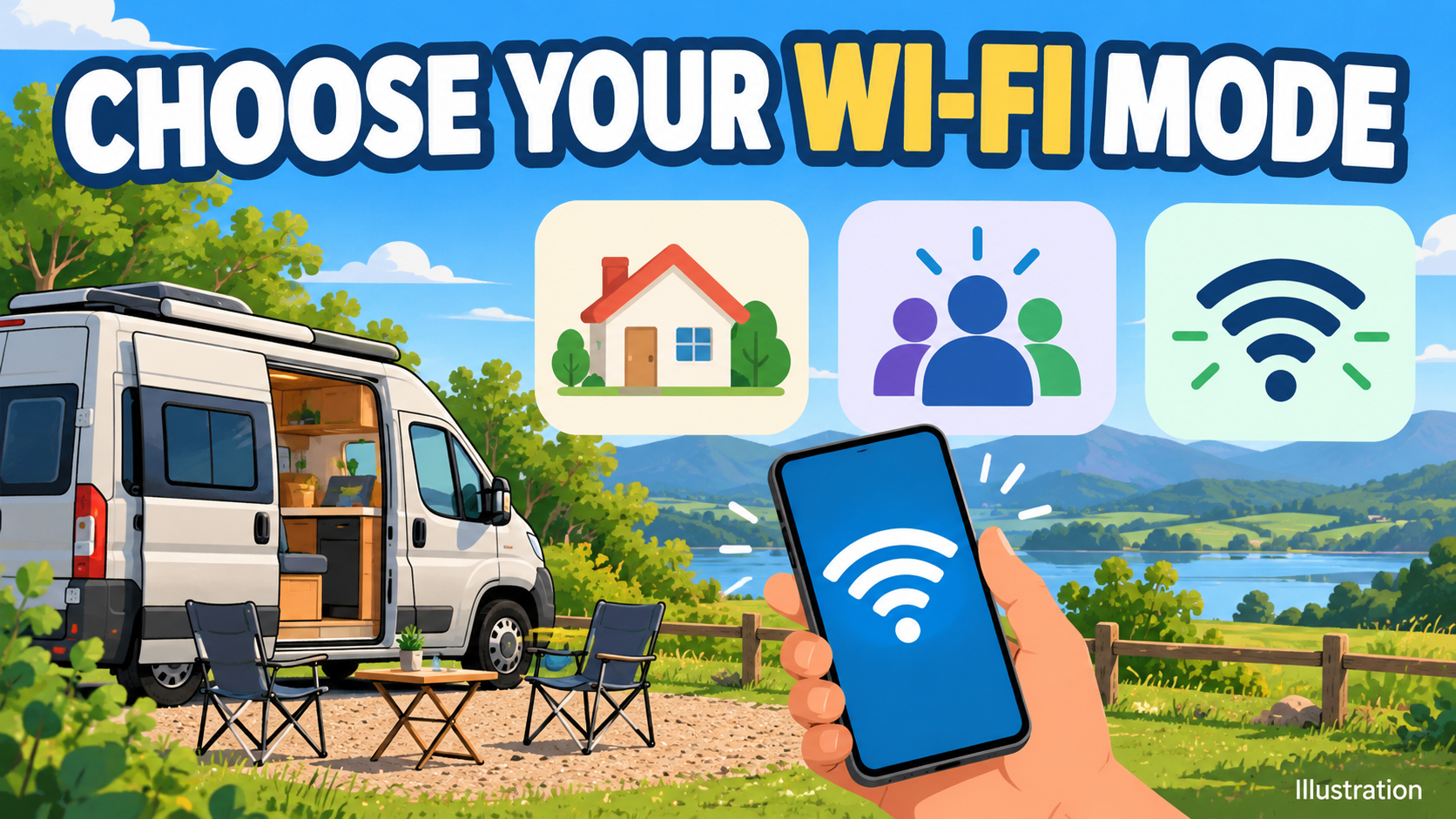
Starlink Wi-Fi Network Modes: Choosing Default, Guest or Auto
Tips & Tricks
Research checked 1 November 2026. This guide explains network behaviour; it does not authorise in-motion use or replace the instructions for your hardware.
Choose the behaviour you need
Starlink describes three modes. Default allows normal local-device communication. Guest isolates connected devices and restricts Starlink-app access. Auto is intended for mobile setups: its Wi-Fi appears when internet is ready, disappears after a connection loss lasting more than a minute, and returns when service recovers. At least one Default network must remain configured.
Menu availability depends on your equipment and current software. Consult the official mode explanation before changing a network.
Prepare a way back
Write down the network names and the purpose of each. Keep the password private. Make sure you know which network gives you local administration access, and do not delete your working setup while experimenting.
An example naming scheme is Home, Visitors and Travel Ready. Those names are only examples, not menu labels.
Set up and test one change
Open the current network settings in the Starlink app and inspect the options offered for your router. Add or adjust only the intended network. Check the confirmation text before saving.
Test a phone on that network, then test something important to you: a video call, printing or casting. A feature that depends on local discovery may behave differently on an isolated network.
For a parked travel setup, check whether the phone joins the network you intended. Inspect its auto-join settings so an older saved network does not mask your test.
When Wi-Fi is missing
First identify which network you are looking for. An Auto network and a failed router are not the same diagnosis. Use your retained management path and the app's status information before restarting equipment or changing cables.
Do not factory-reset a working router simply because a newly configured network is unavailable. Record the mode, equipment and observed behaviour if you need support.
Further help
- Official Starlink network-mode explanation
- Our guest-network guide
- DISHYtech's attributed Auto-mode video already in our library
Check the current Starlink offer
View Starlink's current offer. Starlink Tips is independent and may receive a reward for an eligible referral. Confirm the benefit and conditions on Starlink before ordering.