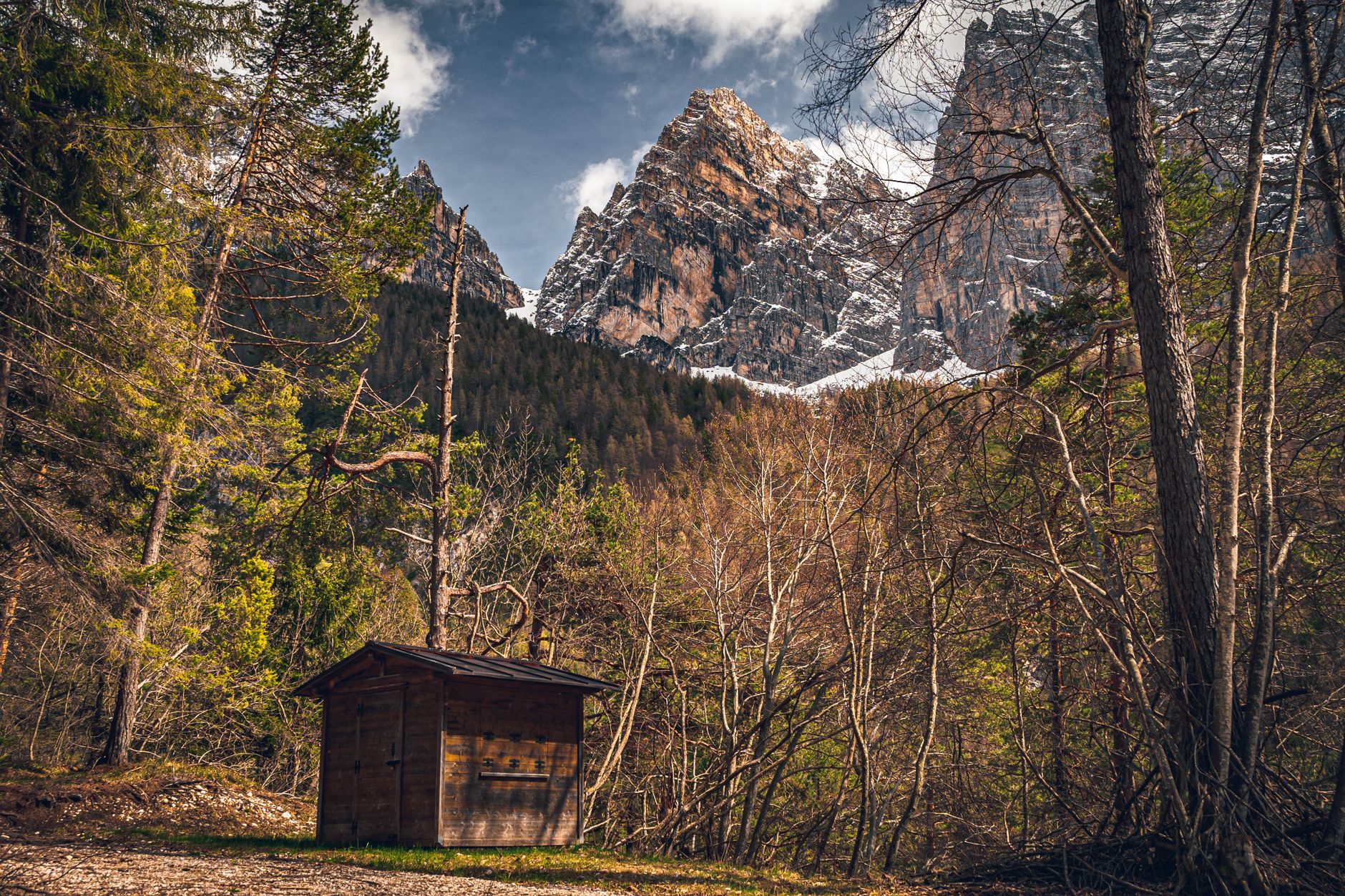
Starlink for a Remote Cabin: Arrival, Shutdown and Winter Checks
Tips & Tricks
Starlink for a Remote Cabin: Arrival, Shutdown and Winter Checks
A remote cabin needs a different Starlink routine from a home that is occupied every day. You may arrive after a long gap, find that power or weather has changed the equipment, and need to prove that the connection works in the rooms and devices that matter before you rely on it.
This guide covers a fixed cabin, lodge or rural retreat with a Starlink kit already installed or ready to be installed. It is model-neutral: hardware, plans, app labels and local rules change, so use the instructions for your exact kit and the current information shown in your Starlink account.
Before you leave the cabin
Make the next visit easier by leaving a short, private setup record. Do not write down your Starlink password in a public place.
Record:
- The service address and the account email used for the service.
- The terminal, router, power supply and any third-party access points or switches.
- Which room contains each device and which outlet powers it.
- The normal cable route, including where the cable enters the building.
- The router mode and the name of any mesh or wired network.
- The person responsible for the account and the person who can visit the cabin.
- The tasks that must work when you return, such as a work call, camera check, weather station or remote access.
Take clear photographs of the connections while the system is working. Photograph the power supply label, router ports, cable entry, terminal position and any outdoor protection. Store the photos privately with the recovery notes.
Before a longer absence, also check the Starlink account. Confirm the service line, plan, service address and payment method. A cabin that is empty for part of the year may need a different plan decision, but do not pause or cancel a service that must keep cameras, alarms or remote access online. Plan changes and availability vary by country, address and account.
Arrival checklist
1. Check the site before powering anything
Look for conditions that may have changed since the last visit:
- Water ingress, condensation, frost, pests or visible damage.
- A cable that has been pulled, crushed, chewed or moved by wind.
- Loose outdoor equipment, a shifted base or a mount that no longer looks stable.
- New branches, temporary structures or other obstructions near the terminal.
- A damaged plug, power strip or extension lead.
- A router or power supply that is hot, wet or inaccessible.
Do not touch wet electrical equipment. Keep clear of damaged cables and ask a qualified person to handle electrical, structural or roof work.
The terminal needs a safe, stable location with a practical view of the sky. Do not climb onto a roof or reach over an edge just to inspect it. If the installation is no longer safe to access, stop and arrange appropriate help.
2. Restore power in a controlled order
If the cabin has been fully shut down, reconnect the Starlink equipment and local network equipment using the normal arrangement recorded in your notes. Keep power supplies dry, ventilated and easy to reach.
Avoid changing several things at once. Do not factory-reset the router because the connection is not immediately available, and do not replace cables or add a new router until you have checked the original setup. A reset can remove working settings and make the real fault harder to identify.
Allow the system time to start. Startup time and app labels vary by hardware and software version, so use the current instructions for your kit rather than treating a short wait as proof of failure.
3. Check the Starlink app or account
Open the Starlink app or account and check:
- Whether the service is online.
- Whether the terminal reports an obstruction, hardware fault or other warning.
- Whether the service address and plan are the ones you expect.
- Whether the router and connected devices appear as expected.
- Whether the equipment has power and is communicating normally.
If the terminal is online but your phone cannot browse, separate the two problems. The satellite link, router, Wi-Fi coverage and individual device are different parts of the system.
4. Test near the router first
Connect one known-good phone or laptop close to the Starlink router or main access point. Confirm that it joins the intended Wi-Fi network and can load a few ordinary websites.
This first test answers a narrow question: can one device use the local network and internet? It does not prove that the cabin has good coverage everywhere.
Run the test without a VPN, captive portal, unusual DNS setting or other optional network feature if possible. Reintroduce those services only after the basic connection works.
Test the cabin, not just the router
Walk to the rooms where you actually work, sleep or use connected equipment. Test:
- A phone or laptop in each important room.
- Any wired access point, switch or mesh node.
- The camera, alarm, weather station or other device that must work remotely.
- A video call or other real task if the cabin is used for work.
- The connection after doors, cupboards and interior walls are in their normal positions.
A fast test beside the router cannot reveal a weak signal in a stone room, metal-clad extension, loft or separate building. If a distant room is unreliable, measure the local Wi-Fi problem before buying a new dish or changing the service plan. The remedy may be access-point placement, a proper wired link or a compatible mesh arrangement.
For a camera or sensor, test the whole path:
device -> local network -> router -> Starlink -> remote service
A camera with power but no backhaul is offline. A router with Wi-Fi but no internet is a different failure again. Write down the result of the real test so the next visit starts with evidence rather than guesswork.
Decide what should remain powered
There is no single correct shutdown choice for every cabin.
Leave the connection powered when the cabin needs:
- Remote cameras or alarms.
- Temperature, water or power alerts.
- A person to check the site remotely.
- Scheduled equipment that depends on the internet.
- A planned arrival where someone needs the connection before reaching the property.
If you leave the system powered, confirm that the power arrangement, backup runtime, ventilation and remote alerting have all been tested. A battery inside one sensor does not keep the Starlink terminal and router online.
Shut down or unplug equipment only when you have confirmed that remote access is not required and the cabin's electrical and environmental conditions make an unattended powered system unsuitable. Follow the normal shutdown and storage guidance for the exact hardware. Do not pull connectors by their cable, coil cables tightly around sharp objects or leave connectors where water can collect.
Keep a simple label on the equipment, not the account password. It should identify the Starlink power supply, router, access points and any non-Starlink equipment so a visitor can reconnect the right parts without guessing.
Winter and long-vacancy checks
Cold weather, snow, ice, wind and condensation can change the condition of a cabin installation even when the internet was reliable in autumn.
Before a winter absence:
- Confirm that the terminal and mount are suitable for the location and expected conditions.
- Check that cable entries shed water and that indoor connectors remain dry.
- Remove loose objects that could strike the terminal or cable.
- Make sure the equipment can be inspected without an unsafe climb.
- Decide who will respond to a power, water, temperature or connectivity alert.
- Record the last working status and the date of the next planned inspection.
Do not climb onto a roof, scrape ice from the terminal or pour hot water over equipment as an improvised fix. Use the current instructions for your exact hardware and arrange safe access for any work at height. Snow, ice or an obstruction may need a different response from a hardware fault.
If the cabin uses a heater, dehumidifier, pump or other appliance while empty, treat that as a separate safety decision. Confirm that the appliance is appropriate for unattended use, that its power circuit is suitable and that someone can respond if it fails. Starlink connectivity cannot make an unsafe unattended appliance safe.
When the connection fails after an absence
Use this order so you do not create several new faults:
- No lights, power or signs of life: check the supply, outlet, cable connections and any approved backup power arrangement. Stop if equipment is wet or damaged.
- The app sees a fault or the terminal is offline: check the exact alert and current Starlink support instructions. Record the time and what changed before the failure.
- The terminal appears online but Wi-Fi is missing: check the router, Wi-Fi name, access points and local cabling. Test close to the main router.
- Wi-Fi works but only one device fails: test that device on another network or test a second device in the same room. Do not reset the whole cabin for a single-device problem.
- The cabin is online but remote devices are not: check their power, local network, account access and cloud service. A working Starlink connection does not prove that each camera or sensor has recovered.
- The service address or plan looks wrong: use the account's current controls and support route. Do not repeatedly change the service address while troubleshooting a local Wi-Fi issue.
Keep notes of each change. If support or an installer becomes involved, a short timeline and a photograph of the working setup can save a great deal of time.
A printable remote-cabin checklist
On arrival
- [ ] The cabin is safe to enter and there is no visible water or electrical damage.
- [ ] The terminal, mount, cable and connectors look secure and dry.
- [ ] No new obstruction or unsafe access problem affects the terminal.
- [ ] Power is restored in the normal arrangement.
- [ ] The Starlink app shows the expected service and no unresolved warning.
- [ ] One device works beside the router.
- [ ] Important rooms and real-use devices have been tested.
- [ ] Cameras, alarms or sensors have passed a remote check if they are in use.
Before leaving
- [ ] The account, service address and plan are recorded privately.
- [ ] The connection is deliberately left powered or deliberately shut down.
- [ ] Remote alerts and the response person are confirmed.
- [ ] Power supplies and connectors are dry, ventilated and protected.
- [ ] Cable routes and device locations are photographed.
- [ ] A next inspection date or arrival test is planned.
- [ ] The recovery notes identify the equipment without exposing account credentials.
For current hardware, account and service guidance, check Starlink Support and the instructions shown for your exact kit and location. Availability, plan features, app labels and hardware requirements can change.
Sources and attribution
This is an independent Starlink Tips guide. Starlink's support library is the final authority for the hardware, plan and service address on your account. Pexels image attribution is recorded with the imported hero image.
Reviewed 8 November 2026.