Monitor Starlink on a Computer With Dishylink: A Careful First-Use Guide
Tips & Tricks
Dishylink is an independent desktop and browser project, not the official Starlink app. It may be useful if you want to keep connection information visible while working at a computer. Start with observation, retain the official app and decide which extra permissions you actually need.
Before downloading
Open the developer's own site and follow its platform links. Check the operating system and processor architecture, release notes and current privacy information. Do not use a download from an unrelated advert or bypass a security warning simply to make it run. If a work computer is managed, ask your IT team first.
The developer describes local telemetry, logs and charts, and says recorded telemetry stays on the machine. That is the project's stated privacy position, not an independent security audit by Starlink Tips. Features and supported hardware can change between versions.
Make a read-only baseline
Connect the computer to your normal home network. Before changing anything, note your terminal model, router arrangement, time and the connection status in the official app. Open the desktop tool and compare what it reports over the same short period.
Record which readings are available in your configuration. Missing router information in bypass mode does not by itself establish a dish fault. Use the project's current troubleshooting guidance for local access; do not expose management ports on the public internet.
Avoid account linking and hardware-control actions during the initial comparison. If you later consider an optional account connection, read the permissions and privacy details for that exact version first. Do not paste credentials, tokens or private diagnostic output into a public question.
Use logs to answer one question
Choose a purpose: documenting brief interruptions, comparing busy and quiet periods, or collecting timestamps for support. Record the task you were doing, other household traffic and any relevant official-app events alongside the desktop log.
A monitoring gap is not automatically an internet outage: the computer may have slept or the tool may have stopped recording. Likewise, traffic throughput and a deliberate speed test answer different questions. Compare like with like and keep the original timestamps.
When to stop experimenting
If a reading conflicts with the official app, keep both records and investigate before changing alignment, firmware or routing. Use Starlink's instructions for hardware actions and the developer's support route for software behaviour.
The accompanying DISHYtech video is a third-party overview. Its published title and description were checked; we have not independently tested every feature or verified every statement in the video. This guide is a research-based first-use checklist, not a software endorsement.
Related question
What information should I include in a Starlink support request?
Sources and further reading
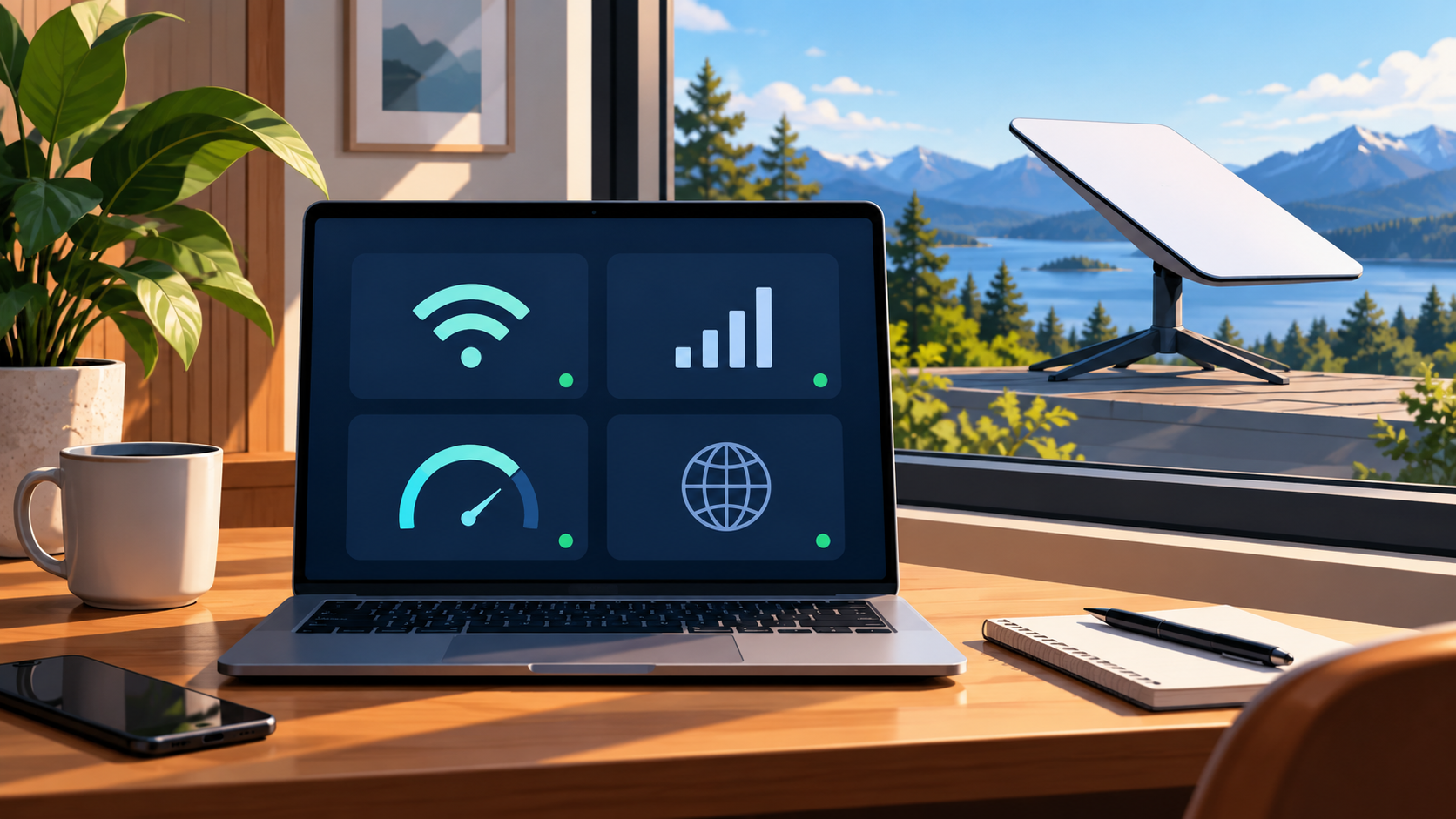
Independently written Starlink Tips guide, reviewed 1 November 2026. Thumbnail: original AI-generated conceptual artwork, not an equipment, wiring or measurement diagram. Follow current instructions for your exact hardware.