How to Build a Starlink Emergency Communications Plan Before an Outage
Tips & Tricks
Starlink can be a useful internet link during a local outage, but only if the dish, router, power source and wider Starlink service are all available. A short plan made before the outage helps you use the connection for essential messages without assuming it will replace cellular service, a landline or local emergency communications.
Safety first: If someone is in immediate danger, use the fastest emergency route available in your area. Starlink is not an emergency service and should not be your only way to call for help.
What can stop working
An outage can affect different parts of the chain:
- The site may lose mains power, leaving the dish and router off.
- A battery, inverter or generator may not support the complete Starlink setup for long enough.
- The dish may have an obstruction, severe weather or a damaged cable.
- A local network or wider service problem may interrupt access even when your equipment is powered.
- A phone may appear connected to Wi-Fi while the internet path is unavailable.
Plan for each failure separately. A powered router does not prove that Starlink service is available, and a working Starlink connection does not prove that every phone, app or Wi-Fi calling feature will work.
Build the plan before an outage
1. Choose the essential messages
Write down what you would actually need to send or receive:
- A short message to family, neighbours or a property manager.
- An update to work, school or a care provider.
- A weather, road or local authority page.
- A downloaded map, medical document or other offline reference.
- A way to receive a callback or confirm that someone is safe.
Keep the list small. A defined priority makes it easier to conserve battery and data.
2. Save contacts and information offline
Keep a paper copy and an offline copy on at least one phone or laptop. Include important phone numbers, addresses, medical details that you are permitted to carry, property access instructions and any local emergency information.
Do not depend on a password manager or cloud-only document if your Starlink connection is unavailable. Test that the offline copy opens while the device is in airplane mode.
3. Measure the complete power load
Measure or estimate the complete setup that must stay on: dish, router, any third-party router or mesh system, and the device used to send messages. The router alone is not the whole load.
Use the measured load to choose a UPS, battery or generator plan with headroom. Runtime depends on the actual equipment, battery condition, temperature, conversion losses and the amount of reserve you keep. Treat any runtime number as an estimate until you test it.
Never run a fuel-burning generator, barbecue or other combustion appliance indoors or in an attached garage. Use a qualified electrician for permanent generator, transfer-switch or fixed battery work.
4. Prepare a small communications kit
Keep these together and charged:
- One or two phones and a laptop or tablet if needed.
- Charged power banks with the correct cables.
- A UPS or other approved backup power source for the complete Starlink path.
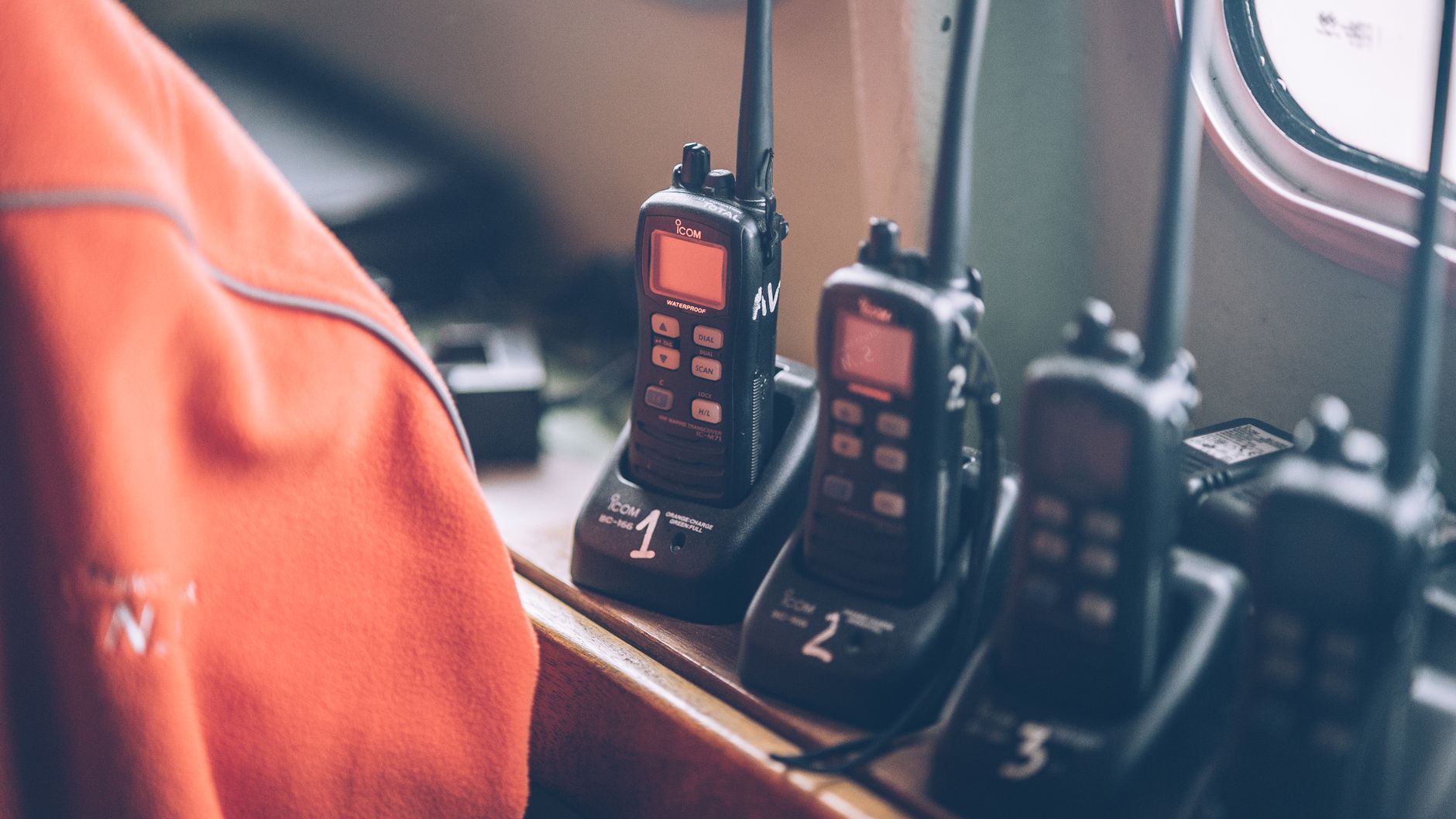
- A battery radio or another independent source of local alerts.
- A flashlight and paper contact sheet.
- Any adapter needed to charge the device you will use for messaging.
Label cables and write down which outlet or battery port powers each part. In a stressful outage, that small detail saves time.
5. Preconfigure one low-bandwidth device
Choose one trusted device for essential communication. Before an outage:
- Connect it to the Starlink Wi-Fi and confirm that it reaches the internet.
- Install required updates while normal power and service are available.
- Download maps, contact details and other information you may need offline.
- Turn off unnecessary automatic photo backup, app updates and video syncing during an outage.
- If you use Wi-Fi calling, confirm that your carrier supports it and that its emergency-address requirements are complete. Test it before relying on it.
Do not disable security controls or expose router management pages to make an emergency setup work.
Run a supervised test
Test the plan while normal service is available:
- Start with the Starlink dish and router running normally.
- Confirm that the chosen device can send a short message and open one low-bandwidth information page.
- Move the Starlink equipment to the intended UPS or backup source, following the equipment and power-source instructions.
- Recheck the device, the Starlink app or status page, and the pages you actually need.
- Send a test message to a person who knows it is only a test.
- Record the time, battery level, power source and what failed.
- Restore normal power and confirm that the system returns to its normal state.
A test that only powers the router is incomplete. Test the dish, the router, the network path and the client device together.
Use Starlink during an outage
When communication is essential:
- Turn on only the equipment and device you need.
- Send short text-first updates before attempting calls or video.
- Download or open essential information once, then use offline copies.
- Avoid streaming, large uploads, cloud photo synchronisation and unnecessary speed tests.
- Check whether the problem is power, the local network, the dish view, weather or the wider service before repeatedly rebooting.
- Keep a backup route available, such as cellular service, a battery radio or a nearby trusted contact. Do not assume all routes share the same failure mode.
If the backup battery is nearly empty, send the most important message first and shut down cleanly according to the equipment instructions. Do not keep retrying a failed connection until all reserve power is gone.
Recovery checklist
When normal power or service returns:
- Check cables, connectors and the power source for heat, moisture or damage.
- Confirm that the dish and router are back on their usual power path.
- Verify internet access from the same device used in the test.
- Re-enable normal backup, sync and update settings.
- Recharge power banks and the UPS.
- Replace the paper contact sheet or offline files if anything is out of date.
- Write down the cause and duration of the outage while you still remember it.
Ten-minute readiness check
Your plan is ready when you can answer yes to these questions:
- Do I know which messages are essential?
- Can I open contacts and key information without the internet?
- Can my backup power run the complete Starlink path, not just the router?
- Have I tested the actual device I will use?
- Do I have a second communications route?
- Does everyone who may use the setup know the power sequence and shutdown point?
Review the plan when you change the dish, router, backup power, phone carrier or location. The goal is not to keep Starlink running indefinitely; it is to preserve a short, tested window for essential communication while keeping people and equipment safe.