Starlink Gen 3 Unboxing & Setup: What's New and How to Use It
Installation & Setup Guides
Introduction to Starlink Gen 3 (Standard)
The Starlink ecosystem is constantly evolving, and the release of the Gen 3 (Standard) kit marks a significant shift in how users interact with their satellite internet. Whether you are a brand-new customer or an existing user looking to upgrade, understanding the nuances of the Gen 3 hardware is essential for a seamless installation and optimal performance.
In this guide, we will walk through everything from the unboxing experience to the final setup steps, highlighting the key differences that set this generation apart from its predecessors.
---
What's in the Box? An Unboxing Guide
When you first open your Starlink Gen 3 package, you'll notice a cleaner, more streamlined presentation compared to older models. Here is exactly what you should find inside:
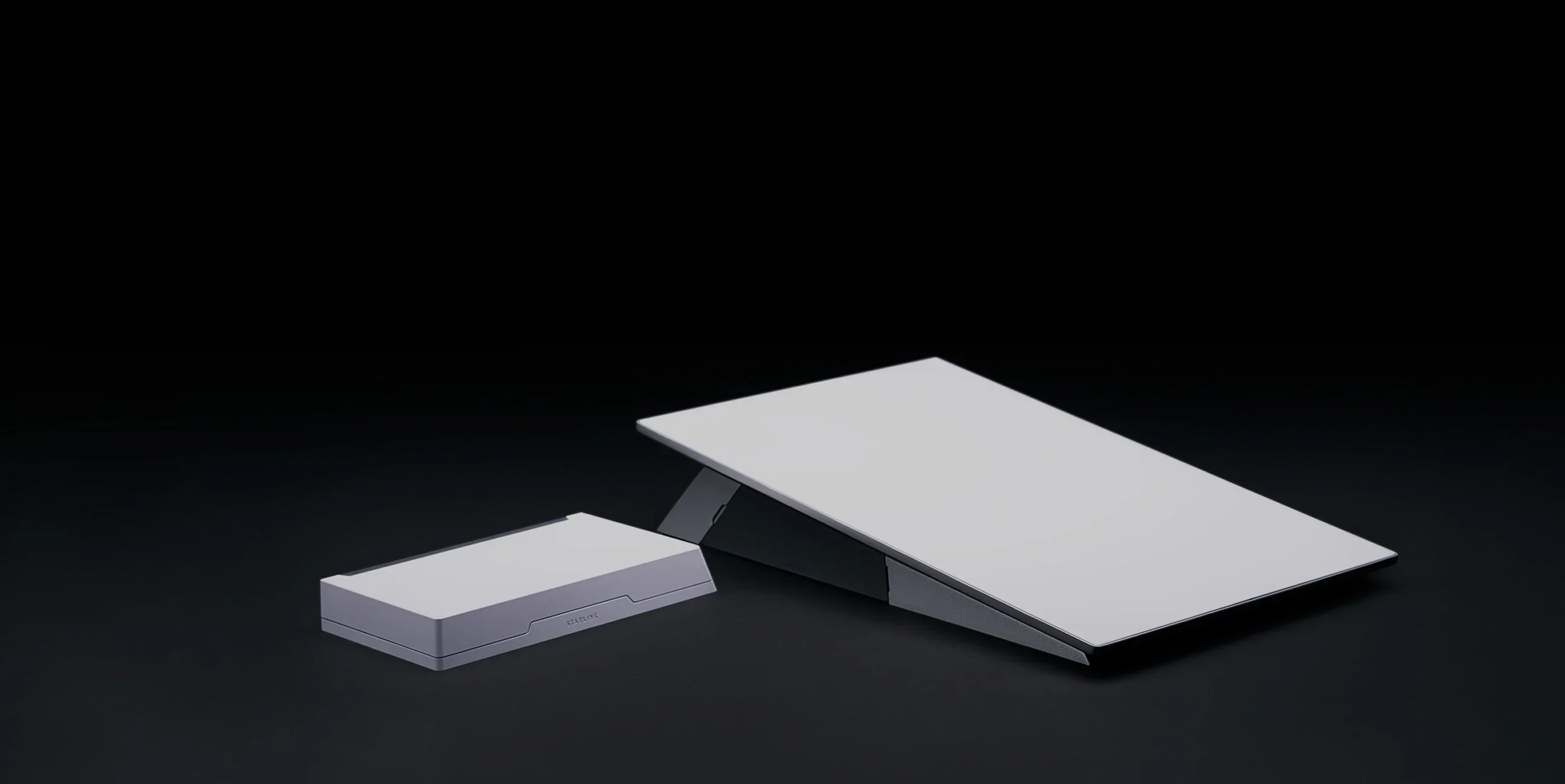
- The Starlink Gen 3 Dish: A sleeker, more modern design with improved weatherproofing.
- Starlink Gen 3 Router: A redesigned Wi-Fi 6 router that provides better coverage and stability.
- Starlink Gen 3 Cable: A proprietary cable designed to handle higher data rates and power delivery.
- Kickstand: One of the most significant additions is the integrated kickstand, allowing for easier, tool-free setup in many environments.
- Mounting Hardware (Optional/Kit Dependent): Depending on your specific kit, you may have basic mounting options included.
Pro Tip: Check for Damage Immediately
Before you begin the setup, inspect the dish and the cable for any visible signs of damage from shipping. A small tear in the cable can lead to significant signal issues later on.
---
Key Differences: Gen 3 vs. Previous Generations
If you are coming from a Gen 2 (Actuated) setup, the Gen 3 will feel very different. Here are the major changes:
1. The Kickstand vs. The Motorized Mount
The Gen 2 dish was motorized, meaning it would automatically tilt to find satellites. The Gen 3 is a non-actuated dish. It relies on the integrated kickstand and manual positioning to get the best view of the sky. While this means it won't "move" on its own, it is much more durable and simpler to deploy.
2. Improved Wi-Fi 6 Router
The Gen 3 router is a significant upgrade. It supports Wi-Fi 6, which offers faster speeds, better handling of multiple devices, and improved range compared to the older Wi-Fi 5 routers. This is a game-changer for households with many smart devices.
3. Cable Design and Connection
The cables for the Gen 3 are designed to be more robust, but they are still proprietary. Ensure you use the official Starlink cable provided in the kit to avoid power delivery issues.
---
Step-by-Step Setup Guide
Follow these steps to get your Gen 3 Starlink up and running in minutes.
Step 1: Find the Perfect Location
Since the Gen 3 dish does not move on its own, placement is everything.
- Use the Starlink App to perform a "Scan for Obstructions."
- Look for a location with a completely clear view of the sky. Even a single tree branch can cause intermittent connection drops.
- Aim for high ground or an open rooftop.
Step 2: Deploy the Kickstand
The Gen 3 dish features a built-in kickstand.
- Place the dish on your chosen surface.
- Adjust the kickstand to angle the dish toward the clearest part of the sky.
- If you are mounting it to a roof, you will need to use a dedicated Starlink mount (sold separately).
Step 3: Connect the Hardware
- Plug the Starlink cable into the dish.
- Plug the other end of the cable into the Starlink router.
- Plug the router into a power outlet.
Step 4: Configure via the Starlink App
Once the hardware is powered on, download the Starlink App (available on iOS and Android).
- Follow the in-app prompts to connect to the Starlink Wi-Fi network.
- Set your network name (SSID) and a strong password.
- The app will guide you through the final activation process.
---
Optimizing Your Gen 3 Performance
To get the most out of your new hardware, keep these tips in mind:
- Manage Your Cables: Use cable clips or conduits to protect the Starlink cable from UV damage and physical wear.
- Firmware Updates: Starlink frequently pushes updates to improve performance. Allow your system to restart automatically when prompted.
- Bypass Mode: If you prefer using your own high-end mesh system (like Eero or ASUS), consider using the Starlink Ethernet Adapter to put the Gen 3 router into "Bypass Mode."
Conclusion
The Starlink Gen 3 is a robust, user-friendly evolution of satellite internet technology. By moving away from motorized mounts and embracing a more manual, stable design with Wi-Fi 6 capabilities, Starlink has created a kit that is perfect for both permanent homes and semi-permanent setups.
Follow these steps, respect the "clear view of the sky" rule, and you'll be enjoying high-speed internet in no time!