Check Whether a Wi-Fi Link Rate Explains Your Starlink Speed
Speed & Performance
The connection rate displayed by a computer is not the same as useful internet throughput. It can still help identify a local limitation when compared with signal, band and actual transfer tests.
Work through the setup
Step 1
Record the client's reported link rate, Wi-Fi band and access point while it remains in one position. Avoid comparing figures taken while walking around.
Step 2
Run the same small speed test near the main router and in the problem location. Keep the application and test destination consistent.
Step 3
Compare a known-good device in the same location. Different radios and antennas can behave differently even on the same network.
Step 4
Check the access point's backhaul and the wired link feeding it. A strong client signal cannot repair a constrained upstream hop.
Step 5
Review channel and device compatibility only after the baseline. Do not choose the widest channel or newest standard solely for its advertised number.
Step 6
Record which change improves usable performance and restore unsuccessful changes. Keep the results alongside the Starlink router-to-internet measurement.
Worked example
Suppose a laptop reports a high radio link rate but an access point reaches the rest of the network through a constrained backhaul. Buying another high-rate client does not repair that hop. Compare a wired client at the main router with the same laptop near the access point, and inspect the backhaul. Keep the radio rate, local throughput and internet throughput as separate measurements in your notes.
Interpret the result
- Backhaul is constrained: Repair that hop before buying clients.
- Only one client is slow: Investigate that device and its radio.
- Local path is strong: Compare the external internet path next.
Checks and limitations
Treat the displayed rate as context rather than a promise. A high link rate with poor local throughput still merits checking interference, driver behaviour and the rest of the path.
Is the Wi-Fi link speed shown on my laptop my Starlink internet speed?
No. It describes the local radio connection and differs from useful data throughput. Compare local and internet tests, the access point backhaul and another device in the same position before blaming the satellite service.
Sources and review
Official documentation for this guide
Reviewed: 11 November 2026. The practical sequence and worked example are Starlink Tips editorial guidance. Check current instructions for your hardware, software and country.
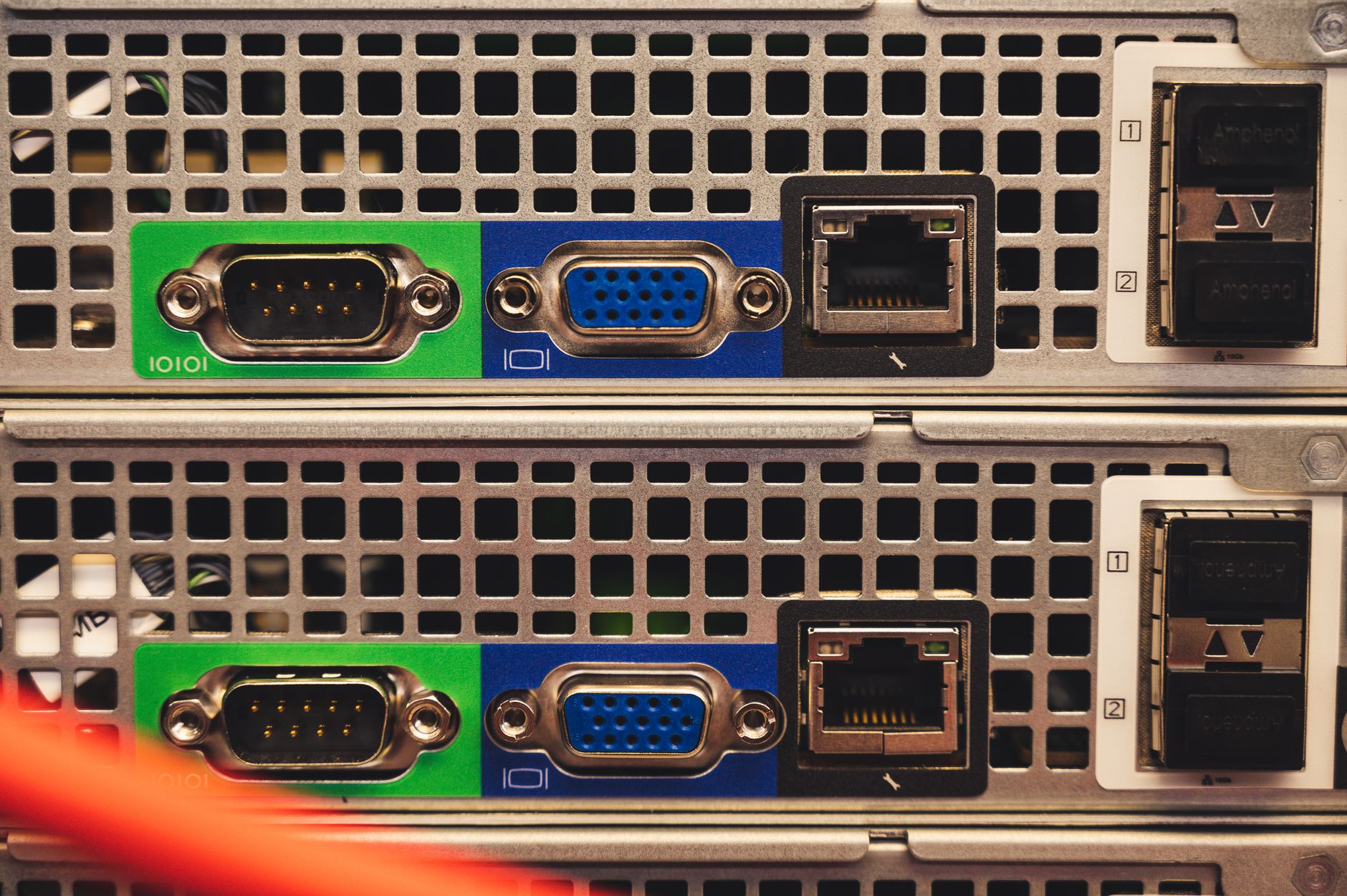
Illustrative photograph: Detailed view of Ethernet and VGA ports on a server highlighting connectivity features. Credit: Brett Sayles.