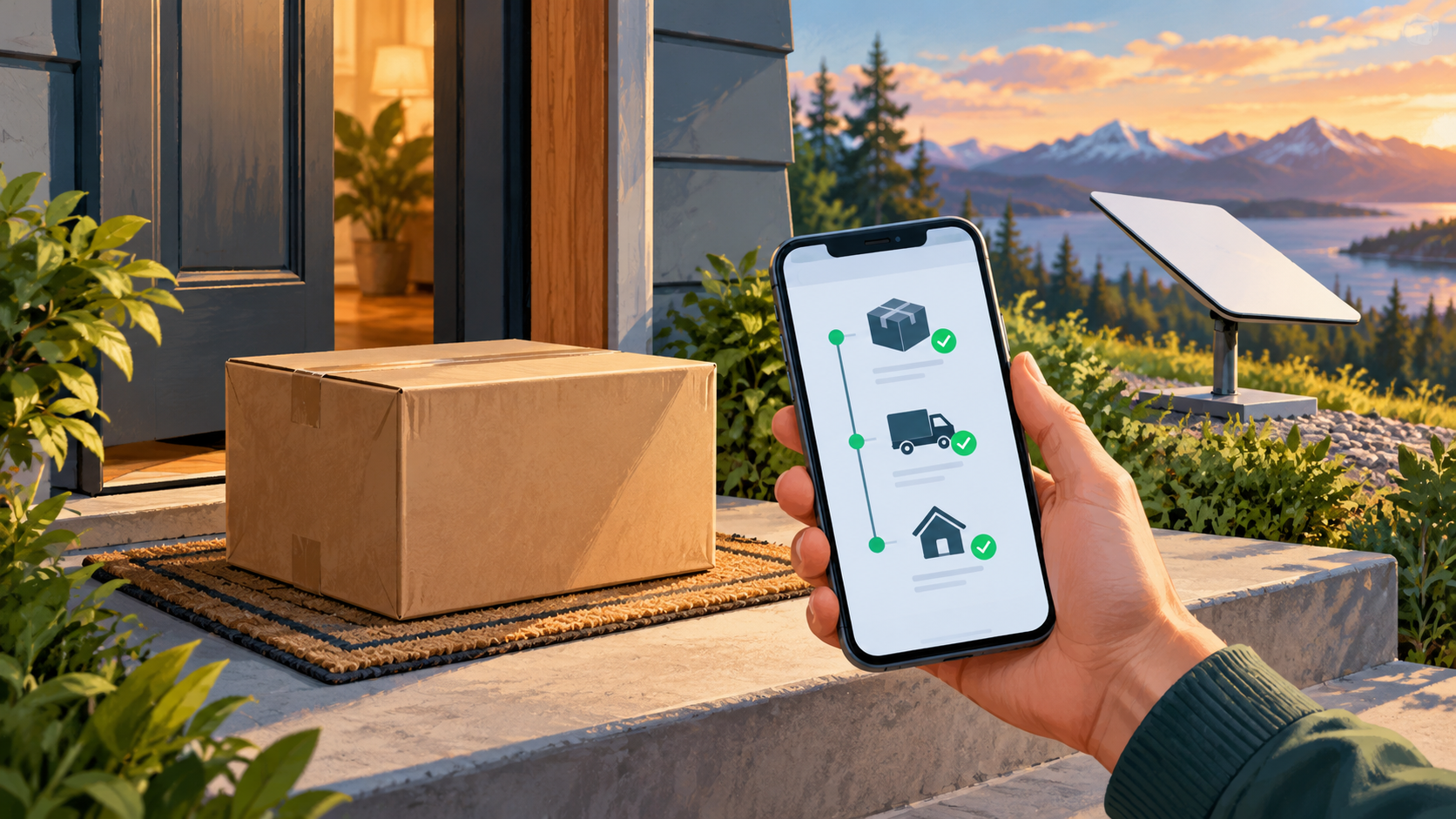
How to Track a Starlink Delivery and Investigate a Missing Update
Getting Started
Research checked 1 November 2026. Delivery estimates and account screens can change. Use the details for your own order rather than a delivery promise from an older tutorial.
Find the order before chasing the parcel
Open Starlink directly and sign into the account used for the purchase. In the account area, open Orders and select the relevant item. On the app, open its menu and look for Orders. Check that you have selected the kit rather than a separately ordered cable or mount.
Record the order date, item, current status and latest estimate privately. If there are several orders, make a separate note for each. An accessory arriving first does not establish that the dish is missing.
Distinguish preparation from delivery
Starlink's shipping guidance lists Pending, Preparing Shipment and Shipped. A tracking number becomes useful once the order has shipped. Open the tracking link supplied inside the order and use that carrier's current information.
Before dispatch, use the estimate in the Starlink order. After dispatch, distinguish the carrier's estimated arrival from Starlink's earlier shipping window. Avoid booking an installer solely around an old estimate; agree what happens if the kit arrives late.
When an update appears stuck
Compare the last carrier scan with the latest order status. Starlink says account status changes can take up to three hours to appear. Its tracking FAQ gives regional guidance for longer gaps, so read the current version for your country before escalating.
If the carrier cannot explain a delay, collect the order number, tracking reference, last scan and a short description of the problem for Starlink Support. Keep that information inside the private support conversation. Do not post a shipping label, full address or tracking number in public comments.
If tracking says delivered but you cannot find the parcel, check the delivery photo or proof, agreed safe place and anyone authorised to receive it. Report the mismatch to the carrier and Starlink with the facts you can confirm. Do not place a duplicate paid order simply to restart tracking.
A useful support note
Use this short structure: “Order [private reference], item [kit/accessory], latest status [status], last carrier scan [date], expected event [event]. I checked [steps]. Please investigate [specific issue].” Add screenshots with unrelated personal information removed.
For a retailer purchase, start with the retailer's order and delivery process; a Starlink service account may not hold that retailer's shipment record.
Sources and related help
- Starlink shipment tracking instructions
- Starlink shipping-status explanation
- Starlink tracking-update guidance
- Topic inspiration: Starlink Insider's order-status guide. This is an independently written checklist; their text and screenshots are not reproduced.
Check the current Starlink offer
Check your current price and offer on Starlink. Starlink Tips is independent and may receive a reward for an eligible referral. Confirm the price, benefit and conditions shown for your location before ordering.